How to dictate time entries and notes in Clio
This is a step by step guide to dictate Clio time entries and notes on a Mac with free Apple Dictation. It also explains what Clio itself offers for dictation.
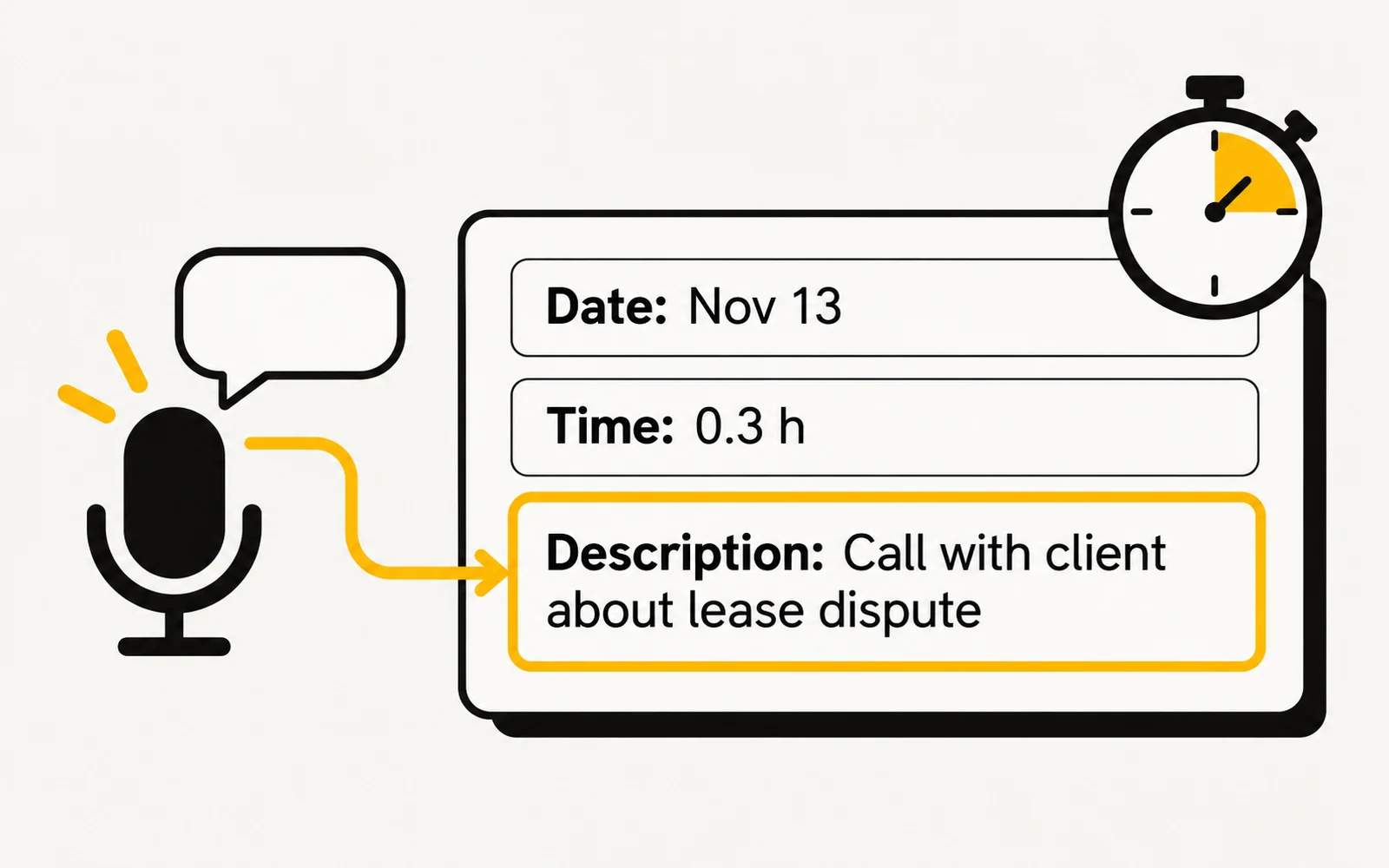
Clio Manage doesn't have its own dictation button in the web version. But on a Mac, you can dictate into Clio for free with Apple Dictation. It works in any text box where you can type, including the ones in Clio.
We have built Roar, a dictation app that is light years ahead of Apple Dictation. There's a link to try Roar for free at the end of this article.
How do I dictate into Clio on a Mac?
Time needed About 2 minutes the first time.
- Turn on Apple Dictation once. Click the Apple logo in the top-left corner of your screen, then System Settings, then Keyboard. Under Dictation, turn the switch on. Our guide on how to dictate on a Mac shows every step with pictures.
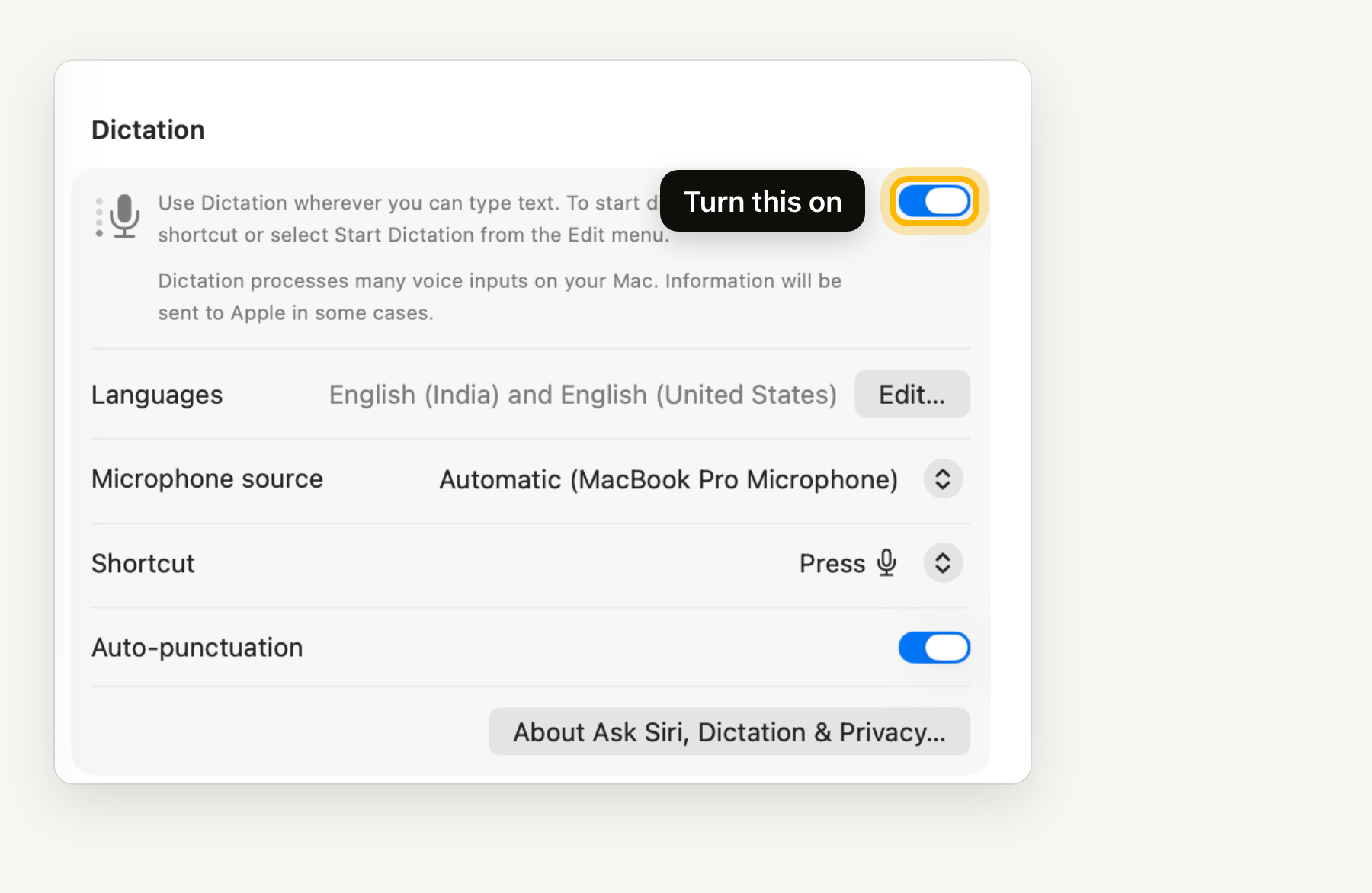
- Open Clio Manage in your browser, like Chrome or Safari, and sign in.
- Open the place you want to write in, like a new time entry or a note.
- Click inside the text box, so you see the blinking cursor there.
- Press the Microphone key once and let go. On most Mac keyboards from the last few years, the F5 key has a small microphone on it. This is the Microphone key.
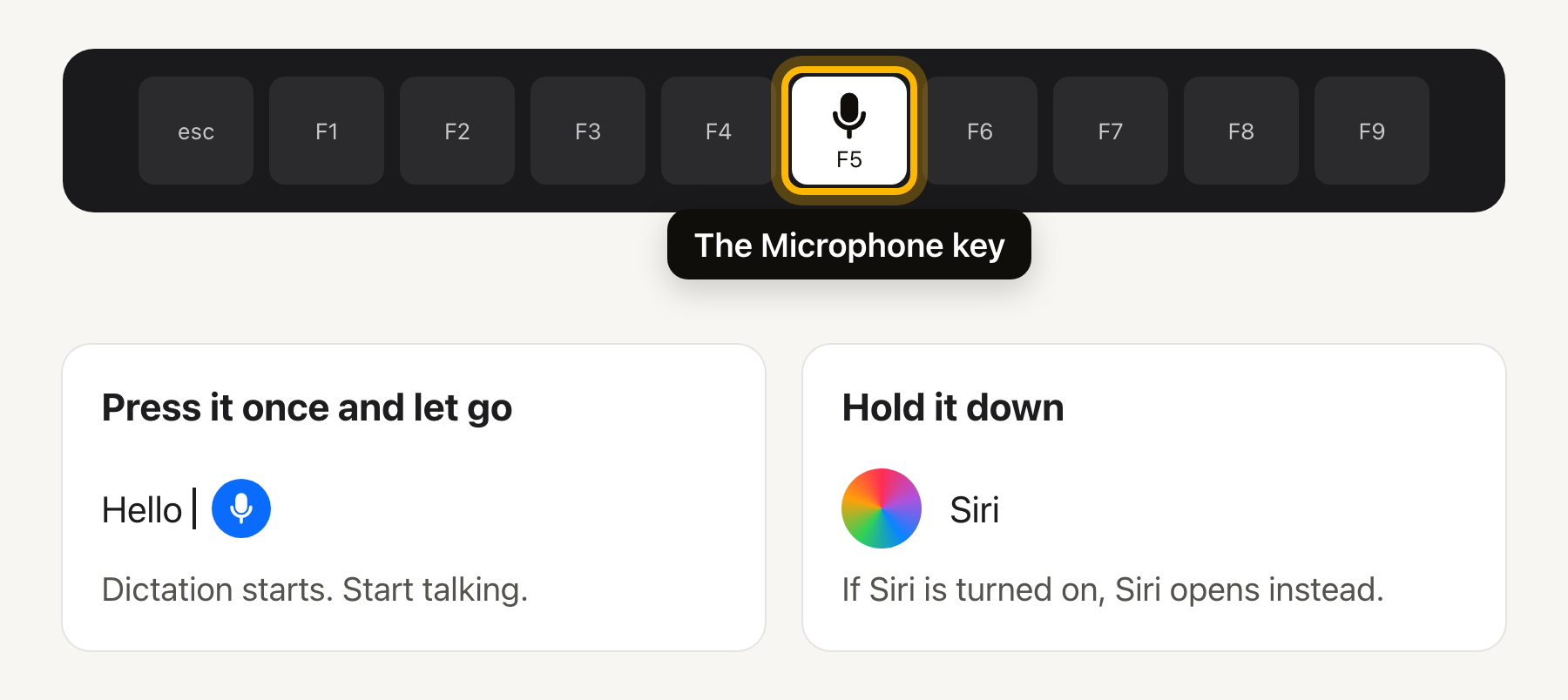
- Wait for a small microphone to appear next to your cursor. That means your Mac is listening. It looks the same in Clio as it does in any other app.
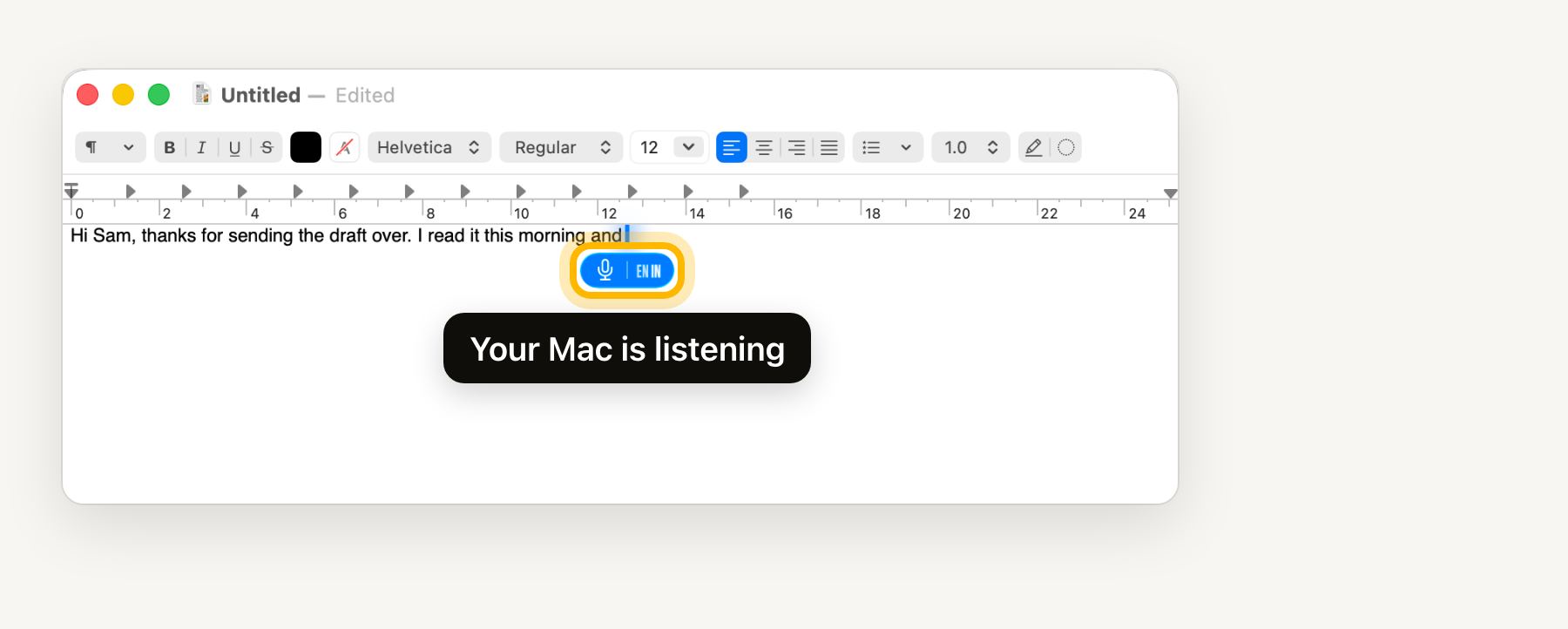
- Talk at your normal speed, in full sentences.
- When you finish, press the Microphone key again, or press Escape.
- Read what was typed before you save. Dictation gets names, case names and legal terms wrong more often than everyday words.
Don't hold the Microphone key down. If Siri is turned on, holding the key opens Siri instead.
How do I dictate a time entry in Clio?
Open a new time entry, click in the Description field, and dictate the description. Then type the time and save.
- At the top of Clio Manage, click Create new, then click Time entry. You can also open a matter, go to its Activities tab, and click New time entry.
- Choose the matter.
- Click in the Description field.
- Press the Microphone key and say what you did.
- Press the Microphone key again to stop.
- Type the time in the Duration field. Clio understands formats like "1h 12m" or "1.2h".
- Click Save entry.
If you use Clio's timer, the steps are almost the same. Click the play button at the top of Clio Manage to start the timer. When you click the pause button to stop it, the time entry window opens. Click in the Description field and dictate there.
What should I say in a Clio time entry?
Say what you did, why you did it, and what came of it, in one sentence.
For example: "Telephone conference with client about trustee selection; client chose her sister as successor trustee; updated drafts."
Say it right after the task ends, while you still remember the details. Our page of billing narrative examples has thirty entries like this, sorted by practice area.
Apple Dictation adds most commas and periods for you. When it misses one, say "comma" or "period" out loud.
How do I dictate notes in Clio?
Open the matter, go to its Notes tab, and start a new note. Click in the box for the note's text, press the Microphone key, and talk.
Dictation won't start a new paragraph by itself. Say "new paragraph" when you want one.
Apple Dictation stops listening when you haven't spoken for 30 seconds. Apple designed it this way, and there is no setting to make it longer. You can talk for as long as you like, but if you stop to think, look at your cursor. If the small microphone has gone, press the Microphone key again.
Does Clio have a dictation feature?
Not in Clio Manage on the web. Clio's help pages don't describe a dictation button there. Here is what Clio does offer:
- The Clio mobile app works with your phone's own dictation. You tap the microphone on your phone's keyboard.
- On an iPhone, Siri can start and stop Clio's timer. Say "Hey Siri, start a timer in Clio".
- Clio's own AI features can create a time entry from a request you type. Clio's help pages describe typing the request, not speaking it.
- Clio's App Directory lists outside dictation and transcription services that connect to Clio. With some of them, a person types up your recording and sends the document back later.
Apple Dictation is different from all of these. It is already on your Mac, it is free, and the words appear while you talk.
How do I dictate into Clio on iPhone?
Open the Clio app, tap in the text box, and tap the microphone on your iPhone's keyboard. Then talk.
Clio's help center says you need to turn on dictation on your phone first.
Why is dictation not working in Clio?
Usually Apple Dictation is switched off, or the cursor is not in a text box. Check these in order:
- Make sure Dictation is turned on, in System Settings, under Keyboard.
- Click inside the Clio text box first, so the cursor is blinking there. Then press the Microphone key.
- Make sure your Mac is listening to the right microphone. On the same Keyboard page, under Dictation, check Microphone source.
- Remember that Dictation stops after 30 seconds of silence. Press the Microphone key again to carry on.
If it still doesn't work, our guide to Mac dictation not working lists more fixes.
Is there a better dictation app for Clio?
Yes, there are paid dictation apps that work in Clio.
For simple, short text, like a text message, a web search or a quick reply, Apple Dictation works fine in most cases.
A paid app makes sense if you write for hours every day, and if you don't want to fix the dictation errors that Apple Dictation makes.
To compare the paid apps lawyers use, read our roundup of the best dictation software for lawyers.
We've built Roar, the best way to write with your voice. Roar cleans up and formats text based on where you're writing to retain your exact meaning. Think of how emails, LinkedIn posts and AI prompts all need to be formatted differently. It keeps your exact words, to the best extent possible.
For lawyers, Roar types into the apps you already use, like Clio, Microsoft Outlook, Microsoft Word and Gmail.
Roar keeps no recordings of your voice and no transcripts on our servers. It does not use your data to train AI models. Roar works on Macs with macOS 14 Sonoma or later and Apple silicon (M1 or newer).
Your first 5 dictations on Roar are free. You can read how Roar works for lawyers or download Roar for Mac.