Mac dictation not working, and how to fix it
If dictation on your Mac doesn't work, this is a step by step guide to find the cause and fix it.
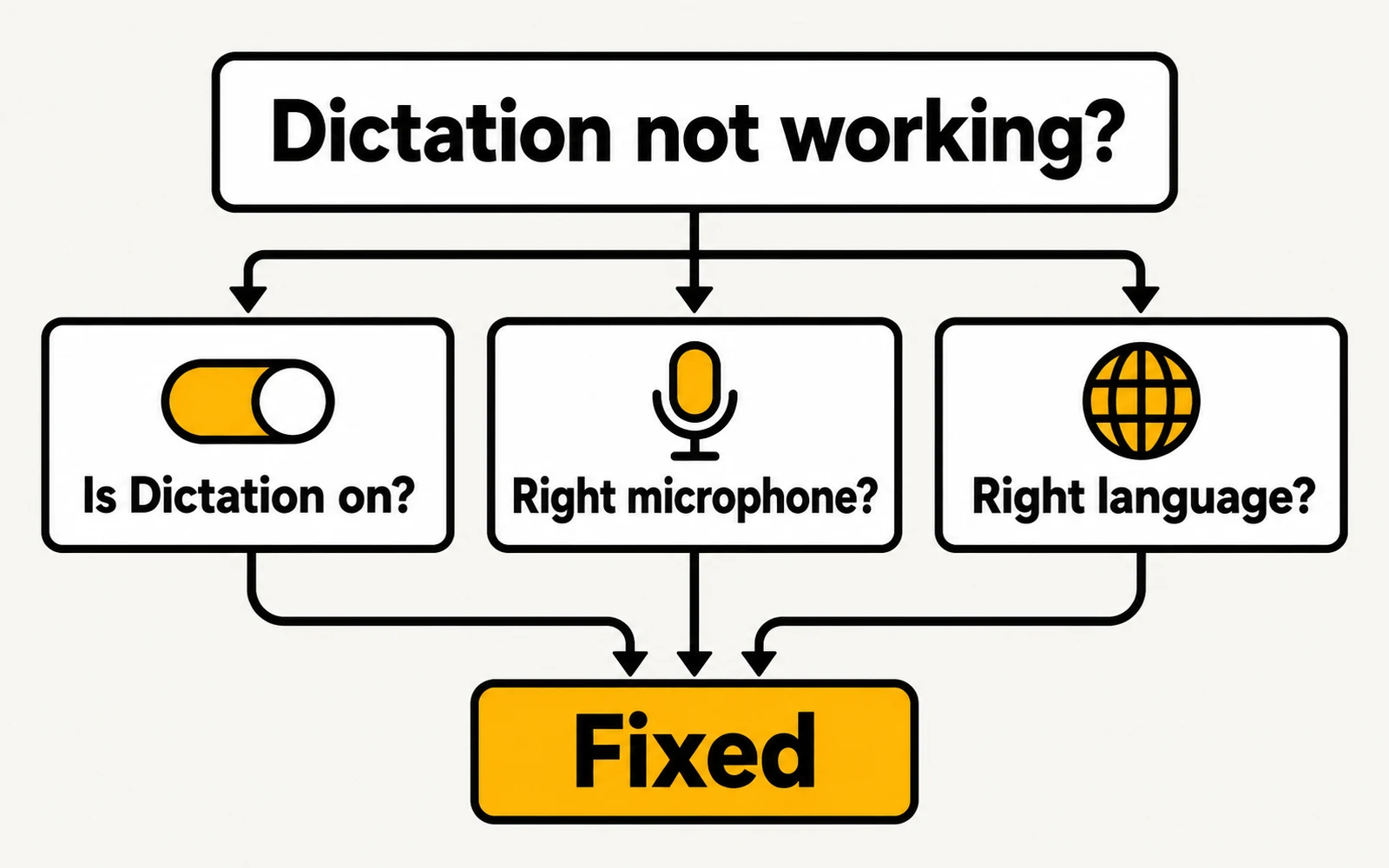
When dictation on a Mac stops working, the cause is usually a setting you can fix in a minute. The trick is to find the right one quickly. Find what is happening on your Mac in the table below, and jump straight to the fix.
If you have never set up Dictation, start with our guide on how to dictate on a Mac.
Why is my Mac dictation not working?
| What is happening | The usual cause | The fix |
|---|---|---|
| Nothing happens when you press the key | Dictation is off, or it uses a different shortcut | Dictation won't start |
| Siri opens instead | You held the Microphone key down | Dictation won't start |
| The microphone appears, but nothing is typed | The wrong microphone, or it is too quiet | Nothing is typed |
It stopped after an update or after sleep, and every setting looks right | A fault Apple hasn't explained | After an update |
| It types for a while, then stops | You were quiet for 30 seconds | It keeps stopping |
Why won't dictation start on my Mac?
If nothing happens when you press the key, check these four things.
- Dictation is turned on. Open System Settings, click Keyboard, and scroll down to Dictation. The switch should be on.
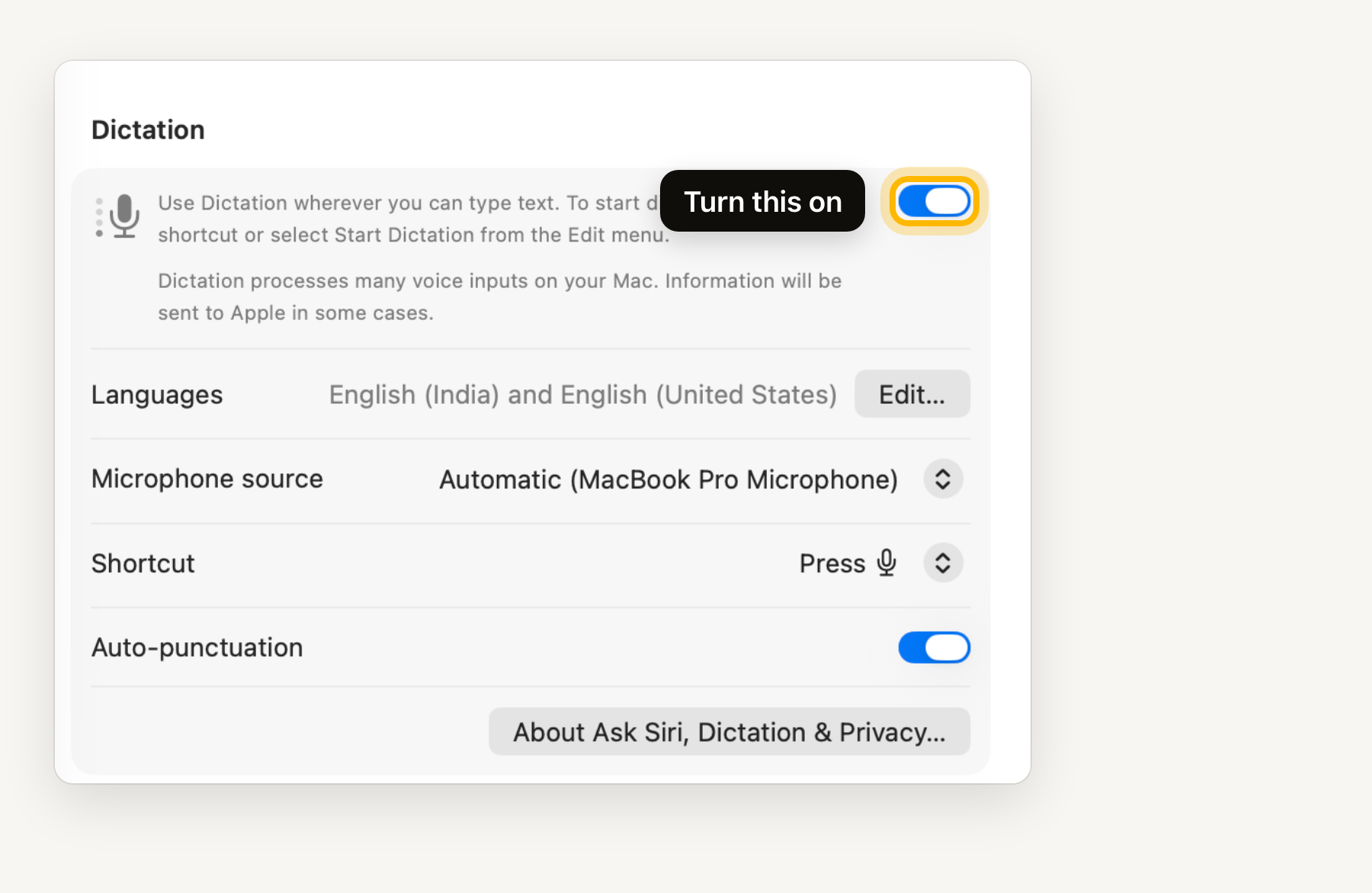
- You are using the right shortcut. On the same page, the Shortcut setting under Dictation shows which key starts it. If it shows something other than the Microphone key, use that shortcut instead, or change it to the Microphone key (usually F5 on recent Mac keyboards).
- You press the Microphone key and let go. If Siri is turned on, holding the key down opens Siri instead.
- Voice Control is off. Voice Control is a different feature that lets you control your whole Mac by voice. While it is on, Dictation doesn't work. In System Settings, click Accessibility, then Voice Control, and turn it off.
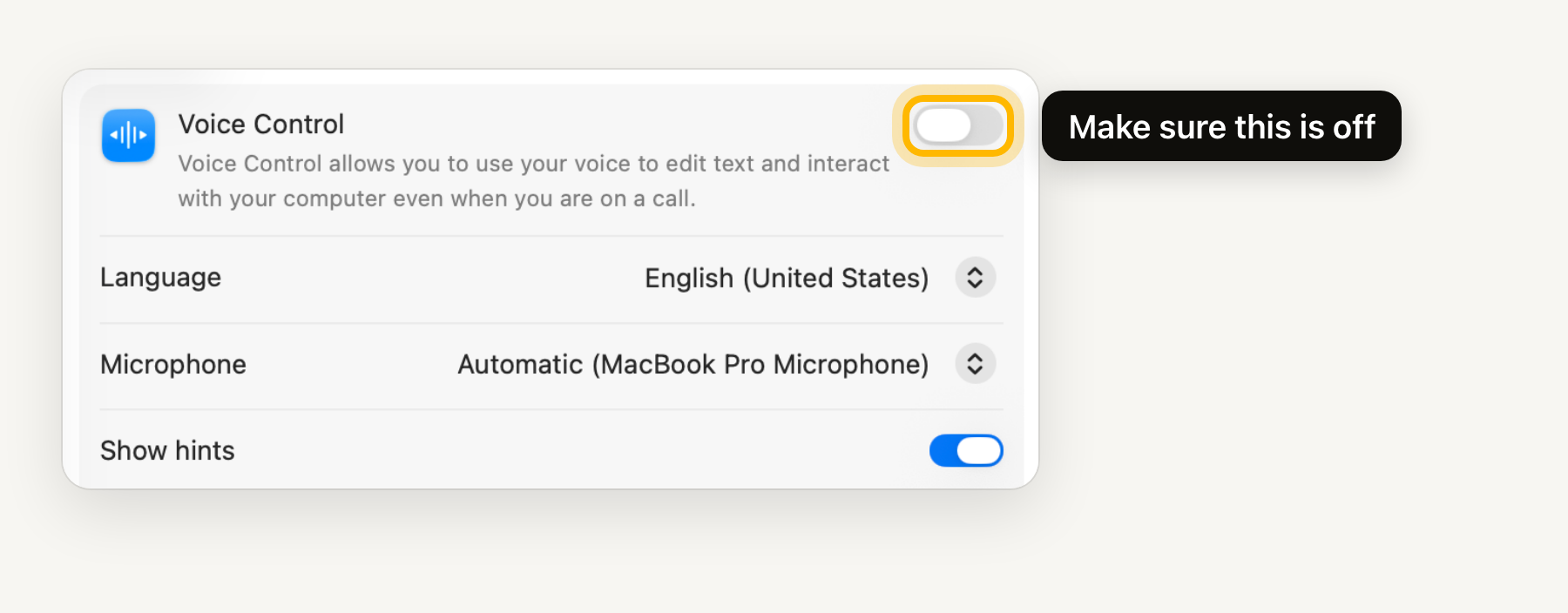
Also make sure your cursor is in a place where you can type, like an email or a document. If it isn't, Dictation has nowhere to put the words.
Why does dictation start but nothing is getting typed?
If the small microphone appears next to your cursor but no words show up, your Mac is probably listening to the wrong microphone. This often happens with headsets. Your Mac may still be listening to a headset you used yesterday, even if it is no longer connected.
To choose the right microphone:
- Open System Settings and click Keyboard.
- Under Dictation, click the menu next to Microphone source.
- Choose the microphone you're currently using. On a laptop with nothing plugged in, choose the Mac's own microphone.
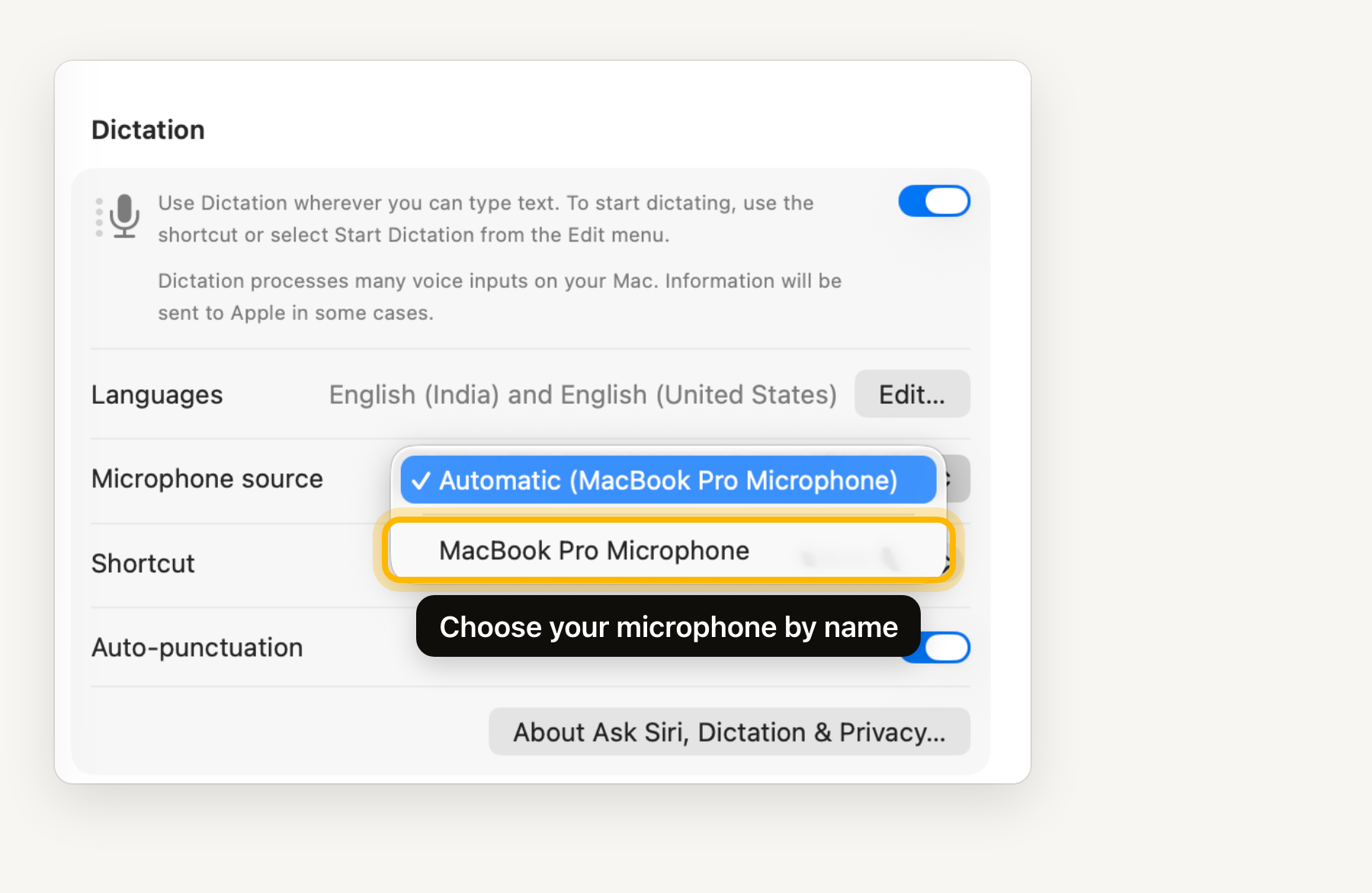
If the menu says Automatic, that is often the problem. Automatic means your Mac guesses which microphone to use, and it sometimes guesses wrong. Choose your microphone by name instead.
If the right microphone is already chosen, it may be too quiet:
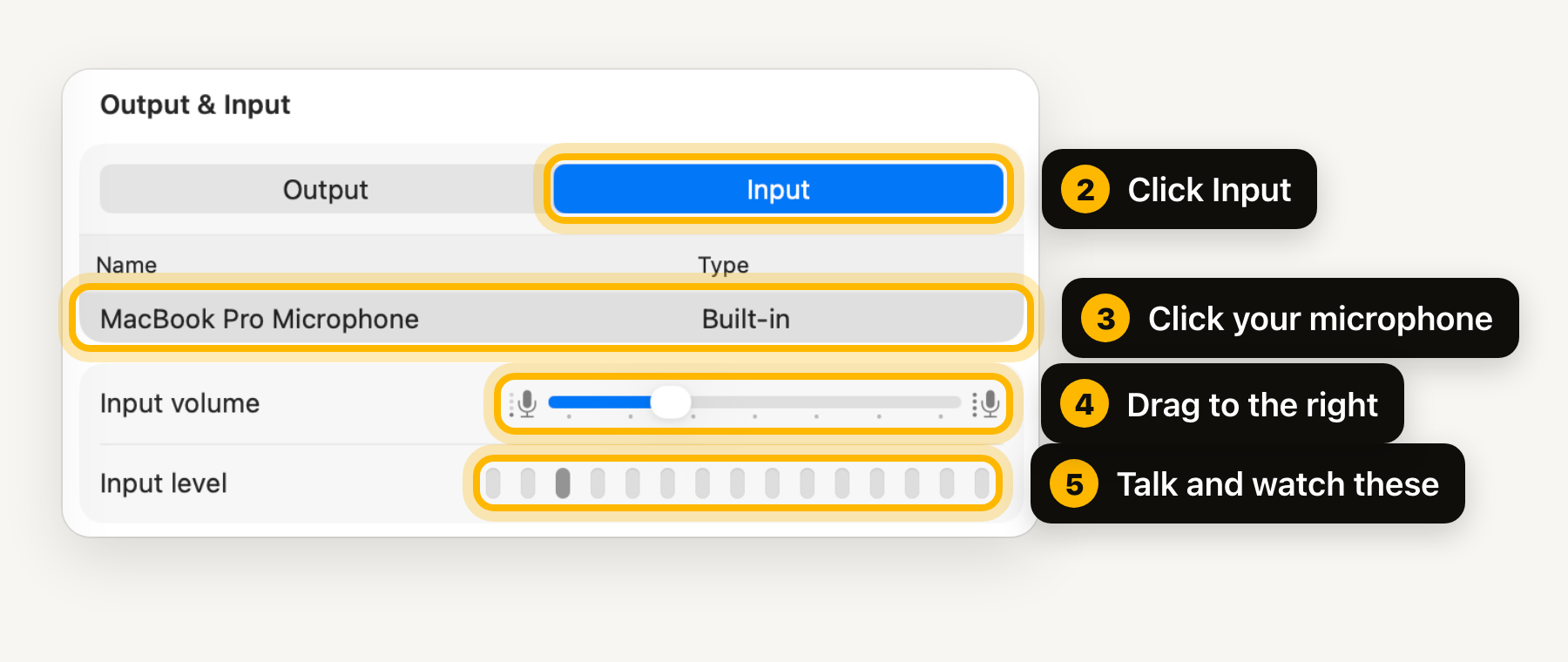
- Open System Settings and click Sound.
- Click Input.
- Click the microphone you speak into.
- Drag the Input volume slider most of the way to the right.
- Talk, and watch the bars next to Input level. They should move as you speak. If they do, try Dictation again. If they still don't move, your Mac can't hear that microphone. Try a different one, or restart your Mac.
Why did Apple dictation stop working after an update?
This is a common problem that lots of Apple users complain about online. After a macOS update, or after the Mac woke from sleep, Dictation just stopped working. The microphone appears, but nothing is typed, and every setting looks right.
Apple hasn't explained this fault. A long Reddit thread about it shows it happening on more than one version of macOS. Most people there say a simple restart fixes it.
If this happens to you:
- Save your work, then restart your Mac. This fixes it for most people.
- Check for updates. In System Settings, click General, then Software Update. A newer version of macOS may fix it.
- Tell Apple on its macOS feedback page. Apple reads these reports, but doesn't reply to each one.
If you're unable to fix it and you dictate a lot, it may be worth trying another tool like Roar.
Why does Mac dictation keep stopping?
Dictation stops by itself when you haven't spoken for 30 seconds. Apple designed it this way, and there is no setting to make it longer, like 60 seconds.
The timer only counts silence. You can talk for ten minutes and it keeps going. But if you stop to think for 30 seconds, it switches off, and anything you say after that isn't typed. You'll need to press the Microphone key again.
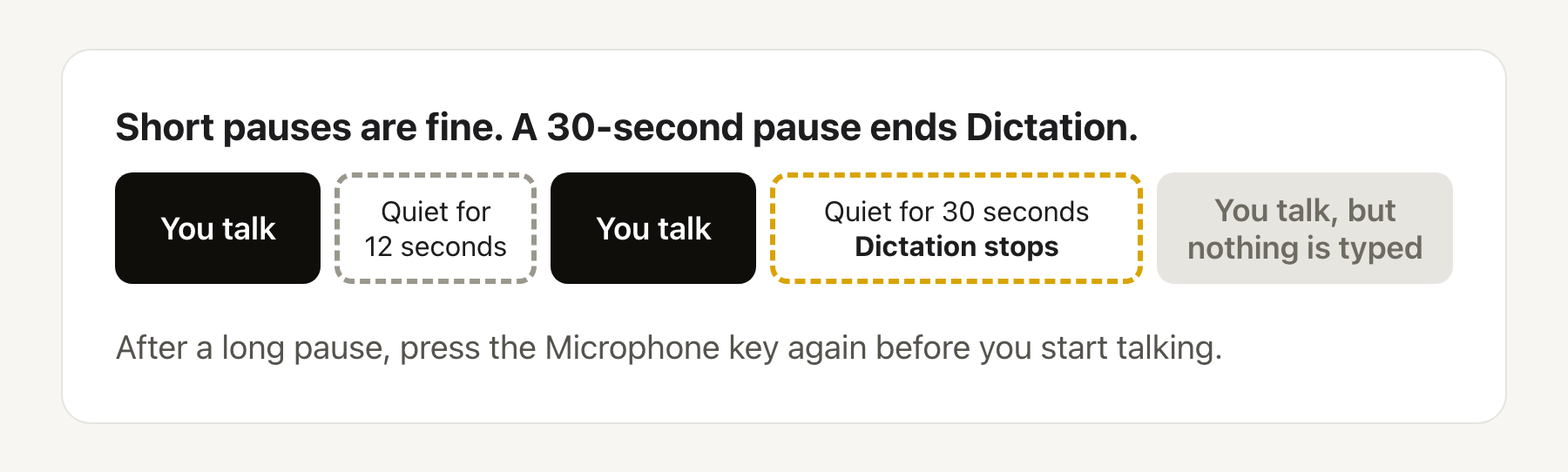
We know this is annoying, but the only fix is a habit. Before you start talking after a pause, look at your cursor. If the small microphone has gone, press the Microphone key again.
Does Mac dictation have a time limit?
No. You can dictate for as long as you want. The only limit is the 30 seconds of silence described above.
How do I reset dictation on my Mac?
Apple doesn't have a reset button for Dictation. If nothing above helped, try these steps in order, and stop when one works:
- Turn Dictation off and on again. On the Keyboard page in System Settings, turn the Dictation switch off, wait a few seconds, and turn it back on.
- Choose a different microphone under Microphone source, then choose yours again.
- Click into a different app, then click back into the one you were using.
- Save your work and restart your Mac.
These steps are safe to try.
Some forum posts tell you to type commands into Terminal, or to remove files from your Library folder. Don't do this unless you are a developer and understand the macOS file system and Terminal commands. For most people, a restart is the best option.
Is there an alternative to Mac dictation?
Yes. There are two kinds of alternatives.
The first is Voice Control, which is free and comes with your Mac. It lets you control your whole Mac by voice, and it can type too. It is bigger than Dictation and takes time to learn, so if you only want to type by voice, it is overkill.
The second is a paid dictation app. A paid app makes sense if you write for hours every day, and if you don't want to fix the dictation errors that Apple Dictation makes.
We've built Roar, the best way to write with your voice. Roar cleans up and formats text based on where you're writing to retain your exact meaning. Think of how emails, LinkedIn posts and AI prompts all need to be formatted differently. It keeps your exact words, to the best extent possible.
Roar keeps no recordings of your voice and no transcripts on our servers. It does not use your data to train AI models. Roar works on Macs with macOS 14 Sonoma or later and Apple silicon (M1 or newer).
Your first 5 dictations on Roar are free. You can read how Roar works or download Roar for Mac.