How to write an email faster
Decide what you want before you write, put that request in the first line, and keep the email short. Save emails you send often as templates, and say the rest out loud.
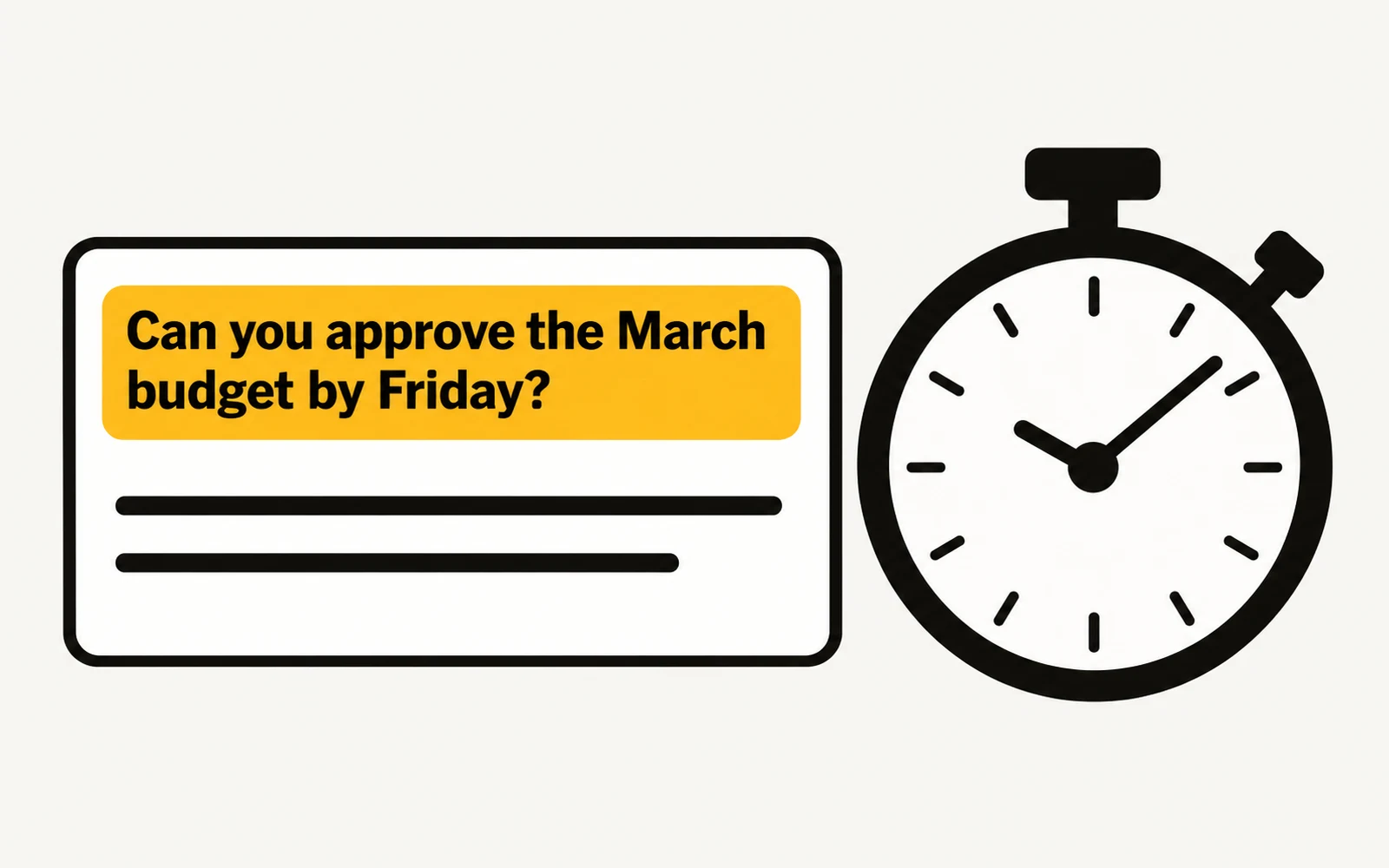
For most emails, typing is the quick part. The slow part is deciding what to say and rewriting it. So the fastest emails are the ones where you know what you want before you start.
We have built Roar, a dictation app that is light years ahead of Apple Dictation. There's a link to try Roar for free at the end of this article.
How can I write emails faster?
Decide what you want from the reader before you write a single word. If you can say it in one sentence, writing the email is quick. If you can't, work that out first, or you will rewrite the email several times.
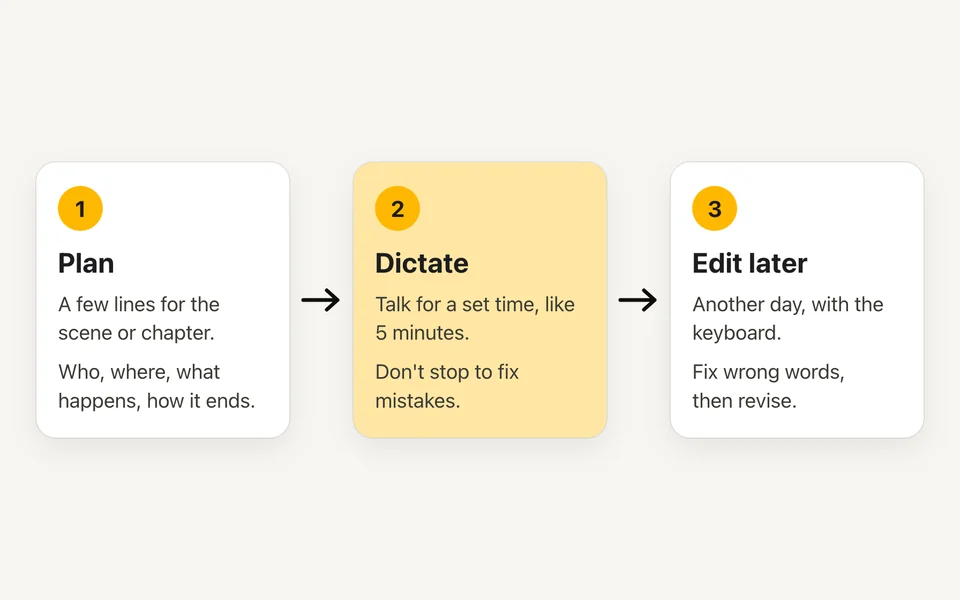
Then write the whole email in one go, and read it once before you send it. Don't fix each sentence as you type it.
Why does it take so long for me to write emails?
It usually takes long because you are deciding what to say while you type, and fixing each sentence as you go.
Typing itself is quick. A 150-word email takes about 3 minutes to type at the average typing speed of 52 words a minute. If an email takes you 20 minutes, the other 17 go into thinking and rewriting.
Our guide on how to write faster explains how to keep planning, drafting and fixing apart. It works the same way for email.
How should I structure an email?
Put what you want in the subject line and the first sentence. Then give the reason, and end with the next step.
People get a lot of email. Microsoft studied anonymous data from people who use Microsoft 365 at work. It found that the average worker receives 117 emails a day, and skims most of them in under a minute. So put what you need in the first line, where it will be seen.
An email that is quick to write and quick to read has four parts:
- A subject line that says what you need.
- A first sentence with the request.
- The reason, in two or three sentences.
- The next step, with a date.
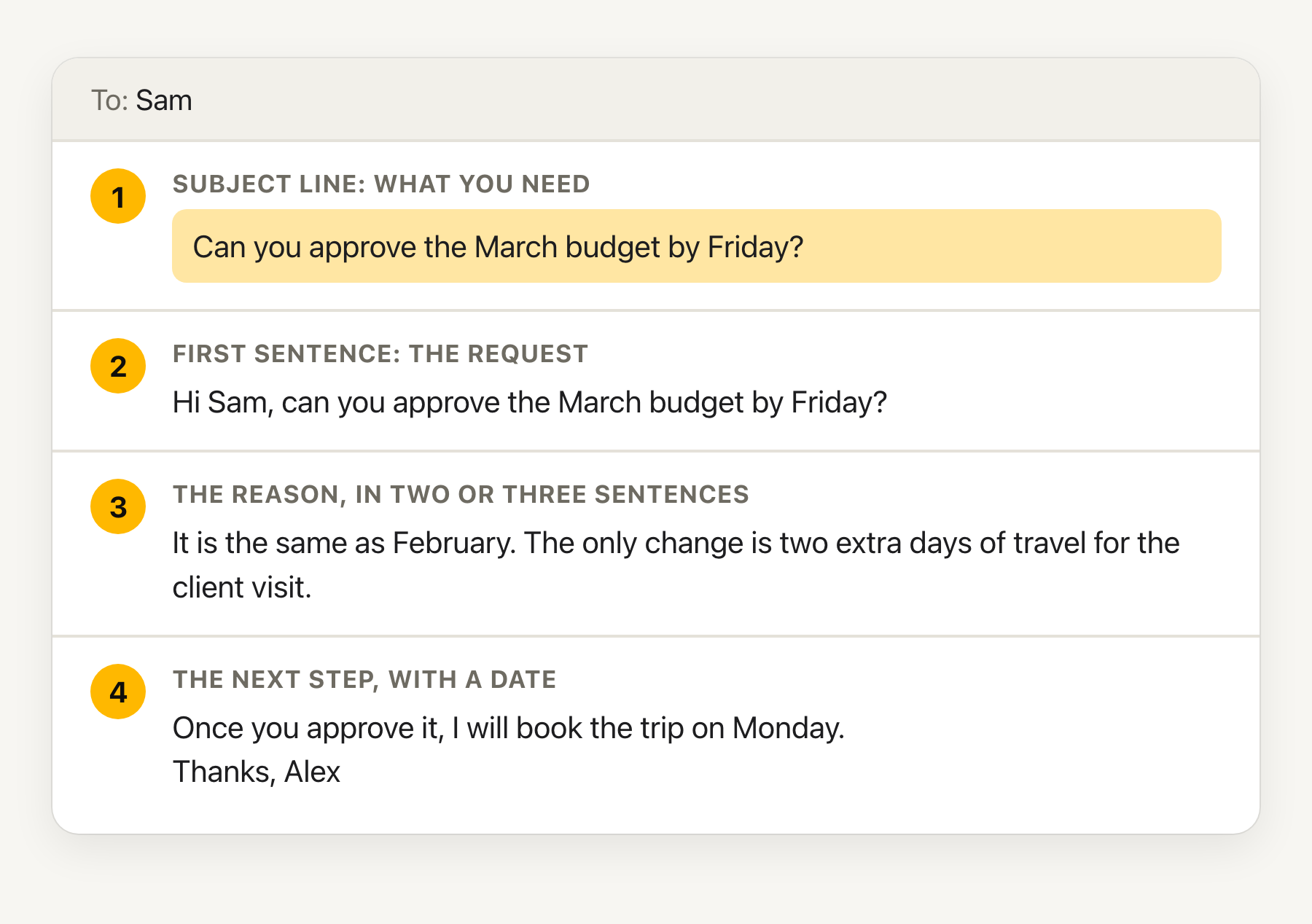
You don't need a long greeting or a long sign-off. "Hi Sam" and "Thanks" are enough for most emails at work.
How do I make an email template in Gmail?
Gmail can save an email you send often as a template, so you don't have to write it again. You need to turn templates on once.
Time needed About 2 minutes.
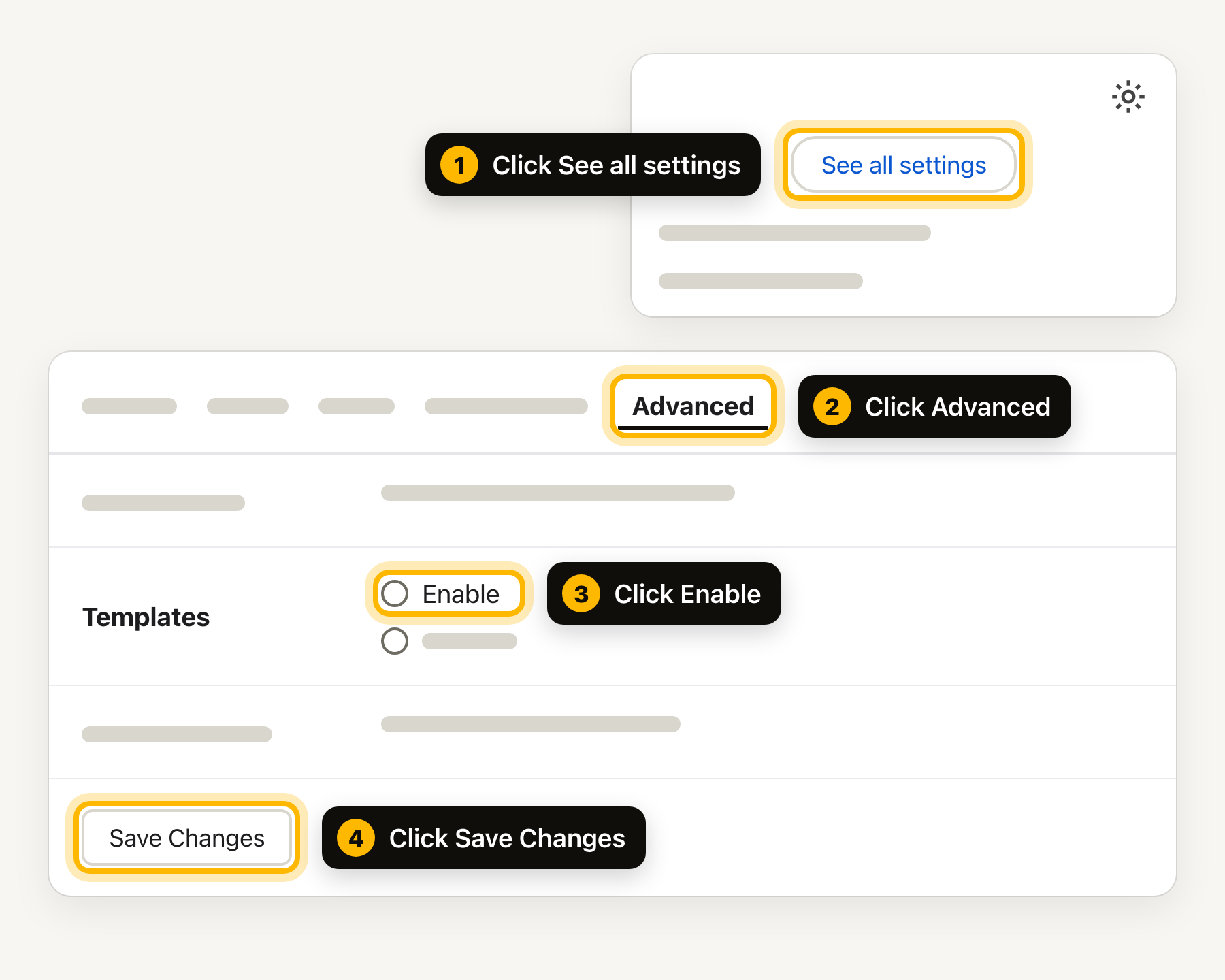
To turn on templates:
- Open Gmail on your computer. Click the Settings gear at the top right, then click See all settings.
- Click Advanced at the top.
- Next to Templates, click Enable.
- Click Save Changes at the bottom of the page.
To save an email as a template:
- Click Compose, and write the email you want to reuse.
- At the bottom of the window, click the More options icon (three dots), then Templates.
- Click Save draft as template, then Save as new template, and give it a name.
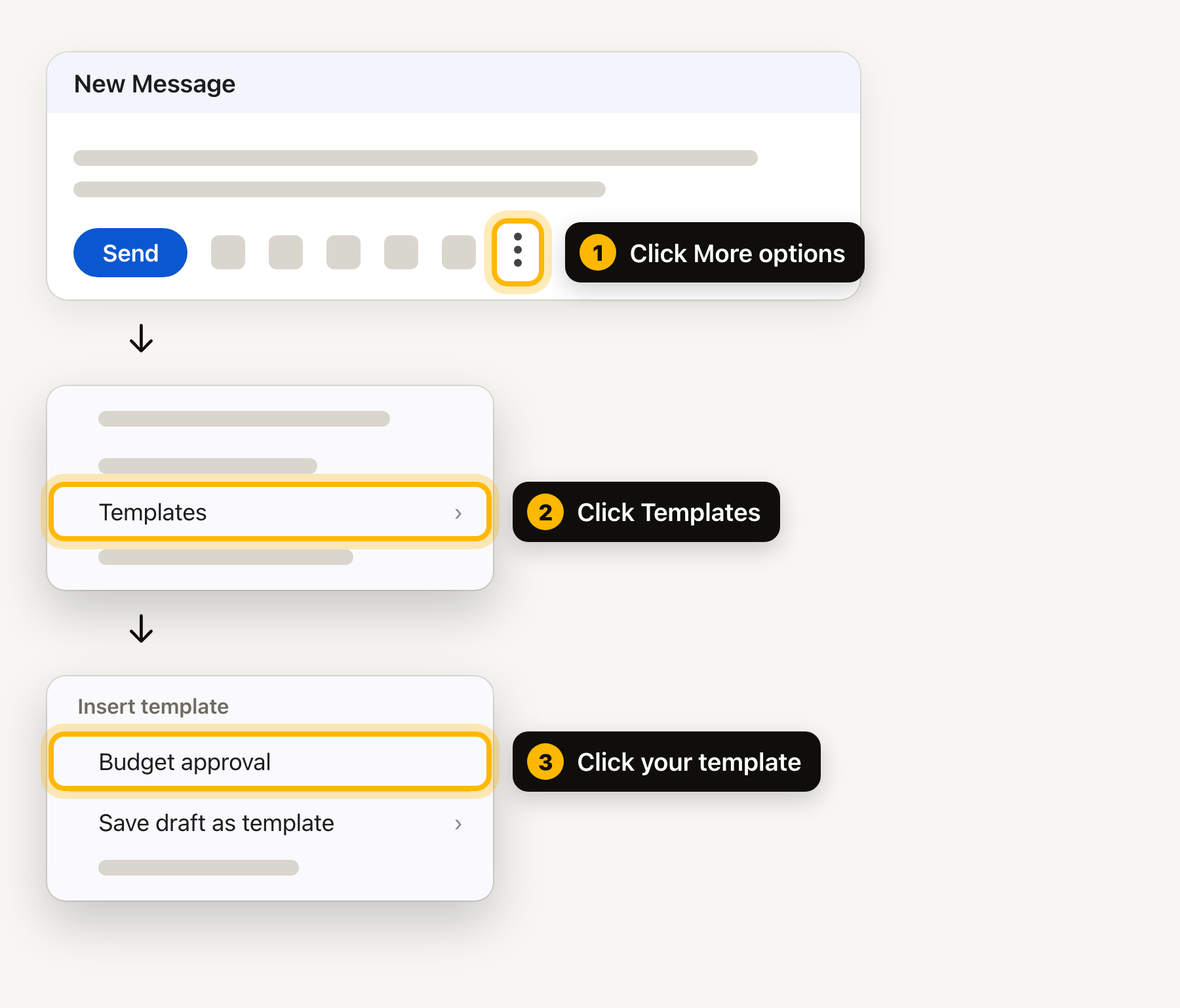
To use a template:
- Click Compose, then the More options icon (three dots) at the bottom of the window.
- Click Templates.
- Under Insert template, click your template.
Change the details, and click Send.
If Templates isn't in the More options menu, check that you clicked Save Changes when you turned templates on. On a work or school account, your administrator may have turned templates off.
How do I make an email template in Outlook for Mac?
In Outlook for Mac, open the email you want to reuse. Click File, then Save As Template, and give it a name.
To use it, click File, then New, then Mail From Template. Choose your template and click Open. Add the people to send it to, change the details, and click Send.
If your email is a work account on Microsoft Exchange, you can also use My Templates. Start a new email, and click My Templates on the ribbon at the top. If you don't see My Templates, your company may have turned it off. Ask your IT team.
For short phrases you type every day, your Mac also has text replacements. They work in many apps on your Mac, but not in all of them. Open System Settings, click Keyboard, click Text Replacements, then click the Add button (+). Type a short code, like "thx", and the text it should turn into.
How do I write an email by voice on a Mac?
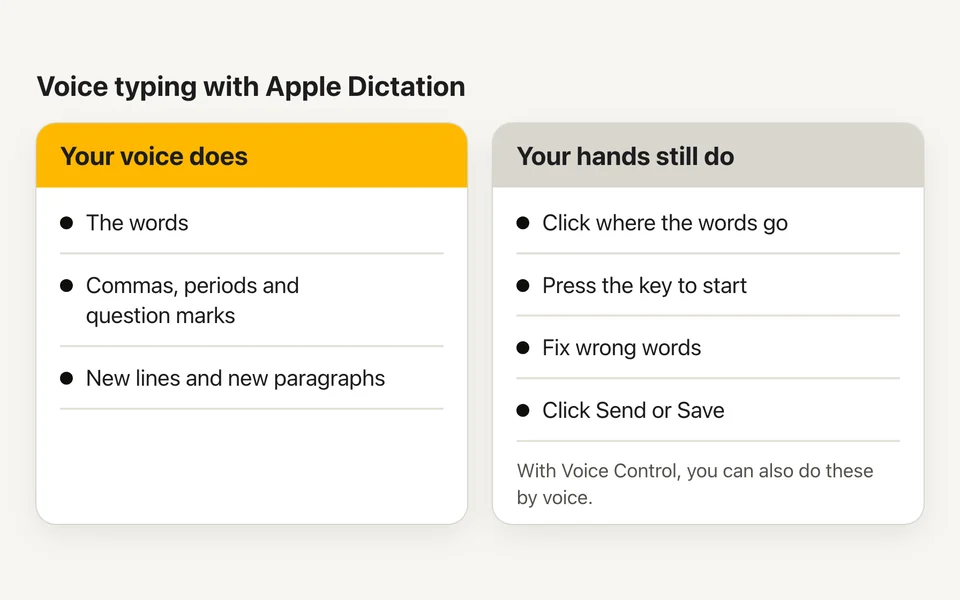
Click in the body of your email, press the Microphone key, and say what you want to write. Your Mac has free dictation built in, and it works in Apple Mail, Gmail and Outlook.
On most Mac keyboards from the last few years, the F5 key has a small microphone on it. This is the Microphone key. When you see a small microphone next to your cursor, start talking.
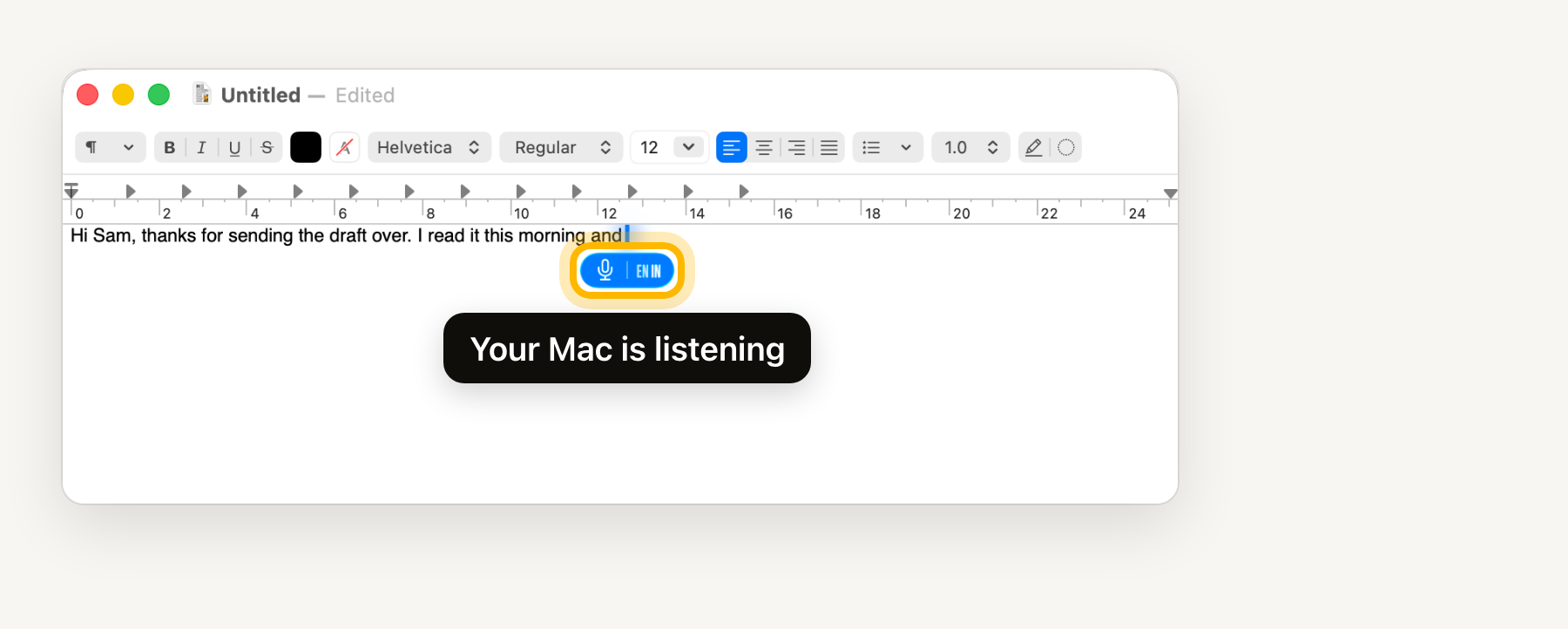
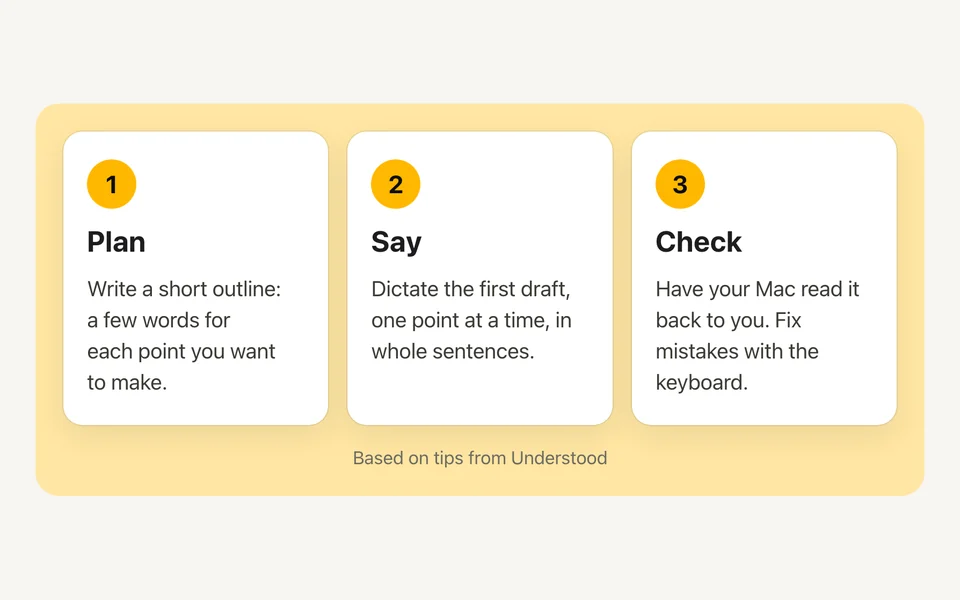
Say "new paragraph" to start a new paragraph. When you finish, press the Microphone key again, or press Escape. Then read the email once, fix any wrong words, and send it.
Speaking is much faster than typing. At the average speaking speed of 150 words a minute, a 150-word email takes about 1 minute to say, instead of 3 to type.
If Dictation isn't turned on yet, our guide on how to dictate on a Mac shows every step with pictures. For Gmail and Outlook, we have guides to voice to text in Gmail and to dictation in Word and Outlook on a Mac.
When should you pay for a dictation app?
For simple, short text, like a text message, a web search or a quick reply, Apple Dictation works fine in most cases.
A paid app makes sense if you write for hours every day, and if you don't want to fix the dictation errors that Apple Dictation makes.
We've built Roar, the best way to write with your voice. Roar cleans up and formats text based on where you're writing to retain your exact meaning. Think of how emails, LinkedIn posts and AI prompts all need to be formatted differently. It keeps your exact words, to the best extent possible.
Roar keeps no recordings of your voice and no transcripts on our servers. It does not use your data to train AI models. Roar works on Macs with macOS 14 Sonoma or later and Apple silicon (M1 or newer).
Your first 5 dictations on Roar are free. You can read how Roar works or download Roar for Mac.