How dictation can help people with dyslexia write on a Mac
Dictation types the words you say, so you can write without spelling every word yourself. This guide explains how it can help with dyslexia and how to start on a Mac.
Dictation types the words you say. It can make writing easier for people with dyslexia. If you can say a word but can't spell it, you can say it and see it spelled on the screen.
Every Mac comes with free dictation.
We have built Roar, a dictation app that is light years ahead of Apple Dictation. There's a link to try Roar for free at the end of this article.
What is dictation for dyslexia?
Dictation is software that turns your speech into text on the screen. You may also hear it called speech to text, voice to text or voice recognition.
Understood, a US nonprofit for people with learning and thinking differences, calls dictation "an assistive technology (AT) tool that can help people who struggle with writing." It says dictation can be helpful for people with dyslexia, dysgraphia and other differences that affect writing.
Dictation does not treat dyslexia. It is a tool for writing, like a spellchecker.
How does speech to text help with dyslexia?
Understood lists four ways dictation can help with writing:
- It is a way around handwriting that is hard to read.
- It can help with spelling. If you know how to say a difficult word, you can say it and see how it is spelled.
- It can catch your thoughts before they slip away, if you think faster than you can write or type.
- It can make writing more comfortable if typing is hard for you, especially for a long time.
The British Dyslexia Association lists speech to text among the tools that "support independence and confidence" at work. For exams in the UK, it lists voice recognition software as an exam access arrangement, instead of a scribe: "Candidates can dictate and then edit responses."
Is dictation hard to use with dyslexia?
It can take some practice. Dyslexia Scotland says speech recognition "can take a little bit of time and practice." Understood points out a few things that can make it harder:
- You need to speak clearly, at a steady speed. Mumbled or slurred words can come out wrong.
- Dictation works better with whole phrases and sentences than with single words. That can be hard if you have slow processing speed or trouble with working memory.
- Moving around and editing a document by voice is hard. Many people use dictation for the first draft and the keyboard and mouse for the changes.
- It isn't always right.
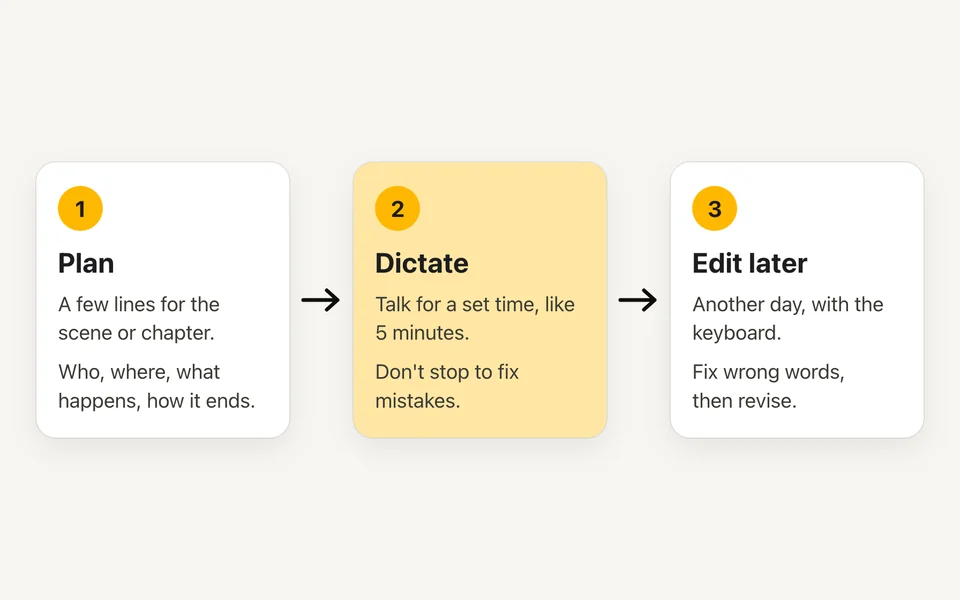
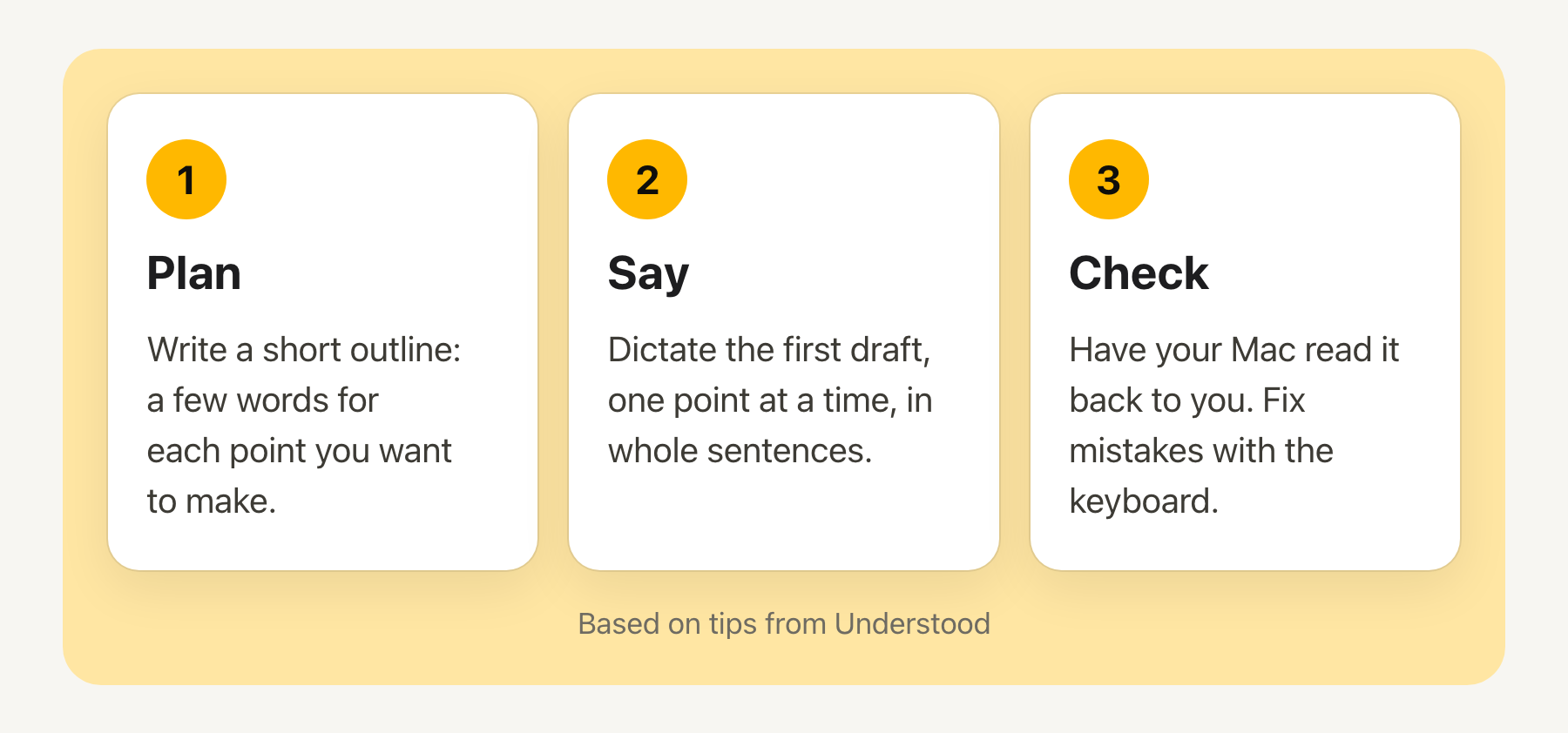
Understood suggests a way of working that helps. Plan with a short outline first, so you don't lose track. Say the first draft. Then check it and fix it with the keyboard.
How do I turn on dictation on a Mac?
Time needed About 1 minute.
- Click the Apple logo in the top-left corner of your screen. Then click System Settings.
- In the list on the left, click Keyboard.
- Scroll down to Dictation, and turn it on.
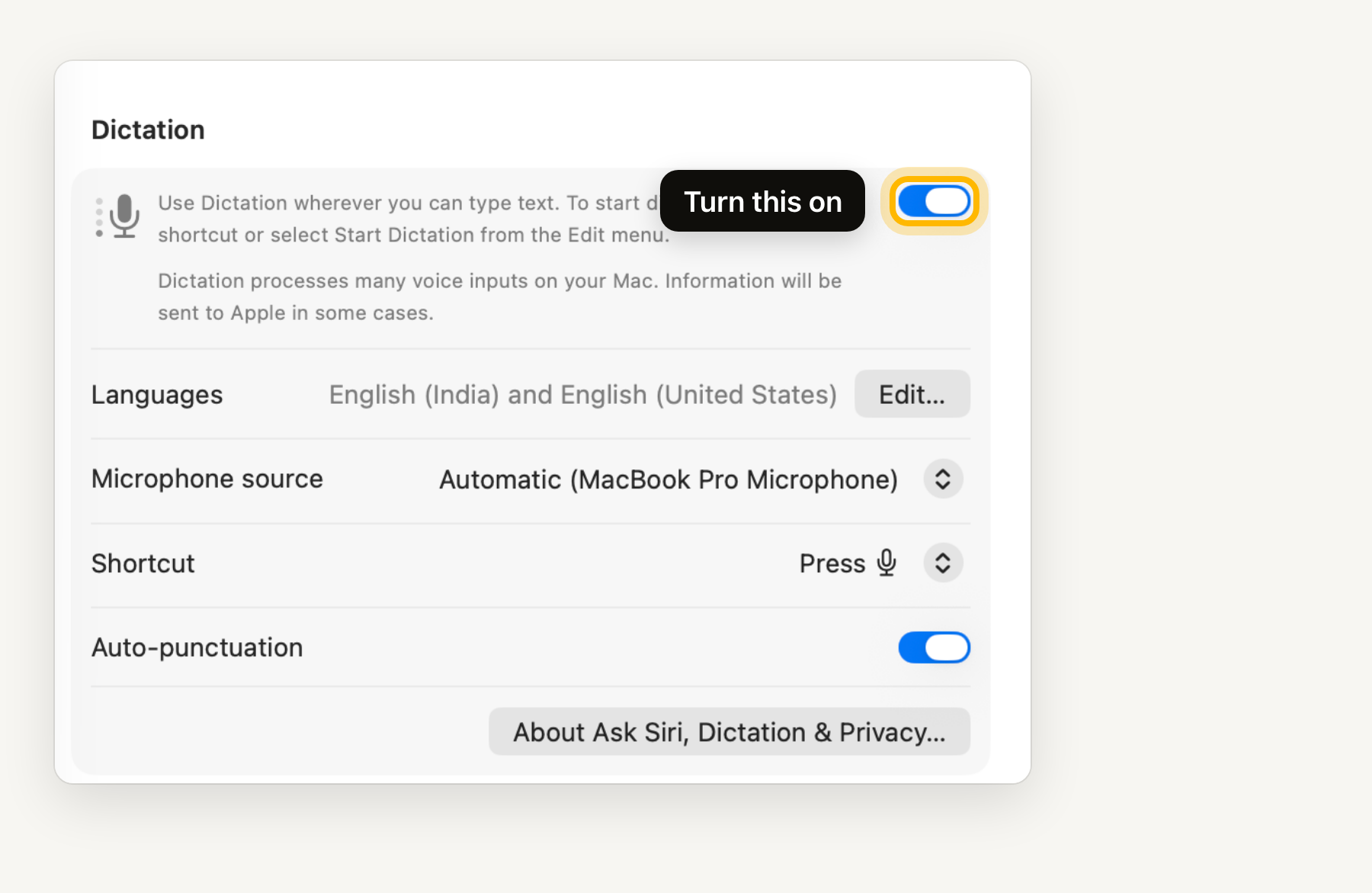
- Your Mac asks if you want to turn on Dictation. Click Enable.
Our guide on how to dictate on a Mac shows every step with pictures.
How do I use dictation on a Mac?
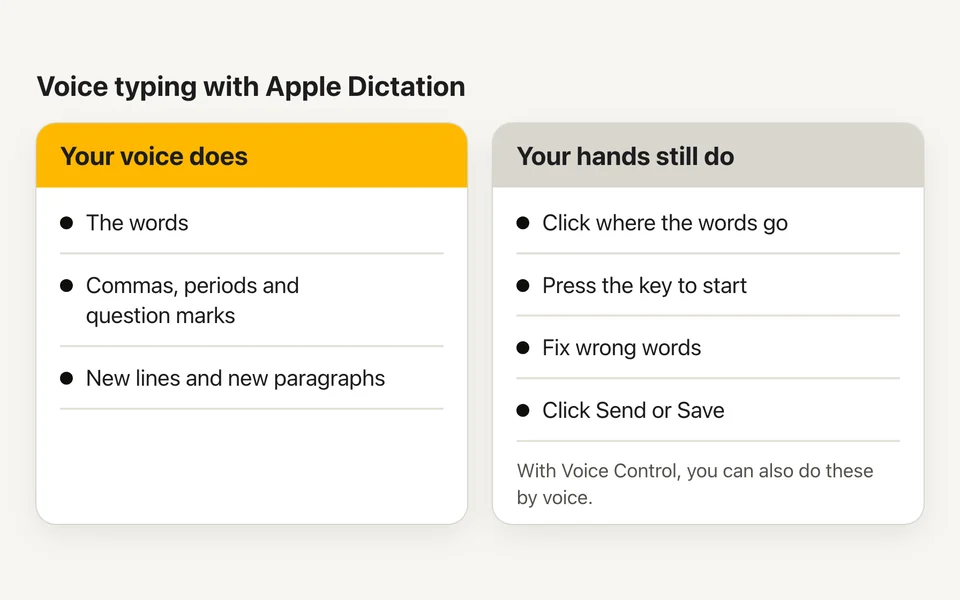
- Click where you want the words to go. That can be an email, a document or a search box.
- Press the Microphone key once. On most Mac keyboards from the last few years, the F5 key has a small microphone on it. This is the Microphone key.
- When a small microphone appears next to your cursor, talk in whole sentences.
- When you finish, press the Microphone key again, or press Escape.
Apple Dictation adds most commas, periods and question marks for you, so you don't have to say each one. Say "new paragraph" when you want a new paragraph.
If a word comes out wrong, Apple Dictation often underlines it in blue. Click the underlined word and pick the right one from the list.
Apple Dictation stops by itself when you haven't spoken for 30 seconds. Apple designed it this way, and there is no setting to make it longer. There is no limit on how long you talk. If you stop to think, press the Microphone key again before you carry on.
Can my Mac read my writing back to me?
Yes. Your Mac can read any text you select out loud. Understood suggests reading aloud what you write to catch errors, and your Mac can do the reading for you.
To turn it on:
- Open System Settings, click Accessibility, then click Read & Speak.
- Turn on Speak selection.
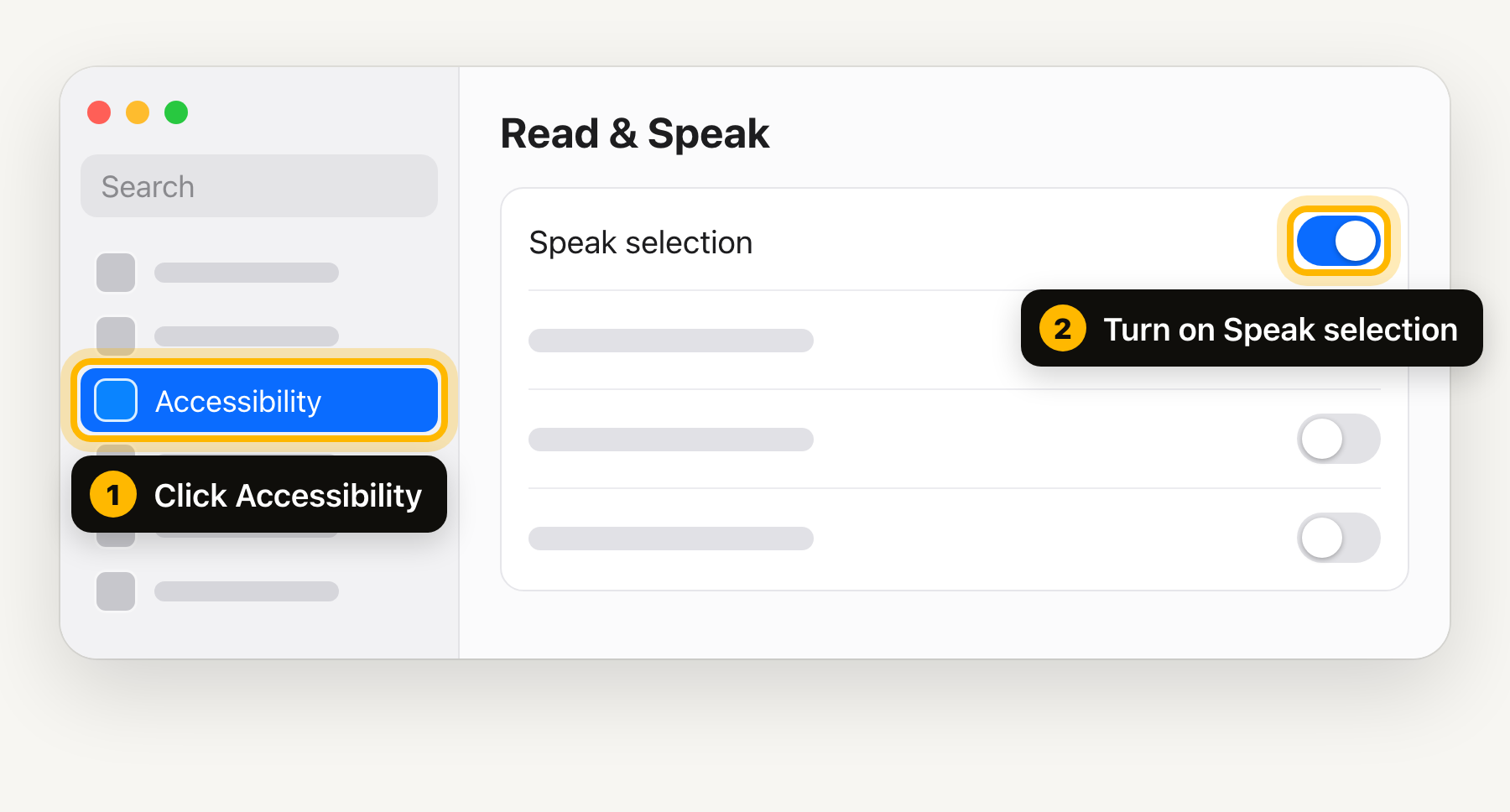
To hear your text, select it, then press Option + Escape.
How can parents and teachers help a child use dictation?
Understood's tips work for children too:
- Make a short outline together before the child starts to dictate.
- Keep a cheat sheet of the common commands next to the computer. Our list of Mac dictation commands has a printable card.
- A headset microphone with a mute switch lets the child think out loud without the computer typing it.
- Let the child dictate the first draft and use the keyboard to edit.
Understood also says dictation may not help with every writing struggle. Some people do better with other supports, like word prediction, graphic organizers or a scribe.
In the UK, the British Dyslexia Association says the rules for exam arrangements take into account a student's "normal way of working", for example whether they use assistive technology in lessons. So if a student will use dictation in exams, it helps to use it in class first.
Is there free dictation for dyslexia?
Yes. Apple Dictation comes with every Mac, and it is free. You don't need to buy or install anything to start.
For simple, short text, like a text message, a web search or a quick reply, Apple Dictation works fine in most cases.
A paid app makes sense if you write for hours every day, and if you don't want to fix the dictation errors that Apple Dictation makes.
We've built Roar, the best way to write with your voice. Roar cleans up and formats text based on where you're writing to retain your exact meaning. Think of how emails, LinkedIn posts and AI prompts all need to be formatted differently. It keeps your exact words, to the best extent possible.
Roar keeps no recordings of your voice and no transcripts on our servers. It does not use your data to train AI models. Roar works on Macs with macOS 14 Sonoma or later and Apple silicon (M1 or newer).
Your first 5 dictations on Roar are free. You can read how Roar works or download Roar for Mac.