Mac dictation types the wrong words, and how to fix it
When Apple Dictation types the wrong words, check the language, the microphone and the noise around you. This guide shows each fix and how to correct a wrong word.
When Apple Dictation types the wrong words, start with Apple's own fixes: check the language and region, the microphone, and the noise around you.
We have built Roar, a dictation app that is light years ahead of Apple Dictation. There's a link to try Roar for free at the end of this article.
Why does my Mac dictation type the wrong words?
Apple lists a few causes for dictation that gets words wrong. Find yours in the table below.
| What you notice | The likely cause | The fix |
|---|---|---|
| Many everyday words are wrong | The language or region doesn't match how you speak | Check the language |
| Words are missing | The wrong microphone, or it is too quiet | Check the microphone |
| It is worse in some rooms than others | Background noise or echo | Check the microphone |
| Names and unusual words are wrong | Dictation doesn't know them | Add your own words |
How do I check the dictation language and region?
Open System Settings, click Keyboard, and look at Languages under Dictation. It should show the language you speak, and the region that matches how you speak it.
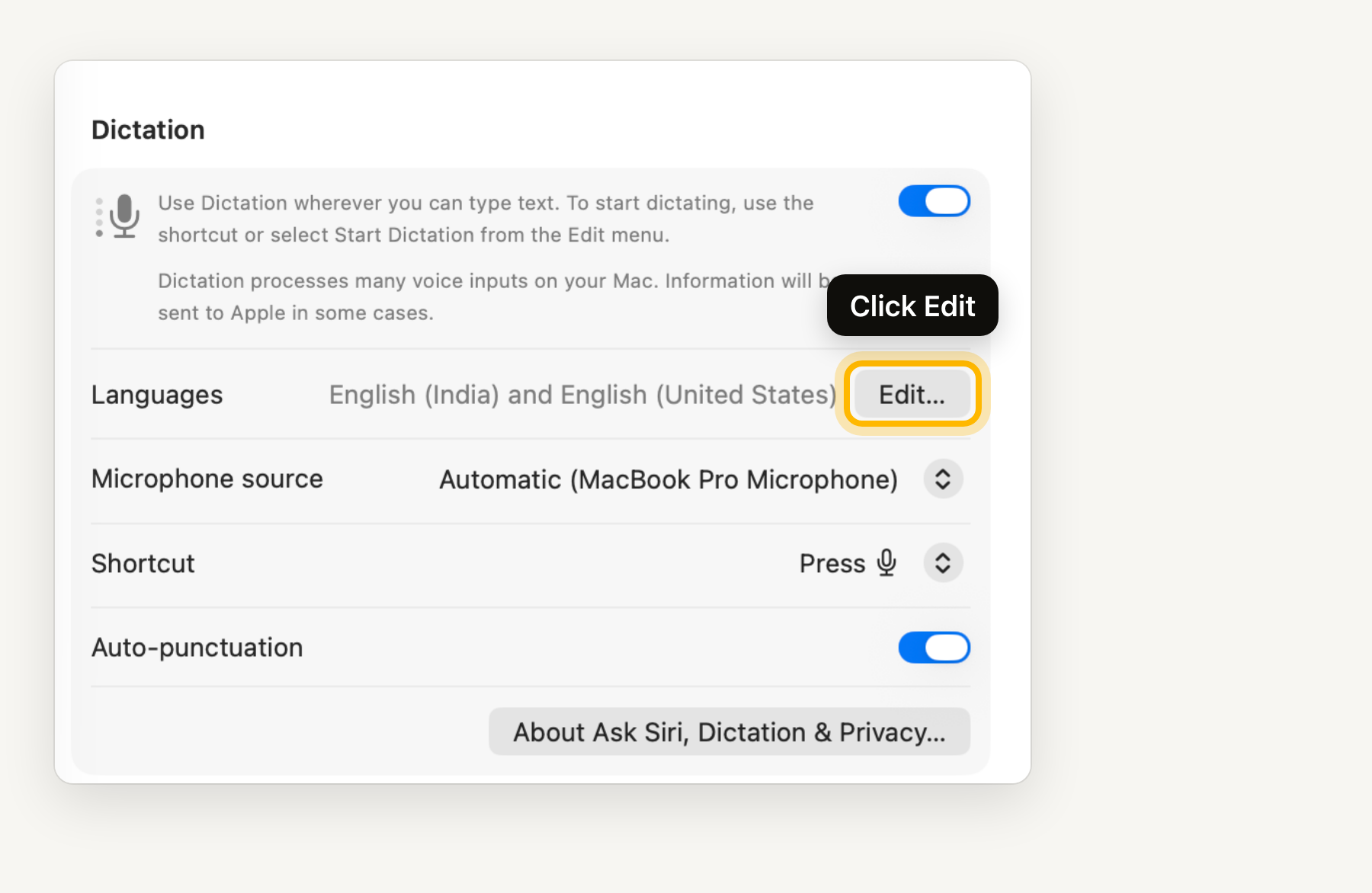
For example, if you speak Indian English, choose English (India), not English (United States). Click Edit next to Languages to change it.
Also check the language next to your cursor while you dictate. If you set up more than one language, you may be dictating in the wrong one. Our guide on how to change the dictation language on a Mac shows every step.
How do I make sure Dictation hears me clearly?
If Dictation listens to the wrong microphone, or the microphone is too quiet, it misses words. Our guide to Mac dictation not working shows how to choose the microphone and turn up its volume.
Apple also gives these tips:
- Make sure nothing covers the microphone, like your sleeve or your hand.
- Sit as you usually do, and speak clearly, not too quietly and not too loudly.
- Avoid background noise. In a noisy room, or a room with echo, a headset microphone can help.
How do I fix a word that Dictation got wrong?
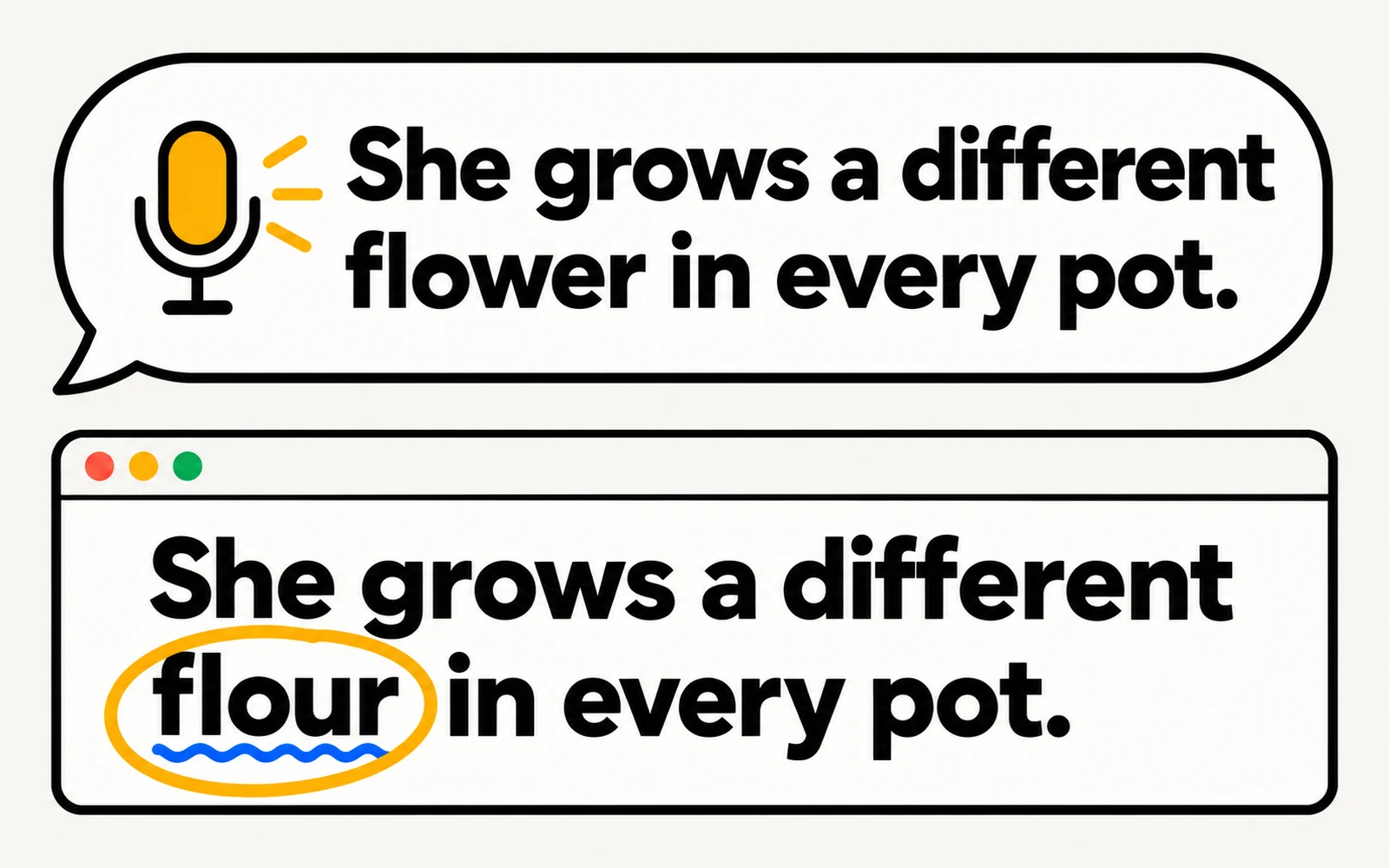
When Dictation isn't sure about a word, it underlines it in blue. Click the underlined word and pick the right one from the list.
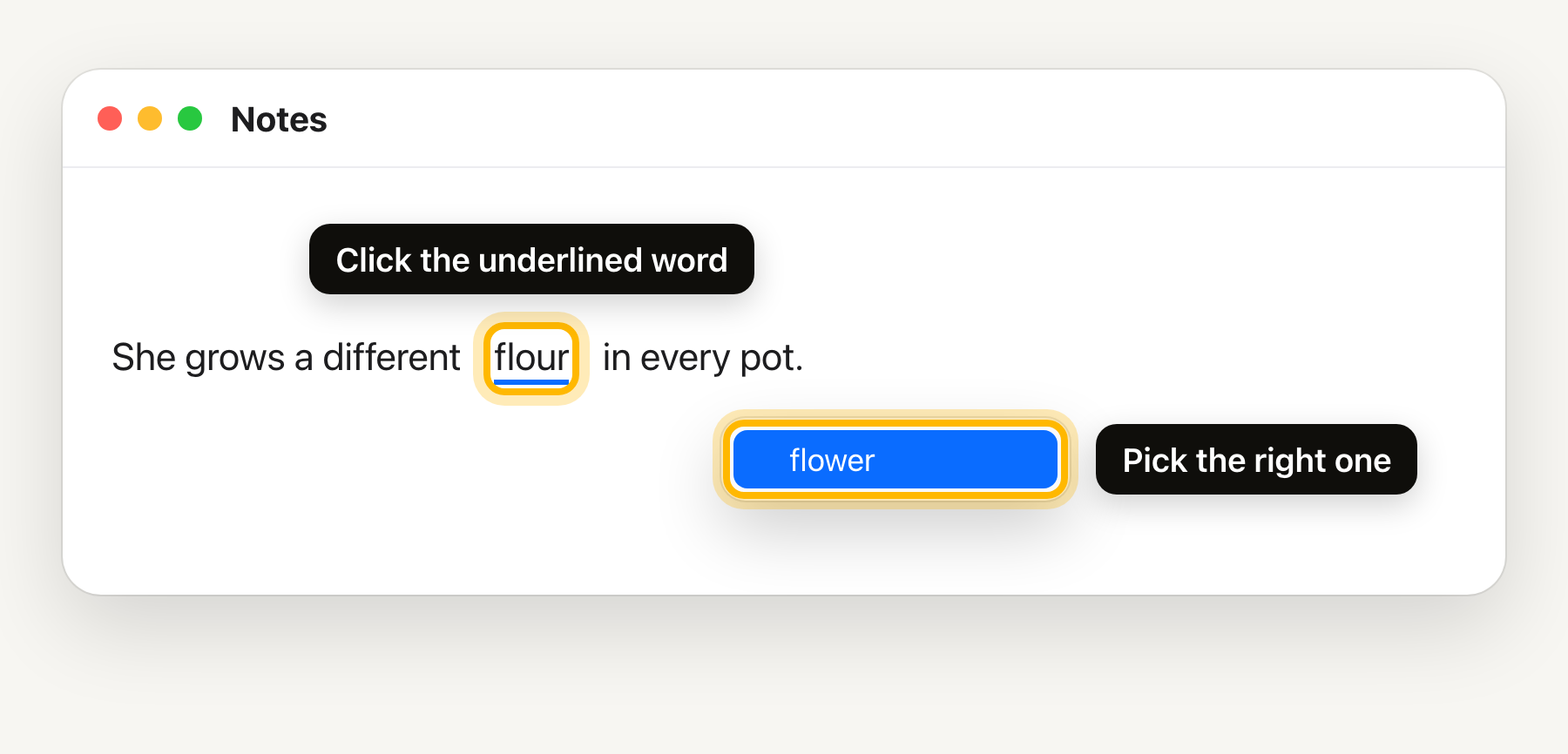
Apple's own example is "flour" when you meant "flower". If the right word isn't in the list, type it, or select the wrong word and dictate it again.
Words without a blue underline can be wrong too. Read your text once before you send it.
Can I add my own words to Apple Dictation?
No. Apple Dictation has no setting to add your own words. We know this is annoying if you use the same names every day.
There are two things that come close, and each has a catch:
- Voice Control can learn new words, but you have to use Voice Control instead of Dictation.
- Text Replacements can swap one word for another, but they are made for typing, not for dictation.
Can Voice Control learn new words?
Yes. Voice Control lets you add up to 1,000 words or phrases to its vocabulary, like names or terms from your work.
The catch is that Voice Control replaces Dictation. While Voice Control is on, you dictate with Voice Control, and the normal Dictation is not available. Voice Control is a bigger tool that lets you control your whole Mac by voice, so it takes time to learn.
If you want to try it:
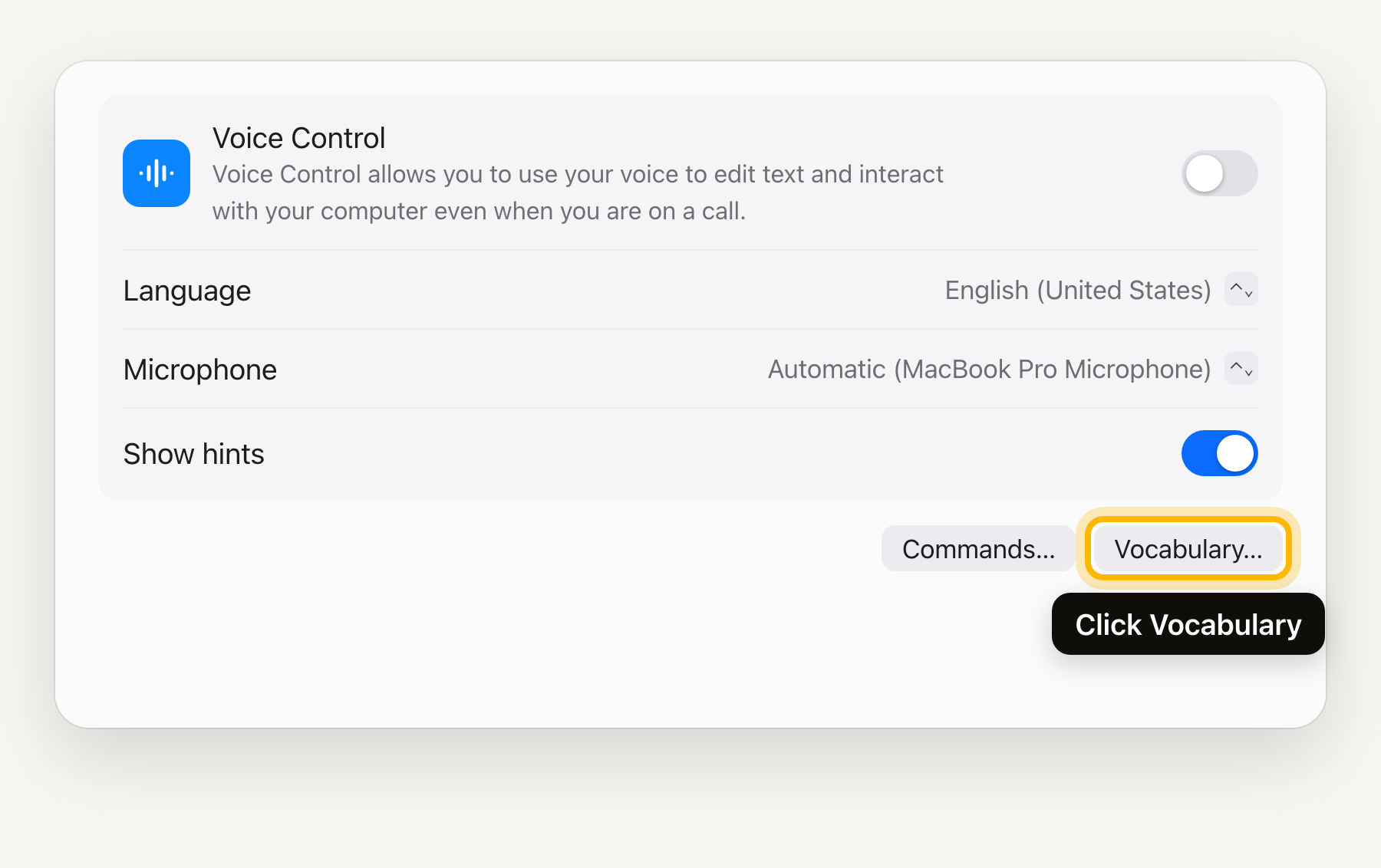
- Open System Settings and click Accessibility. Then click Voice Control.
- Click Vocabulary.
- Click the Add button. Type the word the way you want it written, then click Next.
- Click Record, say the word, then click Save. Recording needs Dictation turned on in Keyboard settings. If it is off, click Save Without Recording.
- Add more words the same way, then click Done.
If Vocabulary is dimmed, the language you chose for Voice Control doesn't support your own words.
Our guide to Mac dictation commands explains how Voice Control is different from Dictation.
Do Text Replacements fix dictation mistakes?
Not as you dictate. Text Replacements are made for typing. You type a short text, like "teh", and your Mac replaces it with another, like "the". Apple's page about Text Replacements doesn't mention Dictation, so don't rely on them to fix words as Dictation types them.
What you can do is fix a word after you dictate. For example, Dictation may write "Kaylee" when your colleague spells her name "Kayleigh". First, add a text replacement:
- Open System Settings and click Keyboard. Under Text Input, click Text Replacements.
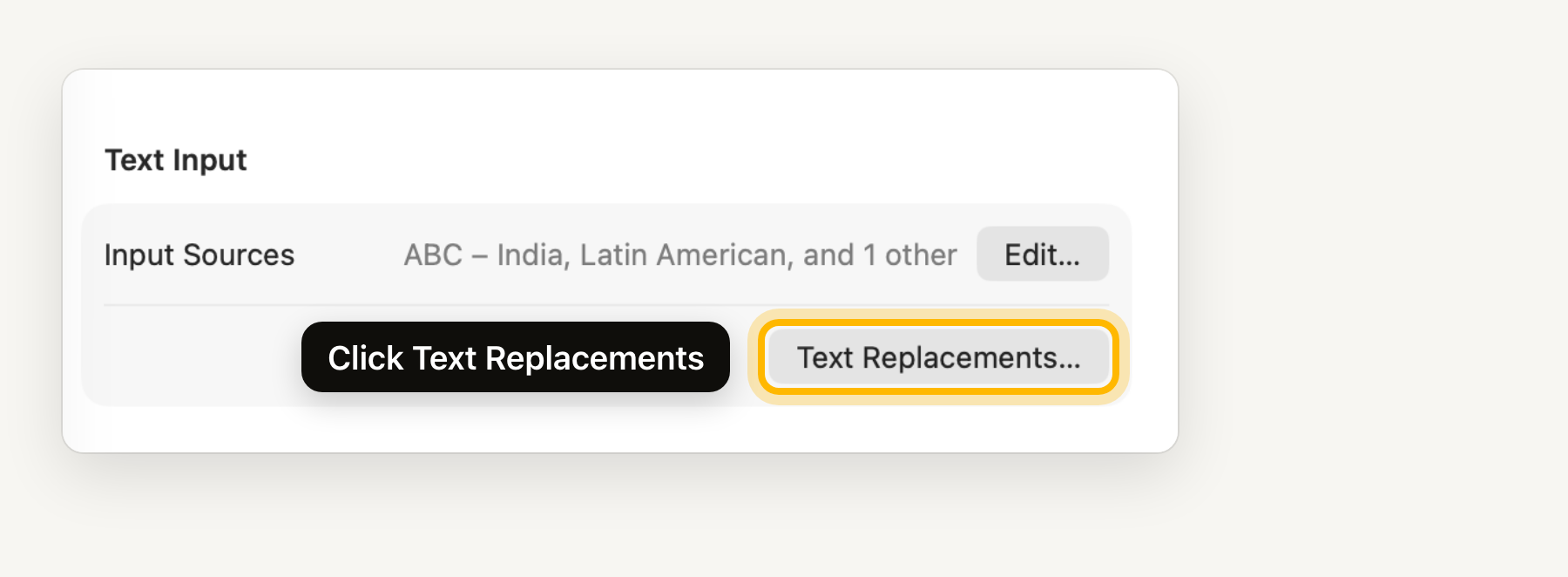
- Click Add (+). Under Replace, type the wrong word, Kaylee. Under With, type the right one, Kayleigh. Then click Done.
Then, after you dictate:
- Select the text you dictated.
- Click Edit in the menu bar, then Substitutions, then Show Substitutions.
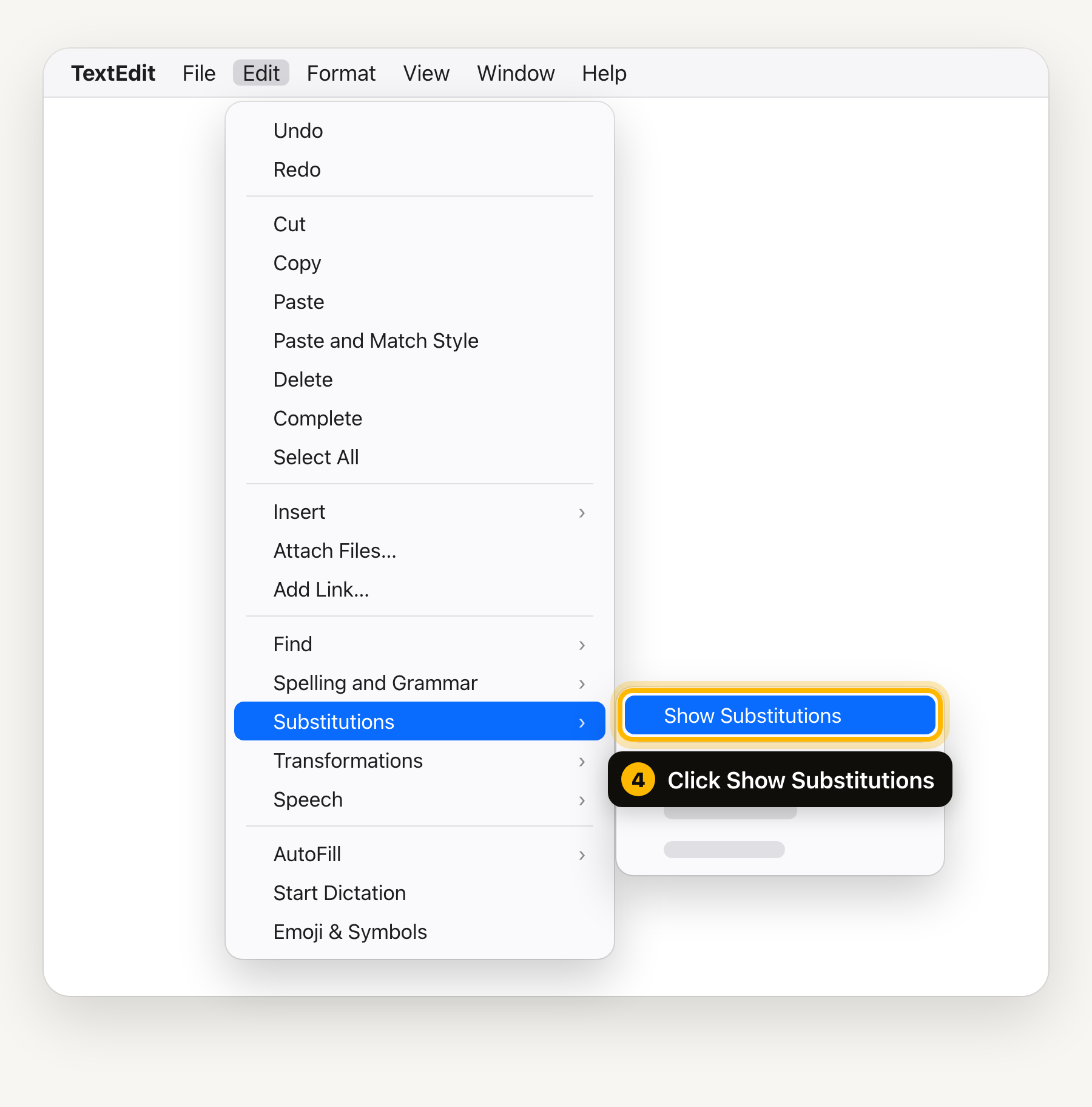
- Make sure Text Replacement is ticked, then click Replace in Selection.
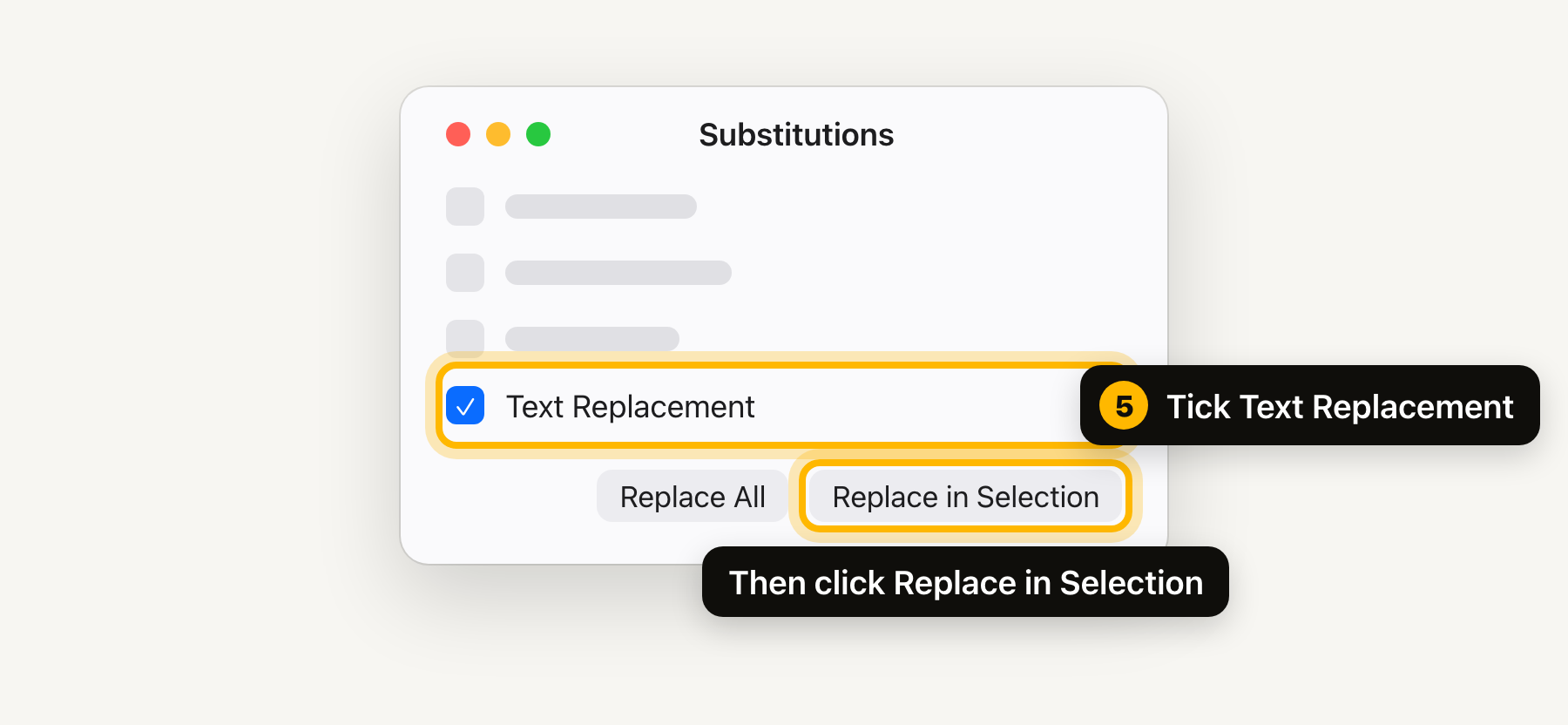
Apple says Text Replacements aren't available in all apps. If your app's Edit menu has no Substitutions, fix the word by hand.
Why does dictation get names wrong?
Apple Dictation has no list of your own names and words. Names, brand names and unusual words come out wrong more often than everyday words.
There is no fix for this in Apple Dictation. Check names before you send anything. For a name you dictate every day, the Text Replacements trick above saves some typing.
For punctuation that comes out wrong, see our guide to turn off auto-punctuation in Mac dictation.
When should you pay for a dictation app?
For simple, short text, like a text message, a web search or a quick reply, Apple Dictation works fine in most cases.
A paid app makes sense if you write for hours every day, and if you don't want to fix the dictation errors that Apple Dictation makes.
We've built Roar, the best way to write with your voice. Roar cleans up and formats text based on where you're writing to retain your exact meaning. Think of how emails, LinkedIn posts and AI prompts all need to be formatted differently. It keeps your exact words, to the best extent possible.
Roar keeps no recordings of your voice and no transcripts on our servers. It does not use your data to train AI models. Roar works on Macs with macOS 14 Sonoma or later and Apple silicon (M1 or newer).
Your first 5 dictations on Roar are free. You can read how Roar works or download Roar for Mac.