How to code by voice on a Mac
You can code by voice on a Mac for free with Apple Dictation, Voice Control and the dictation built into VS Code. This guide shows how to set up and use each one.
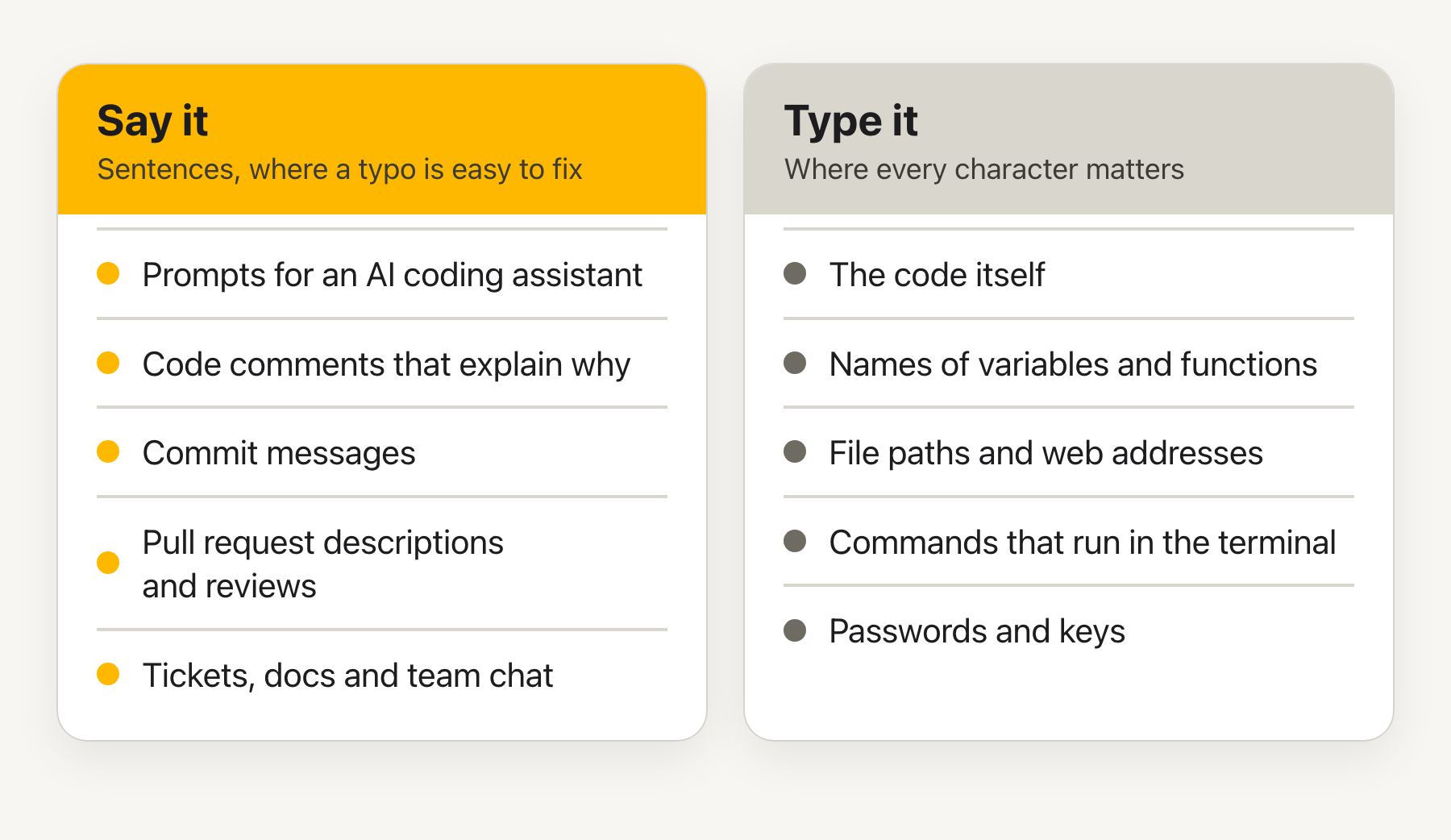
Coding by voice works best when you say what the code should do, and type the code itself. On a Mac, there are three free ways to do it:
- Apple Dictation types what you say wherever you can type. Use it for prompts to an AI coding assistant, comments, commit messages and pull request descriptions.
- Voice Control, also from Apple, lets you control your whole Mac with your voice. It has commands for code names, like "camel case", and a Swift mode for Xcode.
- VS Code has its own dictation. In the editor, press Option + Command + V and talk.
We have built Roar, a dictation app that is light years ahead of Apple Dictation. There's a link to try Roar for free at the end of this article.
Can you code by voice?
Yes, but not by saying every character. Code is full of brackets, symbols and exact names, and general dictation is made for sentences. Saying a line of code one symbol at a time is slower than typing it, and one wrong character breaks the build.
So split the work. Say the parts that are sentences, and type the parts where every character matters.
If an AI assistant writes your code, the prompt is the part you write, and you can say it.
How do I dictate a prompt for an AI coding assistant?
Use Apple Dictation in the assistant's chat box. It works in the chat box of your editor and in the browser.
- Click in the chat box.
- Press the Microphone key once. On most Mac keyboards from the last few years, the F5 key has a small microphone on it. This is the Microphone key.
- When a small microphone appears next to your cursor, describe the task. Say what is broken, what you already tried, and what the assistant must not change.
- Press the Microphone key again, read the prompt, and send it.
If nothing happens when you press the key, Apple Dictation may be switched off. Our guide on how to dictate on a Mac shows how to turn it on, with pictures. For ChatGPT and Claude in particular, see our guide on how to dictate into ChatGPT and Claude on a Mac.
Apple Dictation stops by itself when you haven't spoken for 30 seconds. Apple designed it this way, and there is no setting to make it longer. There is no limit on how long you talk, so if you stop to think, press the Microphone key again before you carry on.
How do I say symbols with Apple Dictation?
Say the name of the symbol. These are Apple's own commands:
| Say this | You get |
|---|---|
| "open parenthesis" and "close parenthesis" | ( and ) |
| "open brace" and "close brace" | { and } |
| "open square bracket" and "close square bracket" | [ and ] |
| "underscore" | _ |
| "equal sign" | = |
| "forward slash" and "backslash" | / and \ |
| "hyphen" | - |
| "no space on" and "no space off" | The words in between are joined, with no spaces |
| "all caps" | The next word in capital letters |
Our list of Mac dictation commands has the rest. These commands are fine for a symbol in a sentence. For whole lines of code, type them.
How do I use Voice Control to code on a Mac?
Voice Control is Apple's free tool to control your whole Mac by voice. It types what you say, and it also clicks buttons, opens menus and moves through text.
Time needed
About 2 minutes, plus a few minutes the first time while your Mac downloads what it needs.
- Open System Settings, click Accessibility, then click Voice Control.
- Turn on Voice Control.
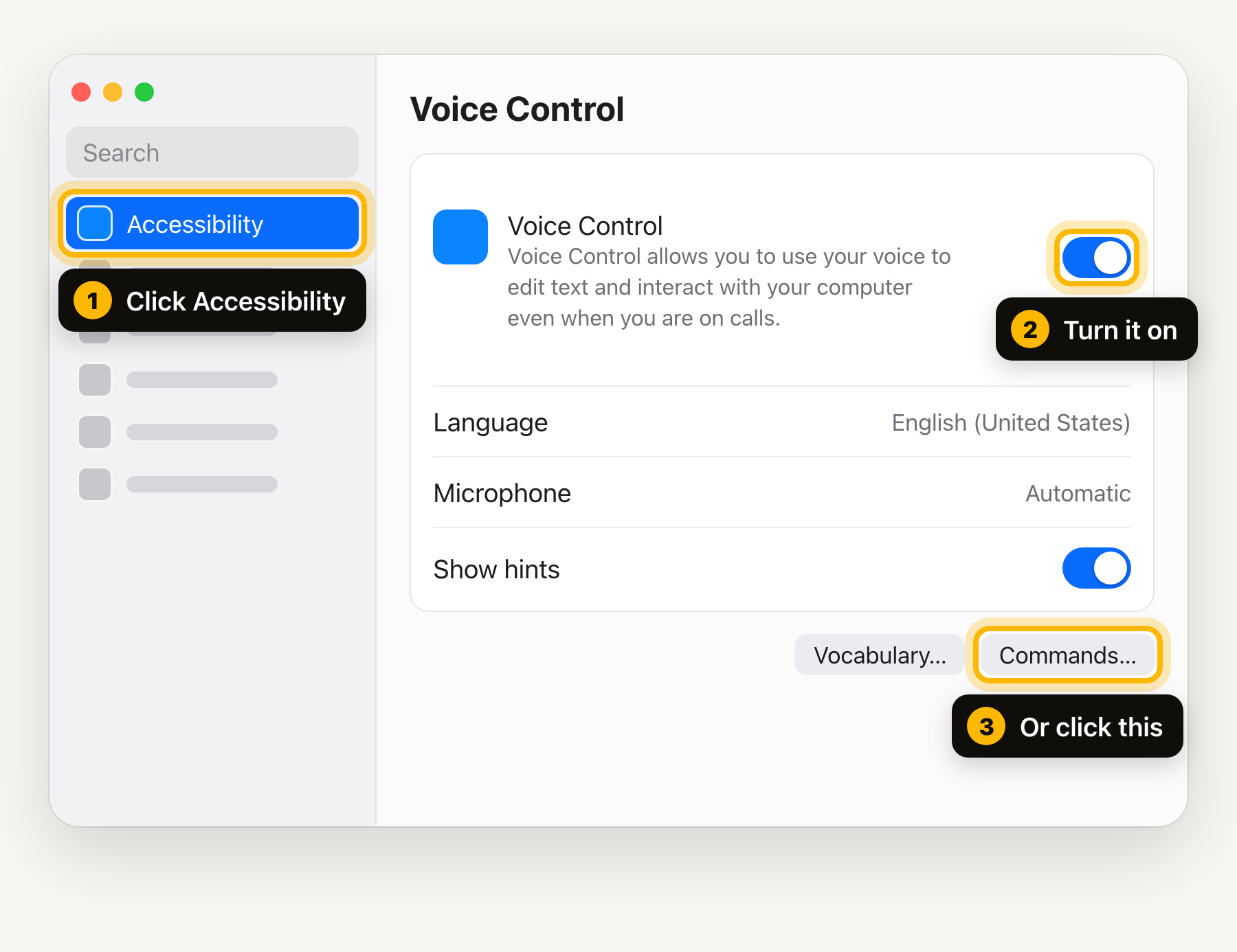
- Say "Show commands" to see what you can say. You can also click Commands… on the same page.
Voice Control has commands for the names in your code. Say the command, then the words:
| Say this | You get |
|---|---|
| "camel case number of nodes" | numberOfNodes |
| "snake case number of nodes" | number_of_nodes |
| "pascal case number of nodes" | NumberOfNodes |
| "upper snake case number of nodes" | NUMBER_OF_NODES |
A few more commands help when you code:
- "Spelling mode" types one character at a time, for a name that isn't a normal word. Say "Dictation mode" to go back.
- "Command mode" makes Voice Control listen only for commands, and type nothing.
- "Show numbers" puts a number on every button you can click. Say "Click" and the number.
To teach Voice Control the names in your project, click Vocabulary… on the Voice Control page, and add each word.
How do I dictate Swift code in Xcode?
Turn on Voice Control, click in your Swift file in Xcode, and say "Swift mode". Apple describes Swift mode as a way to "insert Swift source code into Xcode or another text input area." When you finish, say "Dictation mode" to go back to normal typing.
Apple announced it with Xcode 26, as "improved support for Voice Control to dictate Swift code and navigate the Xcode interface entirely by voice." While Voice Control is on, its settings page also has a Swift Coding Mode User Guide. Click Open Guide… to read it.
How do I use speech to text in VS Code?
VS Code has dictation built in, made by Microsoft. On a Mac with Apple silicon, VS Code downloads a speech model the first time you use it.
To dictate in the editor:
- Click where you want the text to go.
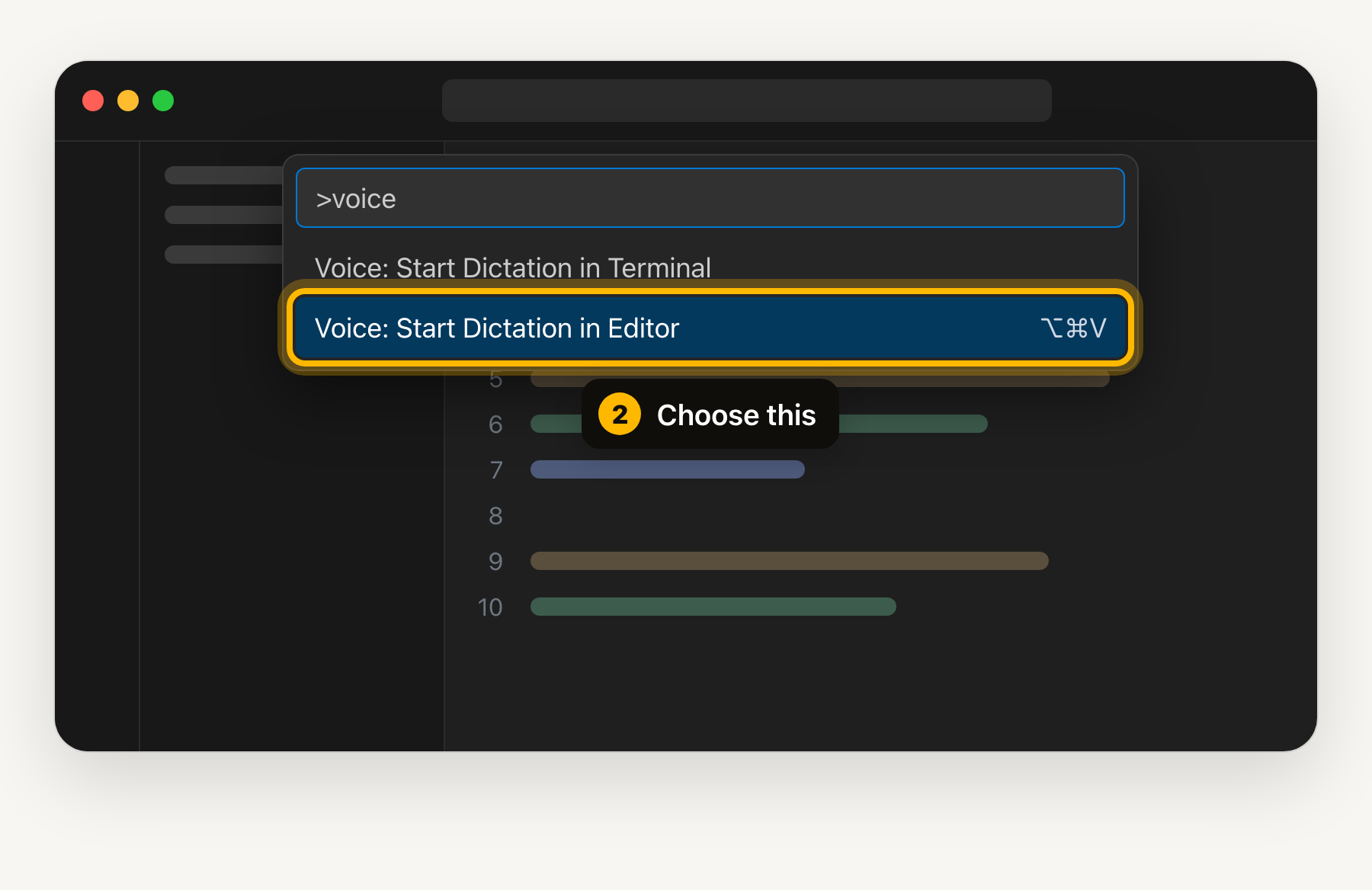
- Press Option + Command + V. Or press Shift + Command + P to open the Command Palette, type "voice", and choose Voice: Start Dictation in Editor.
- The first time, VS Code asks to use your microphone. Allow it.
- Talk. A small microphone appears at your cursor while VS Code listens.
- To stop, click the microphone at your cursor, or choose Voice: Stop Dictation in Editor in the Command Palette.
In VS Code's chat, click the microphone in the chat box, or press Command + I. VS Code types your words into the chat box, but doesn't send the prompt until you do.
At a terminal prompt, open the Command Palette and choose Voice: Start Dictation in Terminal. Microsoft says terminal dictation removes ordinary punctuation and turns spoken symbol names into symbols.
One setting, dictation.experimental.llmCleanup, sends the text you dictated to a Copilot language model to tidy it up. It is on by default. If your company does not allow that, turn it off in VS Code's settings.
Each dictation stops by itself after 20 minutes. Press Option + Command + V to start again.
On a Mac with an Intel chip, VS Code's built-in dictation isn't available. Microsoft points to its VS Code Speech extension instead.
When should you pay for a dictation app?
For simple, short text, like a text message, a web search or a quick reply, Apple Dictation works fine in most cases.
A paid app makes sense if you write for hours every day, and if you don't want to fix the dictation errors that Apple Dictation makes.
We've built Roar, the best way to write with your voice. Roar cleans up and formats text based on where you're writing to retain your exact meaning. Think of how emails, LinkedIn posts and AI prompts all need to be formatted differently. It keeps your exact words, to the best extent possible. In Terminal and iTerm2, Roar adds no punctuation you did not say, and nothing runs until you press Return.
Roar keeps no recordings of your voice and no transcripts on our servers. It does not use your data to train AI models. Roar works on Macs with macOS 14 Sonoma or later and Apple silicon (M1 or newer).
Your first 5 dictations on Roar are free. You can read how Roar works for developers or download Roar for Mac.