List of Mac dictation commands
This is the full list of Apple's dictation commands on a Mac, for punctuation, new lines, capital letters and symbols.
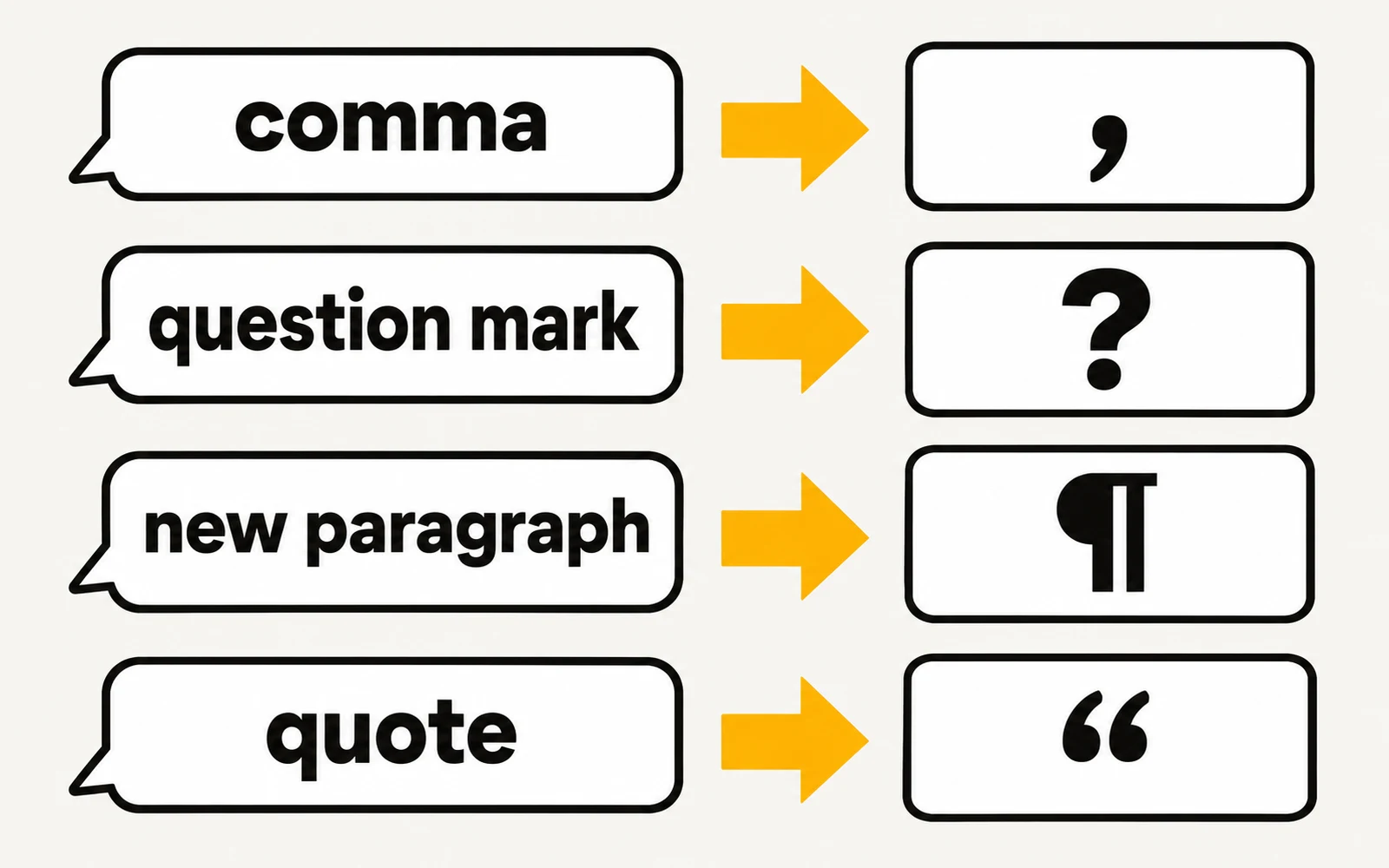
Mac dictation commands are words you say while Apple Dictation is listening. They add punctuation, new lines, capital letters and symbols to your text. For example, say "comma" and you get a comma. Say "new paragraph" and you get a new paragraph.
We have built Roar, a dictation app that is light years ahead of Apple Dictation. There's a link to try Roar for free at the end of this article.
If Dictation isn't turned on yet, start with our guide on how to dictate on a Mac.
How do I use dictation commands on a Mac?
You say the command out loud, in the middle of your sentence, at the place where you want the mark.
- Click where you want the words to go. That can be an email, a document or a note.
- Press the Microphone key and let go. On most Mac keyboards from the last few years, the F5 key has a small microphone on it. This is the Microphone key.
- Wait for the small microphone to appear next to your cursor.
- Talk. When you want a mark, say its name. For example, say: "Dear Sam comma new paragraph thank you for your letter period".
- When you finish, press the Microphone key again, or press Escape.
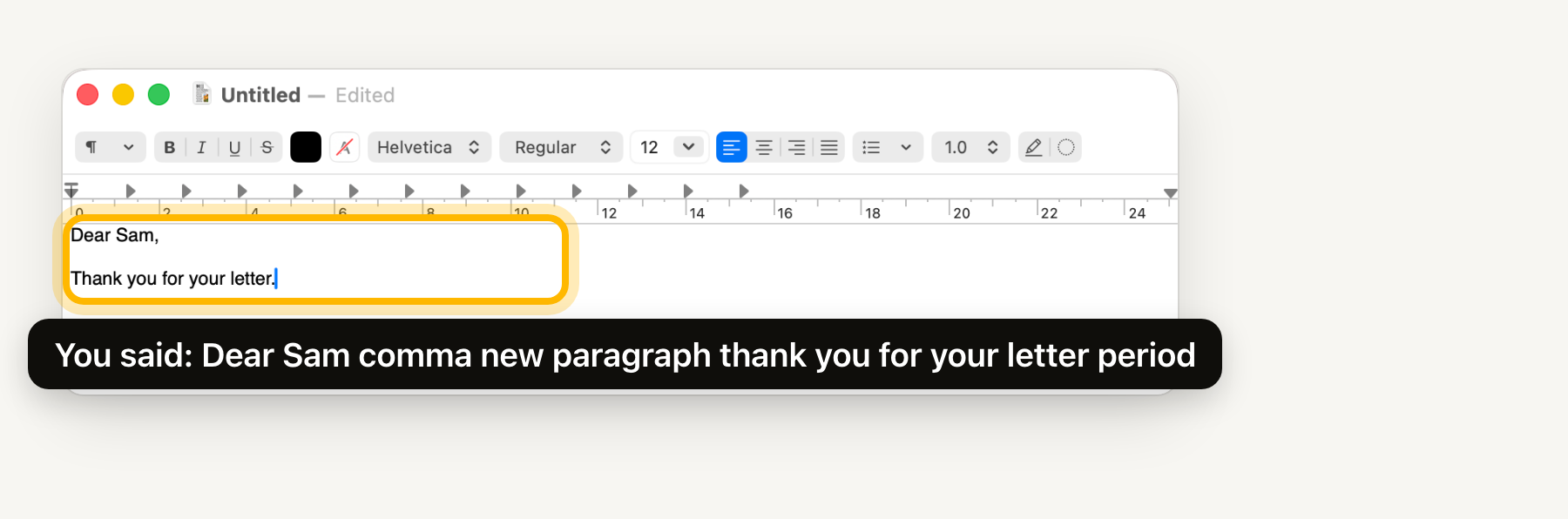
You get this:
Dear Sam,
Thank you for your letter.
Apple says these commands always work while you are dictating.
What are the most used Mac dictation commands?
These are the commands for everyday writing:
| Say this | You get |
|---|---|
| "comma" | , |
| "period" | . |
| "question mark" | ? |
| "exclamation mark" | An exclamation mark |
| "colon" | : |
| "quote" and "end quote" | Quotation marks around the words in between |
| "open parenthesis" and "close parenthesis" | ( and ) |
| "new line" | The next words start on a new line |
| "new paragraph" | A blank line, then a new paragraph |
| "all caps" | The next word in CAPITAL letters |
| "numeral" | The next words as a number |
In supported languages, Dictation adds commas, periods and question marks by itself as you talk. So you often don't need to say them. If you would rather say every mark yourself, you can turn this off. Our guide on how to turn off auto punctuation in Mac dictation shows you how.
What are all the Mac dictation commands?
This is Apple's full list of Mac dictation commands, in the same groups Apple uses.
Punctuation
| Say this | You get |
|---|---|
| "period", "point", "dot" or "full stop" | . |
| "comma" | , |
| "question mark" | ? |
| "exclamation mark" | An exclamation mark |
| "colon" | : |
| "semicolon" | ; |
| "ellipsis" | … |
| "dash" | A short dash, the kind used between two numbers |
| "hyphen" | - |
| "apostrophe" | ’ |
| "quote" | “ |
| "end quote" | ” |
| "begin single quote" | ‘ |
| "end single quote" | ’ |
| "open parenthesis" and "close parenthesis" | ( and ) |
| "open square bracket" and "close square bracket" | [ and ] |
| "open brace" and "close brace" | { and } |
| "open angle bracket" and "close angle bracket" | < and > |
Symbols
| Say this | You get |
|---|---|
| "ampersand" | & |
| "asterisk" | * |
| "at sign" | @ |
| "backslash" | \ |
| "forward slash" | / |
| "caret" | ^ |
| "center dot" | ・ |
| "large center dot" | ● |
| "degree sign" | ° |
| "hashtag" or "pound sign" | # |
| "percent sign" | % |
| "underscore" | _ |
| "vertical bar" | | |
Formatting
| Say this | You get |
|---|---|
| "new line" | The next words start on a new line |
| "new paragraph" | A blank line, then a new paragraph |
| "tab key" | The cursor moves to the next tab stop |
| "numeral" | The next words as a number |
| "roman numeral" | The next words as a Roman numeral |
| "no space on" | The next words with no spaces between them |
| "no space off" | Spaces go back to normal |
Capital letters
| Say this | You get |
|---|---|
| "caps on" | The next words with a capital letter at the start of each word |
| "caps off" | Capital letters go back to normal |
| "all caps" | The next word in CAPITAL letters |
| "all caps on" | The next words in CAPITAL letters |
| "all caps off" | Capital letters go back to normal |
Math
| Say this | You get |
|---|---|
| "equal sign" | = |
| "greater than sign" | > |
| "less than sign" | < |
| "minus sign" | - |
| "multiplication sign" | x |
| "plus sign" | + |
Money
| Say this | You get |
|---|---|
| "dollar sign" | $ |
| "cent sign" | ¢ |
| "pound sterling sign" | £ |
| "euro sign" | € |
| "yen sign" | ¥ |
Faces
| Say this | You get |
|---|---|
| "smiley face" | :-) |
| "frowny face" | :-( |
| "winky face" | ;-) |
| "cross-eyed laughing face" | XD |
In some languages, you can also say the name of an emoji, like "heart emoji" or "car emoji".
Trademark signs
| Say this | You get |
|---|---|
| "copyright sign" | © |
| "registered sign" | ® |
| "trademark sign" | ™ |
How do I make a new line in Mac dictation?
Say "new line" to start a new line. This is the same as pressing the Return key once. Say "new paragraph" to leave a blank line and start a new paragraph. This is the same as pressing Return twice.
How do I make capital letters with Mac dictation?
Say "all caps" before a word to type that one word in capital letters. For example, say "Please reply by all caps Friday" and you get "Please reply by FRIDAY".
For more than one word, say "all caps on" before the words and "all caps off" after them.
How do I delete a word with Mac dictation?
You can't delete a word with your voice in Apple Dictation on a Mac. Apple's list of Mac dictation commands has no command to delete, undo or select text.
To fix a word, use one of these ways instead:
- Click the word and type over it. On a Mac with an Apple M-series chip, you can type while Dictation is still on. Dictation waits, and starts listening again when you stop typing.
- If Dictation is not sure about a word, it underlines it in blue. Click the underlined word and pick the right one from the list.
Voice Control can delete and change words by voice. For example, you can say "Replace cat with dog". Voice Control is a different feature that lets you control your whole Mac with your voice. You'll find it in System Settings, under Accessibility. It takes time to learn, so try it only if you need to edit a lot by voice.
Why don't my dictation commands work?
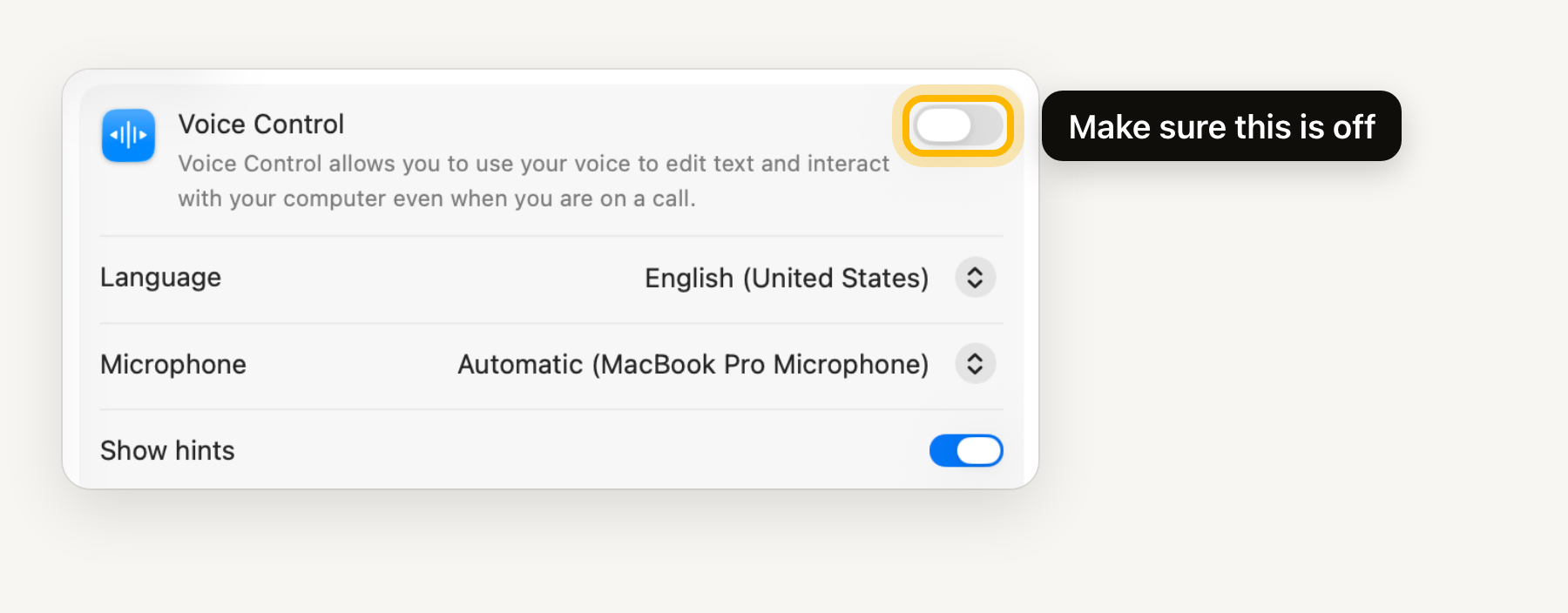
If your commands are typed as words, or nothing happens, check that Voice Control is off. Apple says that when Voice Control is on, standard Dictation isn't available, and Voice Control types your words instead. Voice Control has its own commands.
To turn Voice Control off, open System Settings, click Accessibility, then Voice Control, and turn it off.
If Dictation doesn't start at all, our guide to Mac dictation not working covers every fix.
Is there a Mac dictation commands PDF?
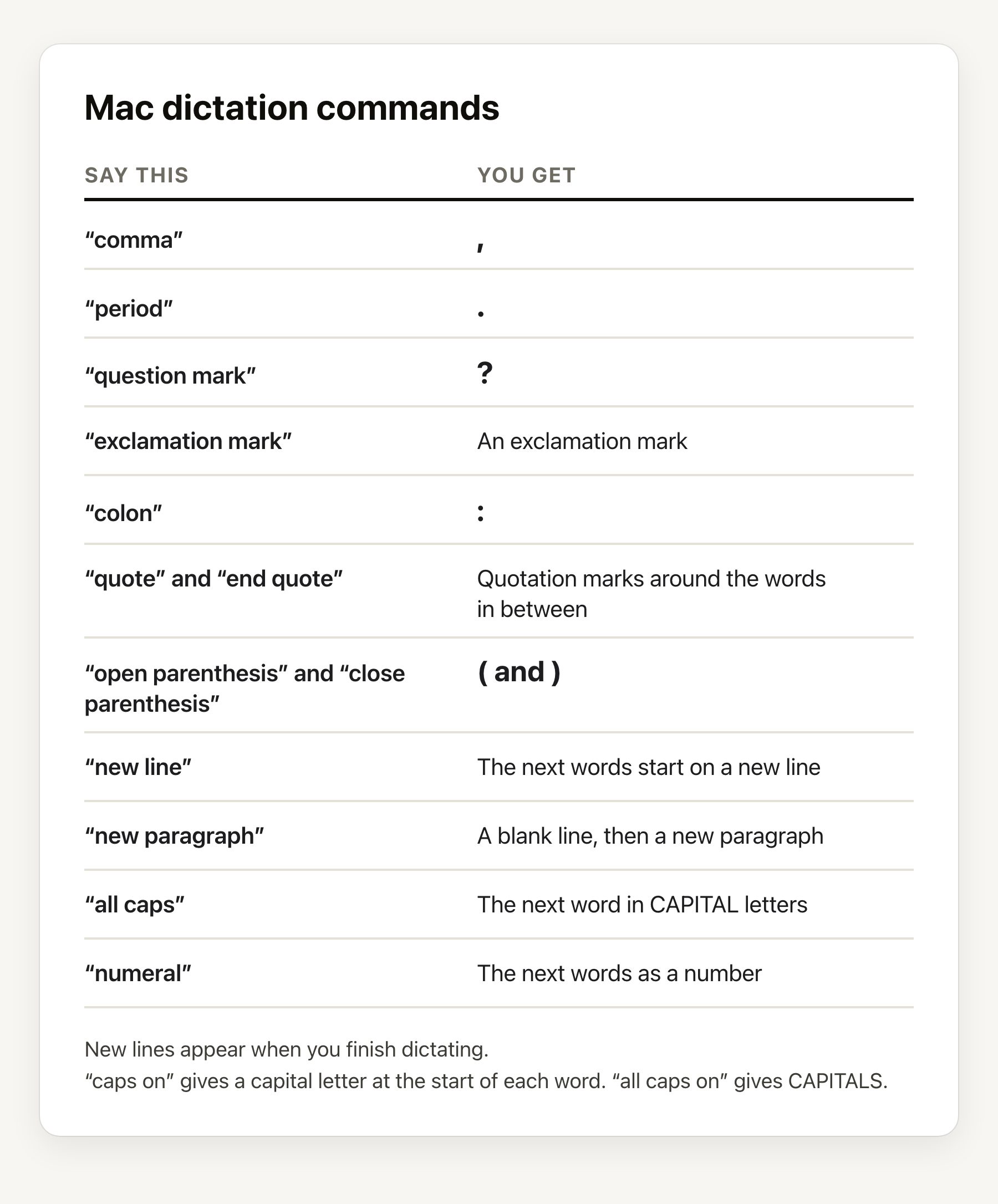
Apple doesn't offer a PDF of its dictation commands. You can print this page, or keep it open in another window while you dictate. The card below has the most used commands, and it fits on one printed page.
When should you pay for a dictation app?
For simple, short text, like a text message, a web search or a quick reply, Apple Dictation works fine in most cases.
A paid app makes sense if you write for hours every day, and if you don't want to fix the dictation errors that Apple Dictation makes.
We've built Roar, the best way to write with your voice. Roar cleans up and formats text based on where you're writing to retain your exact meaning. Think of how emails, LinkedIn posts and AI prompts all need to be formatted differently. It keeps your exact words, to the best extent possible.
Roar keeps no recordings of your voice and no transcripts on our servers. It does not use your data to train AI models. Roar works on Macs with macOS 14 Sonoma or later and Apple silicon (M1 or newer).
Your first 5 dictations on Roar are free. You can read how Roar works or download Roar for Mac.