How to turn off auto-punctuation in Mac dictation
This is a step by step guide to turn off auto-punctuation in Mac dictation and say punctuation yourself. It also shows what to do if the switch is missing.
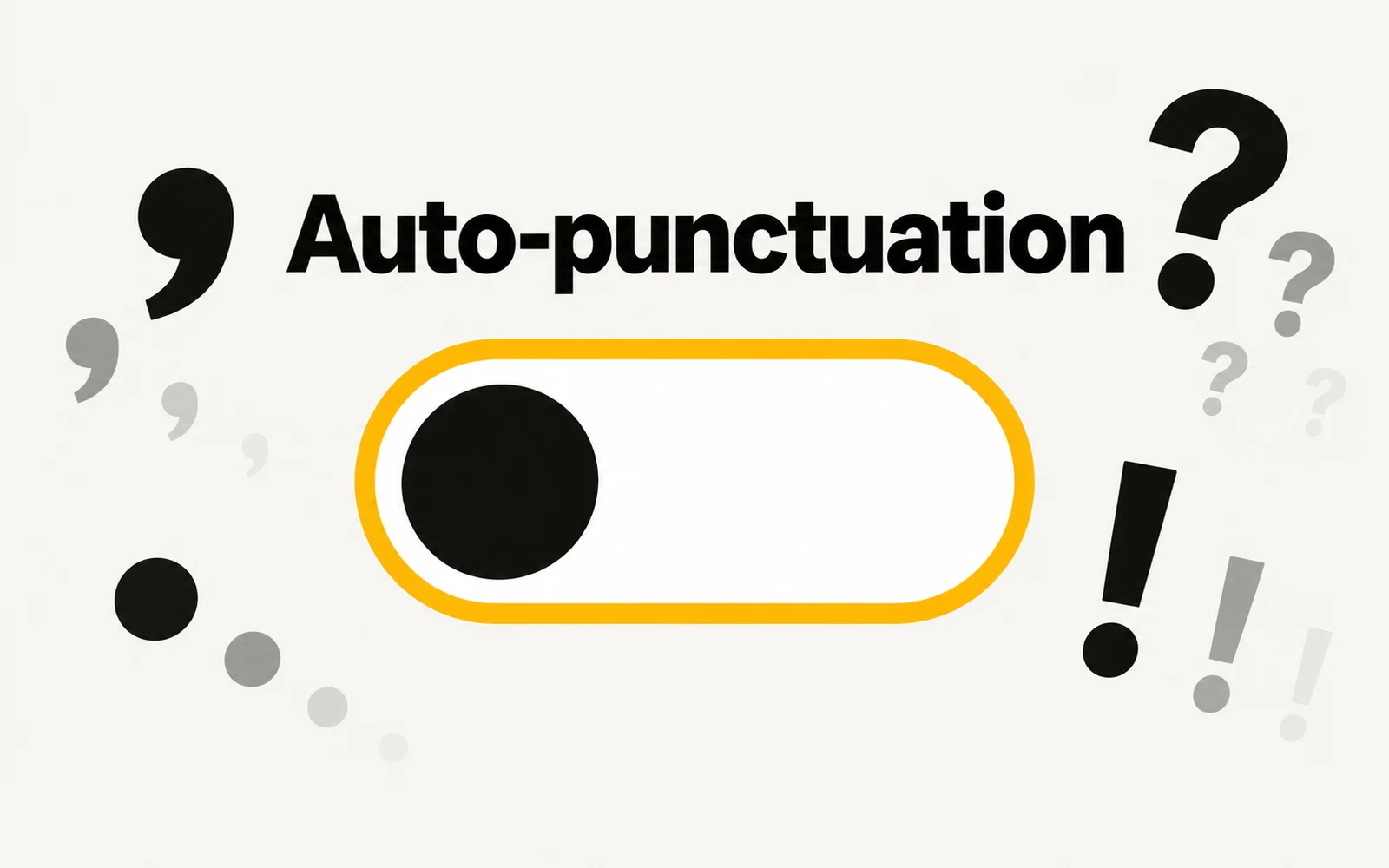
Apple Dictation adds commas, periods and question marks for you as you speak. Apple calls this Auto-punctuation. You can turn it off in one minute.
We have built Roar, a dictation app that is light years ahead of Apple Dictation. There's a link to try Roar for free at the end of this article.
How do I turn off auto-punctuation in Mac dictation?
Time needed About 1 minute.
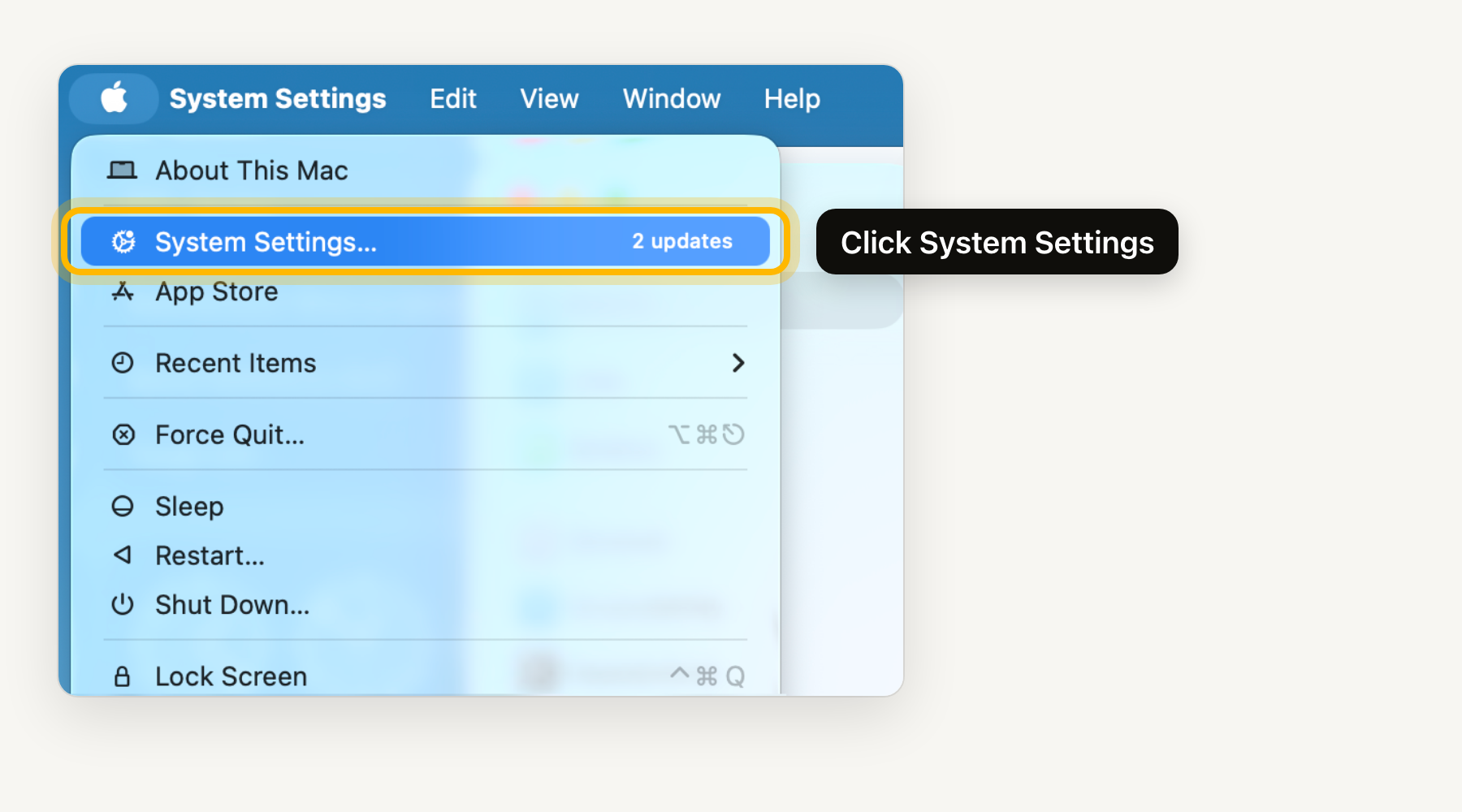
- Click the Apple logo in the top-left corner of your screen. Then click System Settings.
- In the list on the left, click Keyboard. You may need to scroll down the list to find it.
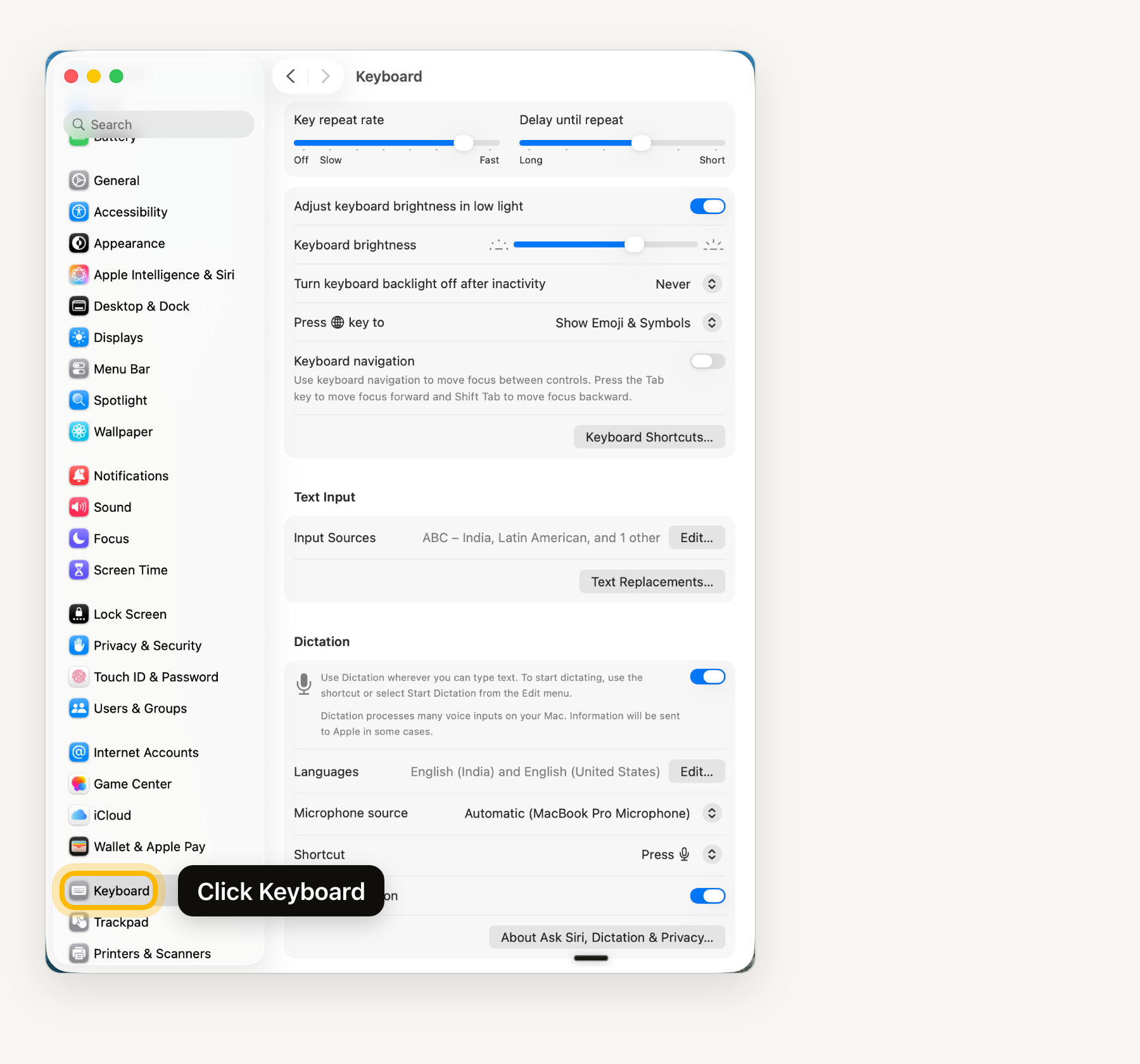
- Scroll down the Keyboard page until you see Dictation.
- Find the switch called Auto-punctuation, and click it to turn it off.
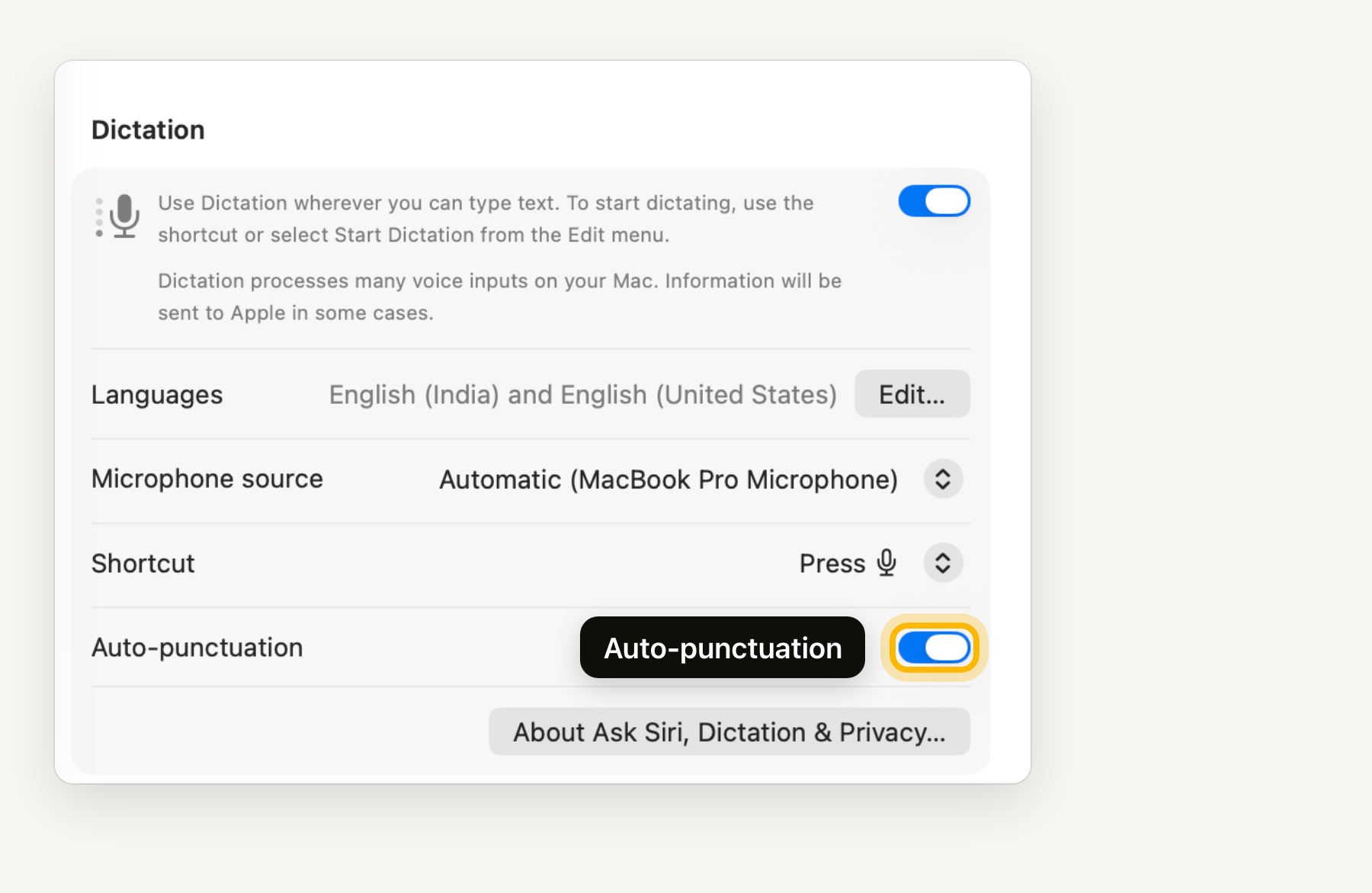
That's it. There is no save button. The next time you start Dictation, it won't add any punctuation. You say each mark yourself.
If Dictation is turned off, turn it on first. Our guide on how to dictate on a Mac shows every step with pictures.
What is auto punctuation on a Mac?
Auto-punctuation is the part of Apple Dictation that adds commas, periods and question marks to your text while you speak. You don't need to say them.
It only works in some languages. Apple lists 33 languages and regions with Auto-punctuation, including English for the United States, the United Kingdom, Canada, Australia and India. English for Ireland, New Zealand and South Africa is not on the list.
If your Dictation language is not on Apple's list, Dictation never added punctuation for you. So there is nothing to turn off.
Some people turn it off because it adds a comma or a period every time they pause. In a thread on Apple's community forum, a user who reads old documents aloud wrote about this problem.
For a text message or a quick email, you can leave it on. If your text has to match a document word for word, like a quote, turn it off and say each mark yourself.
Why can't I disable automatic punctuation in dictation?
There are two likely reasons:
- Your Dictation language does not have Auto-punctuation. Check it against Apple's list. If your language is not there, there is nothing to turn off.
- The switch is missing, even though your language has Auto-punctuation. Apple doesn't explain this fault.
In the same Apple community thread, a user with English (United States) on macOS Sonoma could not find the switch. She added a second English, and kept English (United States) turned on too. After that, the switch appeared. It stayed after she removed the second English.
Adding a language is safe, and you can remove it later. To try it:
- Open System Settings, click Keyboard, and scroll down to Dictation.
- Click Edit, next to Languages.
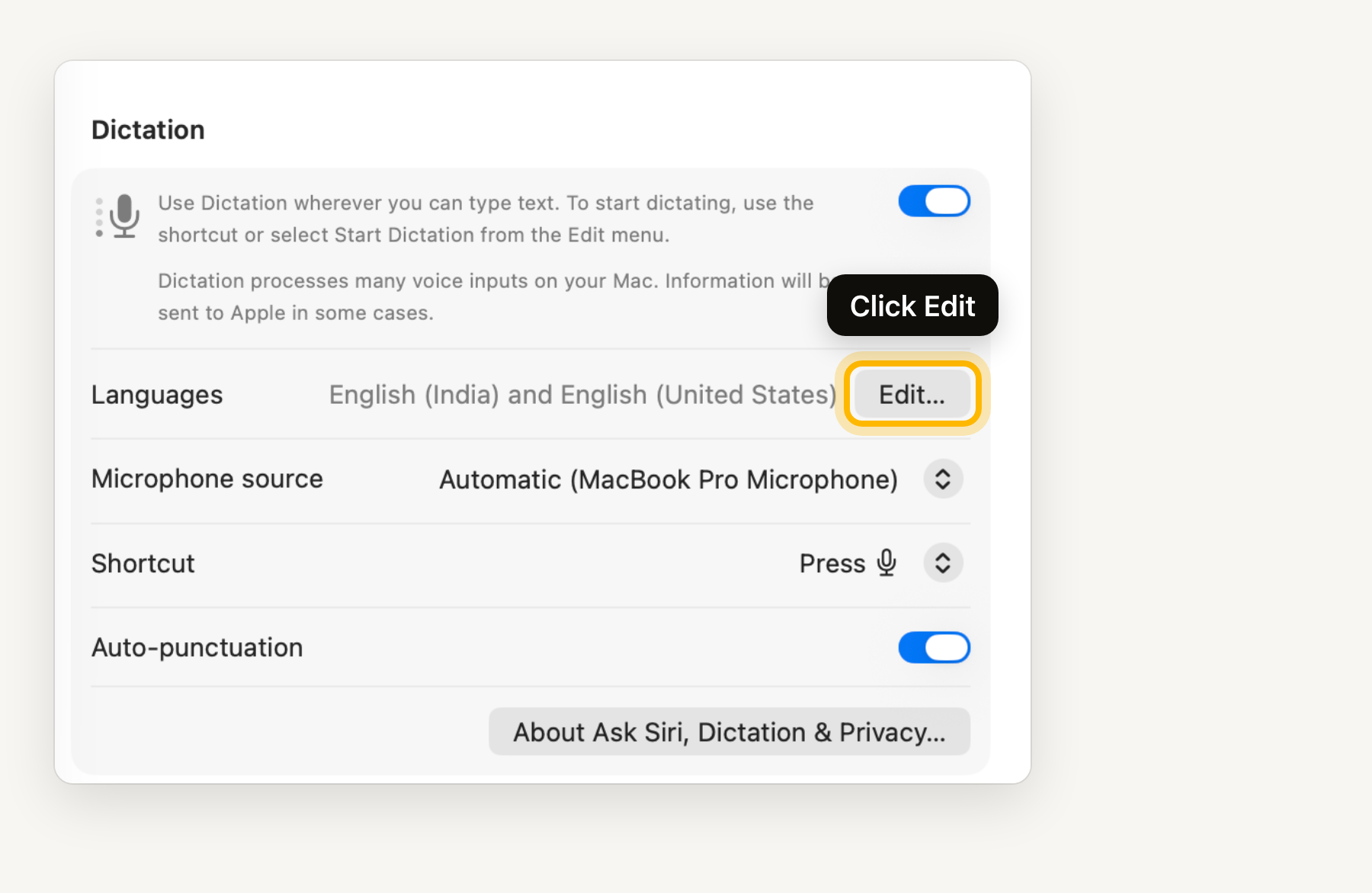
- Keep your own language selected. Also select a second English, like English (United Kingdom) or English (Canada). Then close the list.
- Look for the Auto-punctuation switch again, and turn it off.
- If you don't want the second English, click Edit again and deselect it.
If the switch still doesn't appear, and your language is on Apple's list, we know this is annoying, but the fix is up to Apple. Tell Apple on its macOS feedback page.
How do you dictate punctuation on a Mac?
Say the name of the mark where you want it. Apple says these commands always work while you dictate.
| Say this | You get |
|---|---|
| "comma" | , |
| "period" | . |
| "question mark" | ? |
| "colon" | : |
| "semicolon" | ; |
| "quote" and "end quote" | Quotation marks around the words in between |
| "open parenthesis" and "close parenthesis" | Parentheses around the words in between |
| "new line" | The next words start on a new line |
| "new paragraph" | Starts a new paragraph |
Apple keeps the full list, with symbols and capital letters, on its commands page.
How do I turn off auto punctuation on iPhone?
On an iPhone, go to Settings, then General, then Keyboard, and turn off Auto-Punctuation.
This is a separate setting from the one on your Mac. Turning it off on your iPhone doesn't change your Mac, and turning it off on your Mac doesn't change your iPhone.
When should you pay for a dictation app?
For simple, short text, like a text message, a web search or a quick reply, Apple Dictation works fine in most cases.
A paid app makes sense if you write for hours every day, and if you don't want to fix the dictation errors that Apple Dictation makes.
We've built Roar, the best way to write with your voice. Roar cleans up and formats text based on where you're writing to retain your exact meaning. Think of how emails, LinkedIn posts and AI prompts all need to be formatted differently. It keeps your exact words, to the best extent possible.
Roar keeps no recordings of your voice and no transcripts on our servers. It does not use your data to train AI models. Roar works on Macs with macOS 14 Sonoma or later and Apple silicon (M1 or newer).
Your first 5 dictations on Roar are free. You can read how Roar works or download Roar for Mac.