What is the difference between Dictation and Voice Control on a Mac?
Dictation types what you say. Voice Control lets you control your whole Mac by voice, and it can type too. If you only want to type by voice, use Dictation.
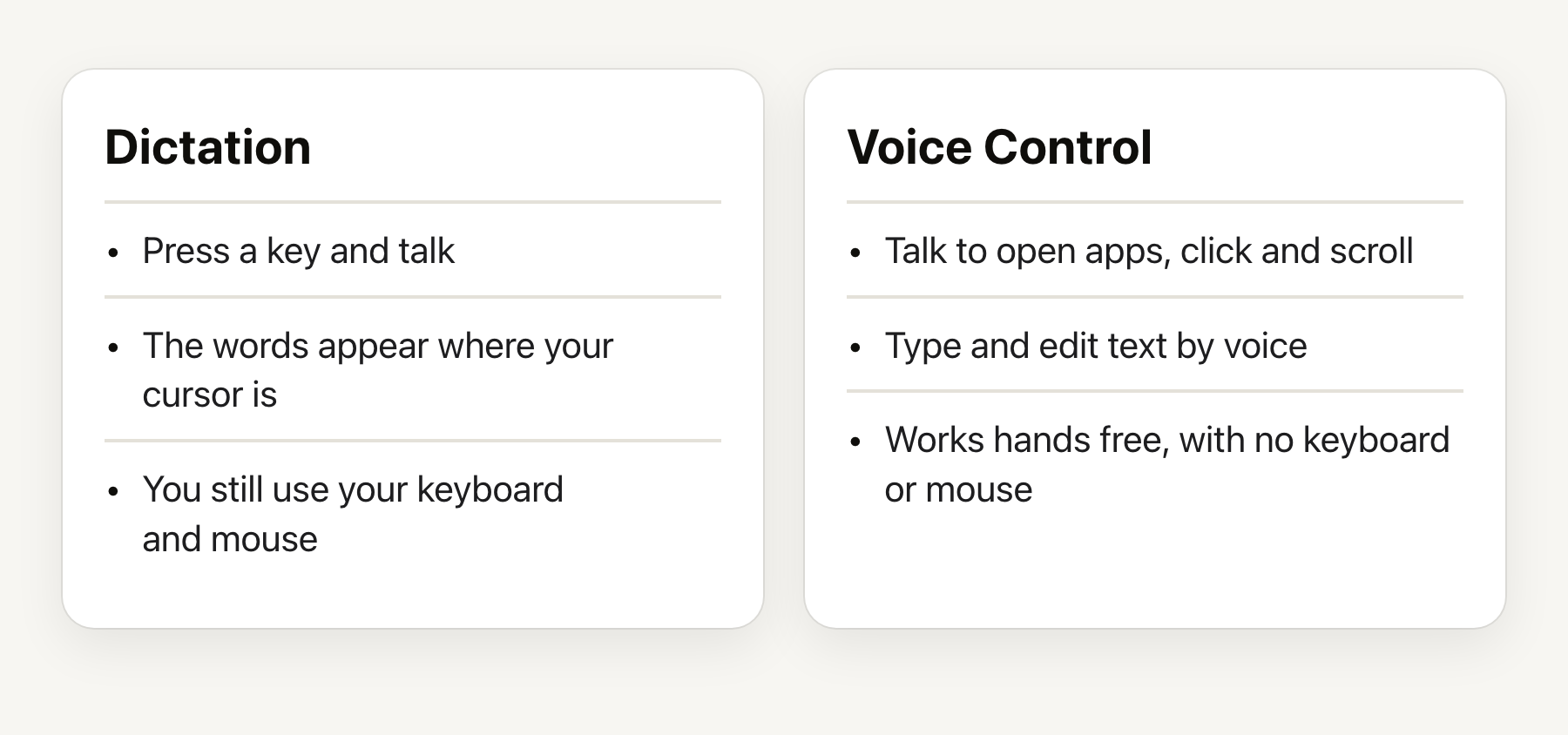
Dictation and Voice Control are two different features that come with every Mac.
- Dictation types what you say. You press a key, talk, and the words appear where your cursor is.
- Voice Control lets you control your whole Mac by voice. You can open apps, click buttons, scroll, and also type and edit text, all without touching the keyboard or the mouse.
If you only want to type by voice, use Dictation. Voice Control is mainly for people who can't use a keyboard or mouse easily, or who want to work hands free.
We have built Roar, a dictation app that is light years ahead of Apple Dictation. There's a link to try Roar for free at the end of this article.
What does Dictation do on a Mac?
Dictation turns your speech into text, wherever you can type. It works in emails, documents, messages and web pages.
To use it:
- Click where you want the words to go.
- Press the Microphone key once. On most Mac keyboards from the last few years, the F5 key has a small microphone on it. This is the Microphone key.
- Talk. Say "comma" or "period" where you want punctuation.
- Press the Microphone key again when you finish.
Dictation is switched on in System Settings, under Keyboard. If you have never used it, our guide on how to dictate on a Mac shows every step with pictures.
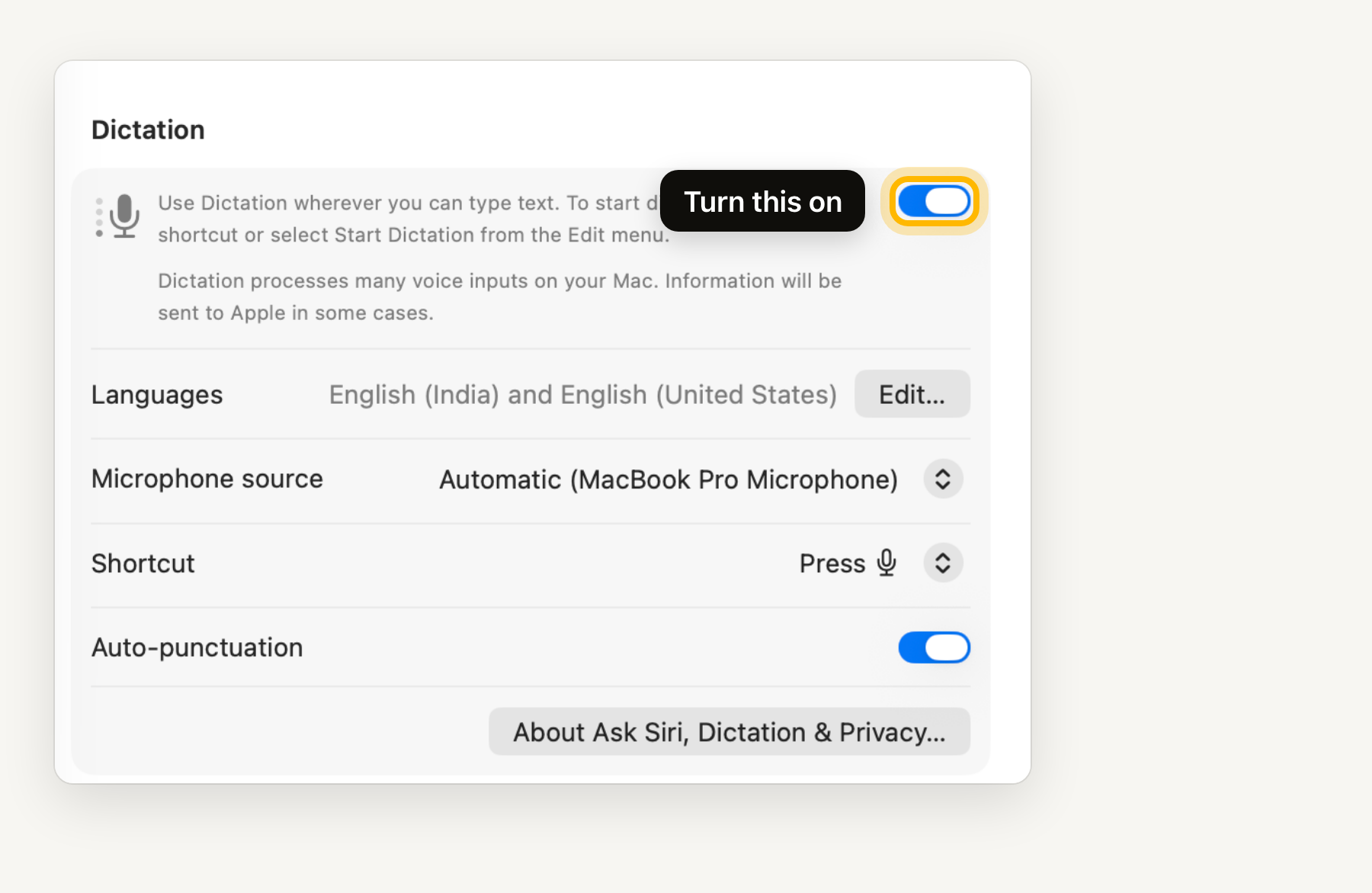
Dictation has no time limit. You can talk for as long as you want. But it stops by itself after 30 seconds without speech. Apple designed it this way, and there is no setting to make it longer.
What is Voice Control on a Mac?
Voice Control is an accessibility feature that lets you use your whole Mac with your voice. Apple built it for people who can't use a keyboard, a mouse or a trackpad easily, but anyone can turn it on.
With Voice Control you can:
- Open apps and menus. Say "Show commands" to see the full list of what you can say.
- Click anything on the screen. Say "Show numbers", and a number appears next to every button and link. Then say "Click" and the number.
- Point at any part of the screen. Say "Show grid" to split the screen into numbered squares.
- Type text. Voice Control starts in Dictation mode, so what you say is typed.
- Edit text by voice. For example, say "Replace cat with dog".
- Teach it words. You can add up to 1,000 words, like names or terms from your work.
You can pause it at any time. Say "Stop listening", and later "Start listening".
How do I turn on Voice Control on a Mac?
Time needed About 2 minutes the first time.
- Click the Apple logo in the top-left corner of your screen. Then click System Settings.
- Click Accessibility in the sidebar.
- Click Voice Control, then click the switch next to Voice Control to turn it on.
The first time you turn it on, your Mac downloads a file from Apple, so it needs the internet. After that, Voice Control works without an internet connection.
Can I use Dictation and Voice Control at the same time?
No. When Voice Control is on, Dictation doesn't work. Voice Control types your words instead.
If the Microphone key suddenly stops working, Voice Control may be on. If you only wanted Dictation, turn Voice Control off:
- Open System Settings and click Accessibility.
- Click Voice Control.
- Turn off the Voice Control switch.
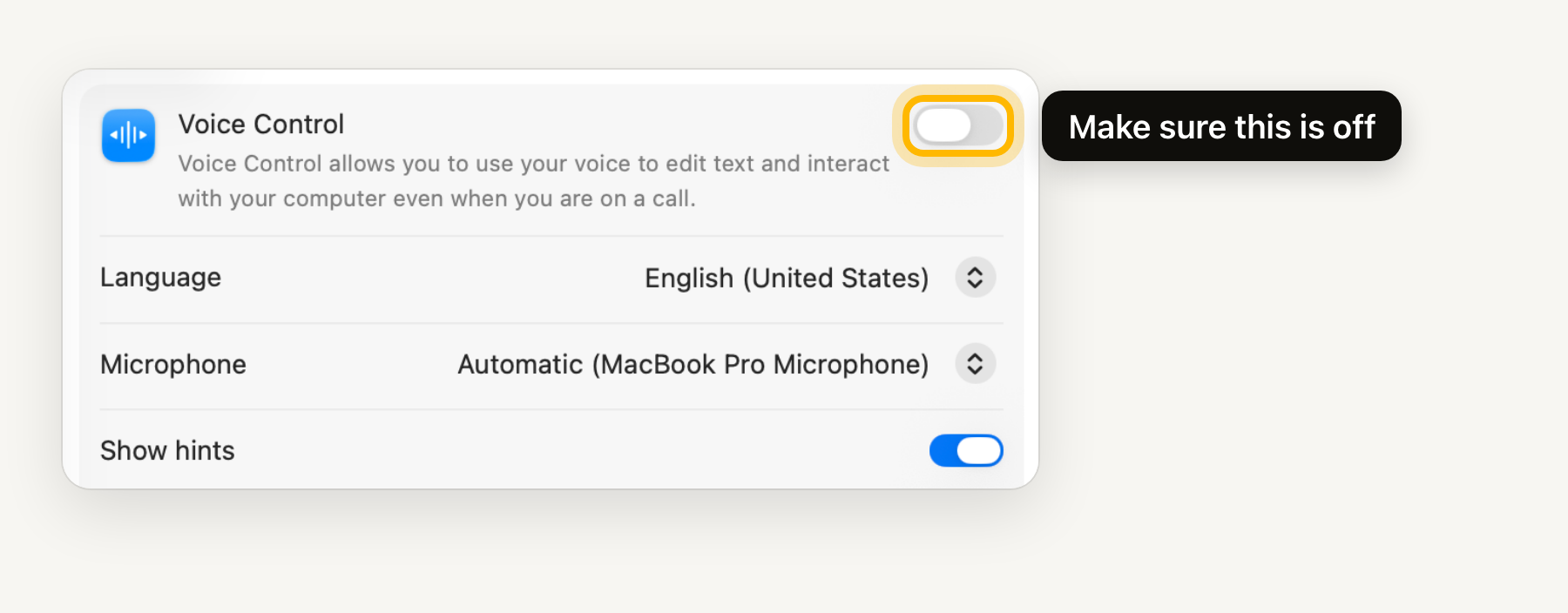
Then press the Microphone key again. If Dictation still doesn't start, our guide on Mac dictation not working has the other fixes.
Which one should I use, Dictation or Voice Control?
Use Dictation if you want to type by voice and still use your keyboard and mouse for everything else. It is the simpler of the two. You press a key, talk, and press the key again.
Use Voice Control if:
- You can't use a keyboard or a mouse easily, because of an injury, pain or a disability.
- You want to keep your hands free while you work.
- You want to edit your text by voice, not only type it.
Voice Control takes time to learn. It listens all the time while it is on, so you need to learn the commands, and when to pause it.
Can I edit text with my voice on a Mac?
Yes, with Voice Control. You can say "Replace cat with dog" to swap a word. You can also say "Show numbers" to put a number on each item, then say a command like "Delete" or "Uppercase" with the item's number.
Dictation can't select or replace words you have already typed. It can only add punctuation and line breaks as you talk, like "comma", "new line" and "new paragraph". Our list of Mac dictation commands has all of them.
Does Voice Control send my voice to Apple?
Not by default. After the first download, Voice Control works without an internet connection. Apple only collects audio and transcripts from Voice Control if you opt in to a setting called Improve Assistive Voice Features.
Dictation is different. Sometimes it runs on your Mac, and sometimes your voice is sent to Apple. Our guide on whether Apple Dictation is private explains how to check which one your Mac uses.
Is there an alternative to Mac dictation?
For simple, short text, like a text message, a web search or a quick reply, Apple Dictation works fine in most cases.
A paid app makes sense if you write for hours every day, and if you don't want to fix the dictation errors that Apple Dictation makes.
We've built Roar, the best way to write with your voice. Roar cleans up and formats text based on where you're writing to retain your exact meaning. Think of how emails, LinkedIn posts and AI prompts all need to be formatted differently. It keeps your exact words, to the best extent possible.
Roar keeps no recordings of your voice and no transcripts on our servers. It does not use your data to train AI models. Roar works on Macs with macOS 14 Sonoma or later and Apple silicon (M1 or newer).
Your first 5 dictations on Roar are free. You can read how Roar works or download Roar for Mac.