Is Apple Dictation private?
This guide explains where your Mac sends what you dictate and what Apple keeps. It also shows how to turn off sharing and delete your dictation history.
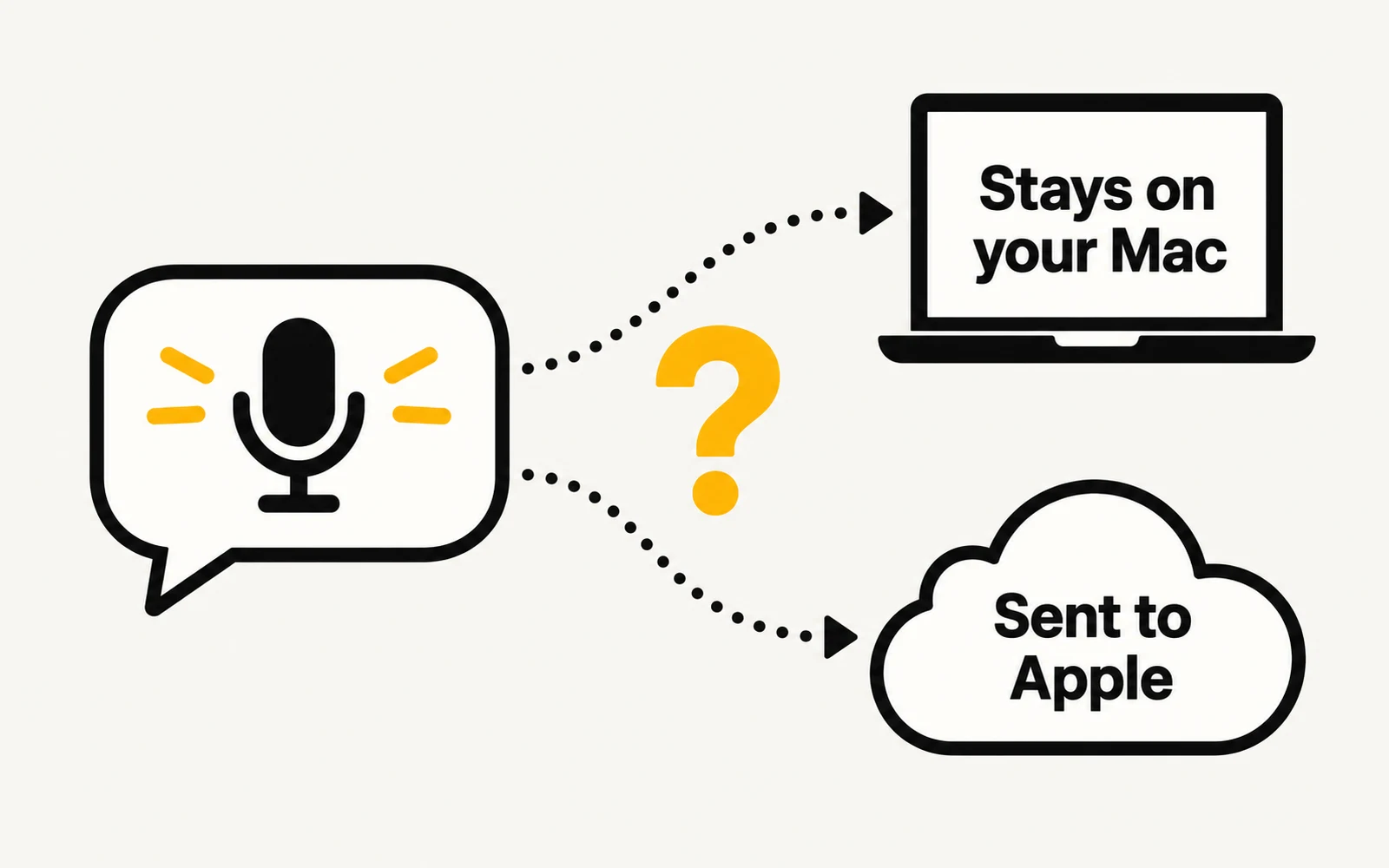
Mostly, yes.
We have built Roar, a dictation app that is light years ahead of Apple Dictation. There's a link to try Roar for free at the end of this article.
Is Apple Dictation on device?
Partly. Your Mac tells you how it handles your dictation, in a short note under Dictation in Keyboard settings.
Time needed About 1 minute.
- Click the Apple logo in the top-left corner of your screen. Then click System Settings.
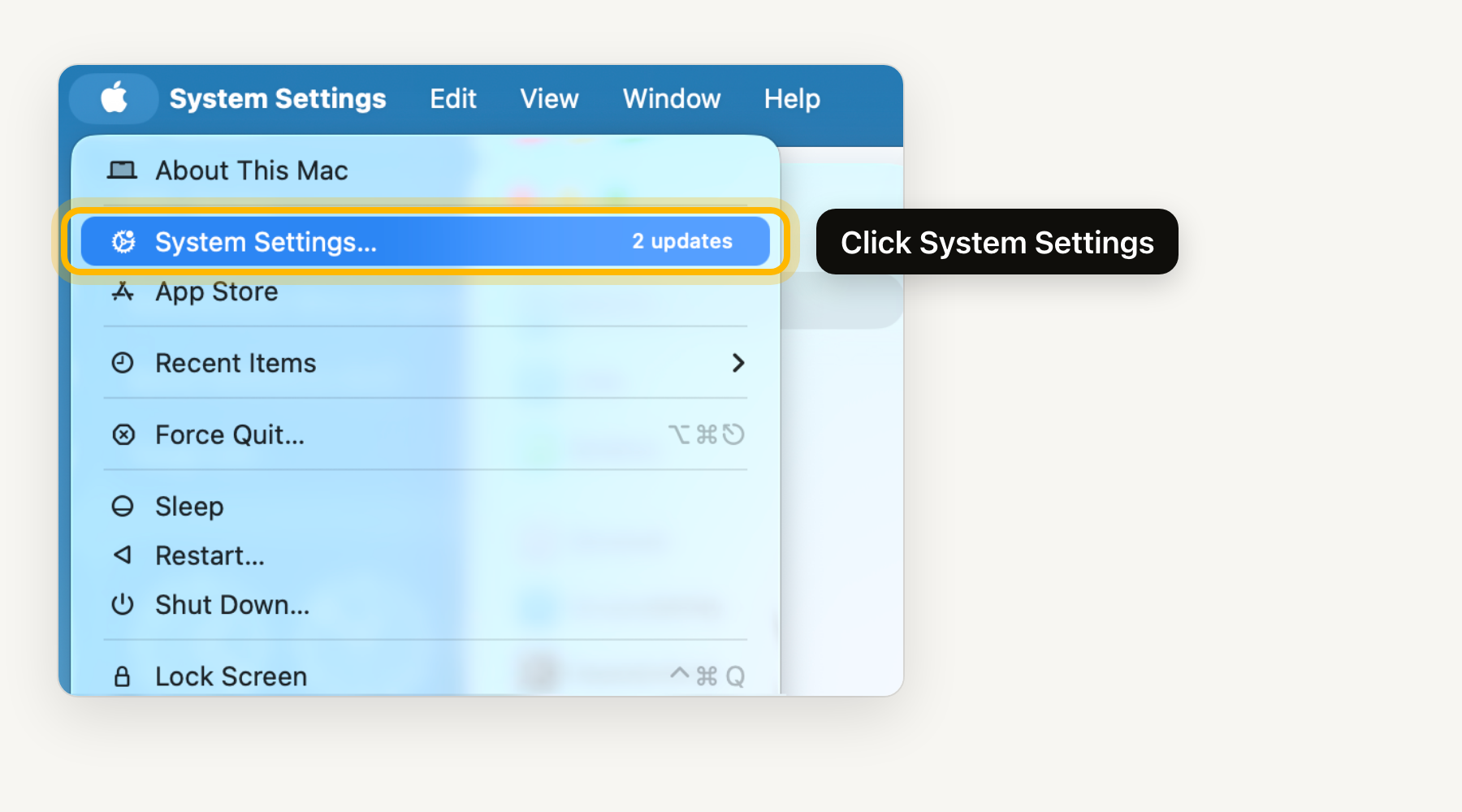
- In the list on the left, click Keyboard. You may need to scroll down the list to find it.
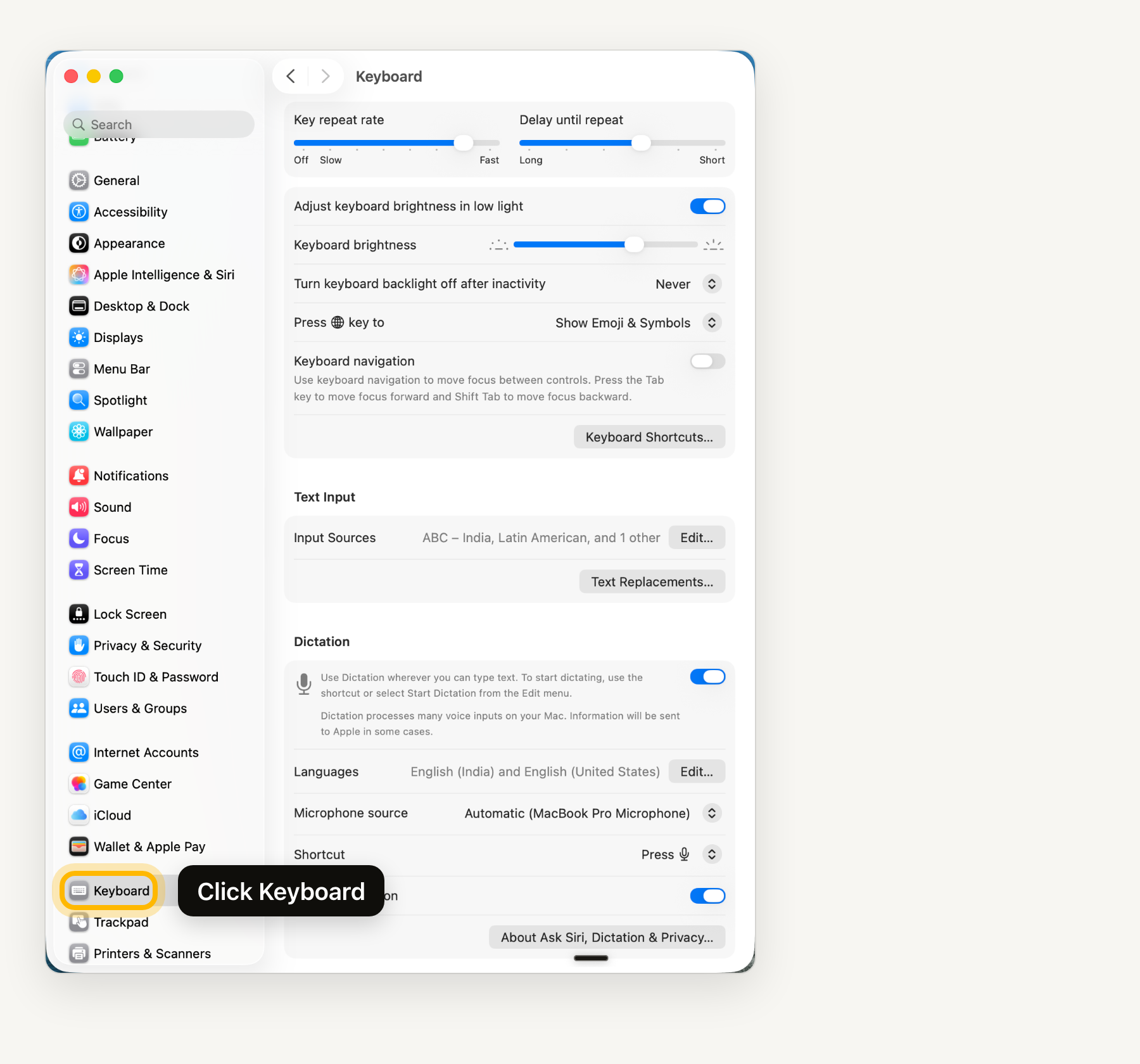
- Scroll down to Dictation and read the gray note under it. Dictation must be turned on for the note to show.
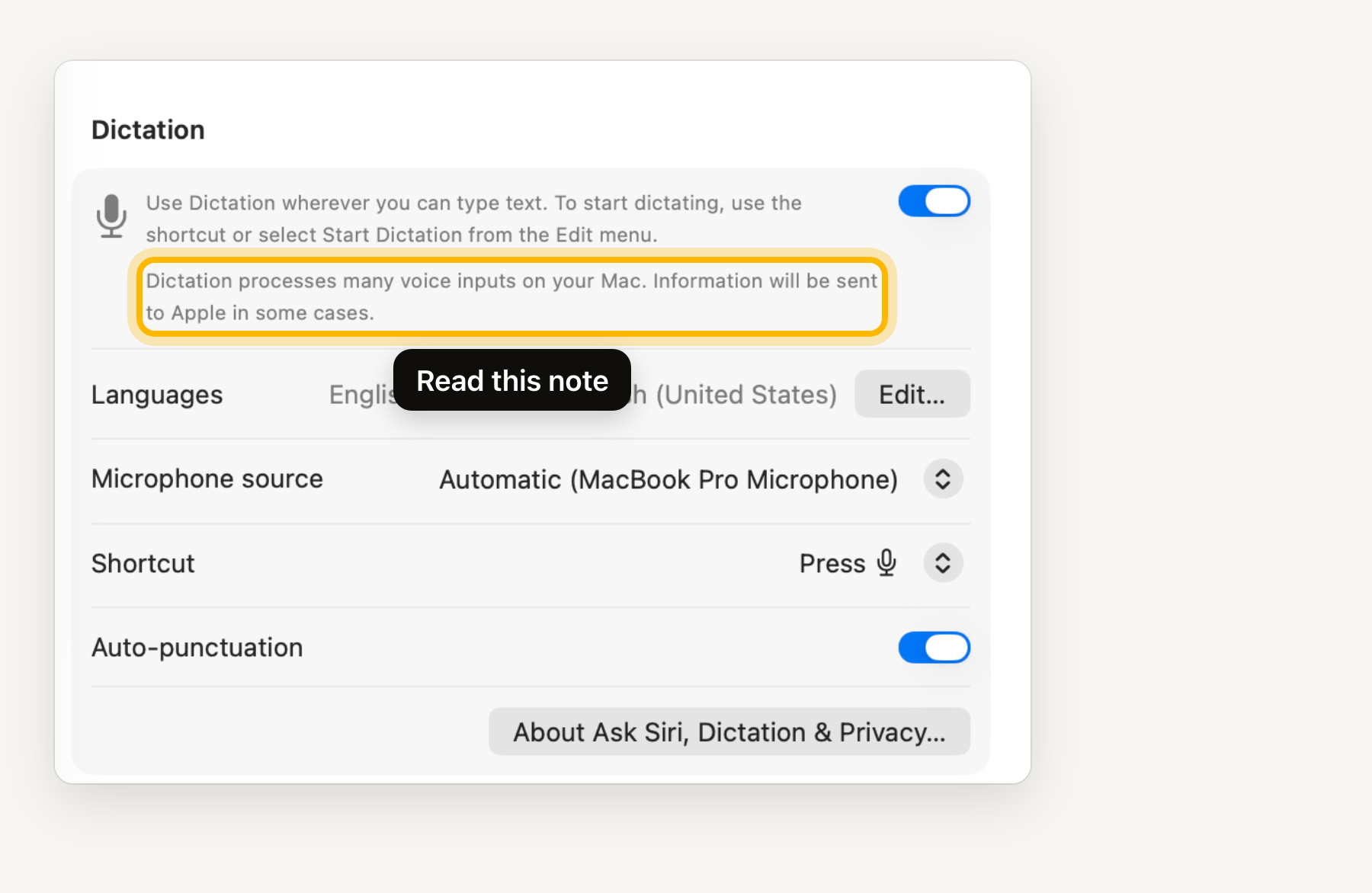
On a MacBook Pro with macOS 26, the note says: "Dictation processes many voice inputs on your Mac. Information will be sent to Apple in some cases."
So on this Mac, most of what you say is turned into text on the Mac, and some of it goes to Apple. Your Mac may show different words. Whatever your note says is the answer for your Mac.
Two things decide which way your Mac works:
- Your Mac's chip. Apple says that on a Mac with an Apple M-series chip (M1, M2, M3 and later), Dictation is processed on the Mac for supported languages. On an older Mac with an Intel chip, what you say is sent to Apple. To see which chip your Mac has, click the Apple logo, then About This Mac, and look at the line called Chip.
- Your language. Some languages are not processed on the Mac, even on an M-series Mac. What you say in those languages is sent to Apple.
If Dictation isn't turned on yet, our guide on how to dictate on a Mac shows you how.
Does Apple Dictation send data to Apple?
Yes, in some cases. When your Mac doesn't turn your speech into text by itself, it sends what you dictate to Apple's servers. Apple turns it into text there and sends the text back.
Apple also says your Mac may send some other details to help Dictation understand you:
- The names of people in your contacts.
- The names of apps on your Mac.
- Your Mac's approximate location, if Location Services is turned on for Siri.
Some apps can also send audio to Apple. These apps ask for permission to use Speech Recognition. If you allow an app to use it, the audio that app wants turned into text may be sent to Apple. You can see these apps in System Settings. Click Privacy & Security, then Speech Recognition.
Does Apple keep recordings of my dictation?
No, not by default. Apple says it doesn't keep recordings of your voice unless you choose to share them.
Apple does keep other information when your dictation goes to its servers:
- Request data. This means the type of request, whether it worked, details about your Mac and its settings, and how well it ran.
- Transcripts. Apple's privacy page says transcripts are used to improve Siri and Dictation.
Apple stores this information under a random number that your Mac makes. The number changes several times an hour. It is not linked to your Apple Account or your email address. Apple may keep this information for up to two years. A small number of requests are checked by people, and Apple may keep those for longer.
Apple says it never uses this information to build a marketing profile, and never sells it.
Your Mac also keeps a history of your Siri and Dictation requests on the Mac itself. Apple uses it to make Siri work better for you.
What does Improve Siri and Dictation mean?
Improve Siri and Dictation is a setting that lets Apple keep recordings of your voice. With this setting on, Apple may store the audio of your Siri and Dictation requests, and people may listen to some of them to help Apple improve its products.
Apple says only Apple employees can listen to the audio. A person checking a request may also see some details linked to it, like the names of your contacts or your apps.
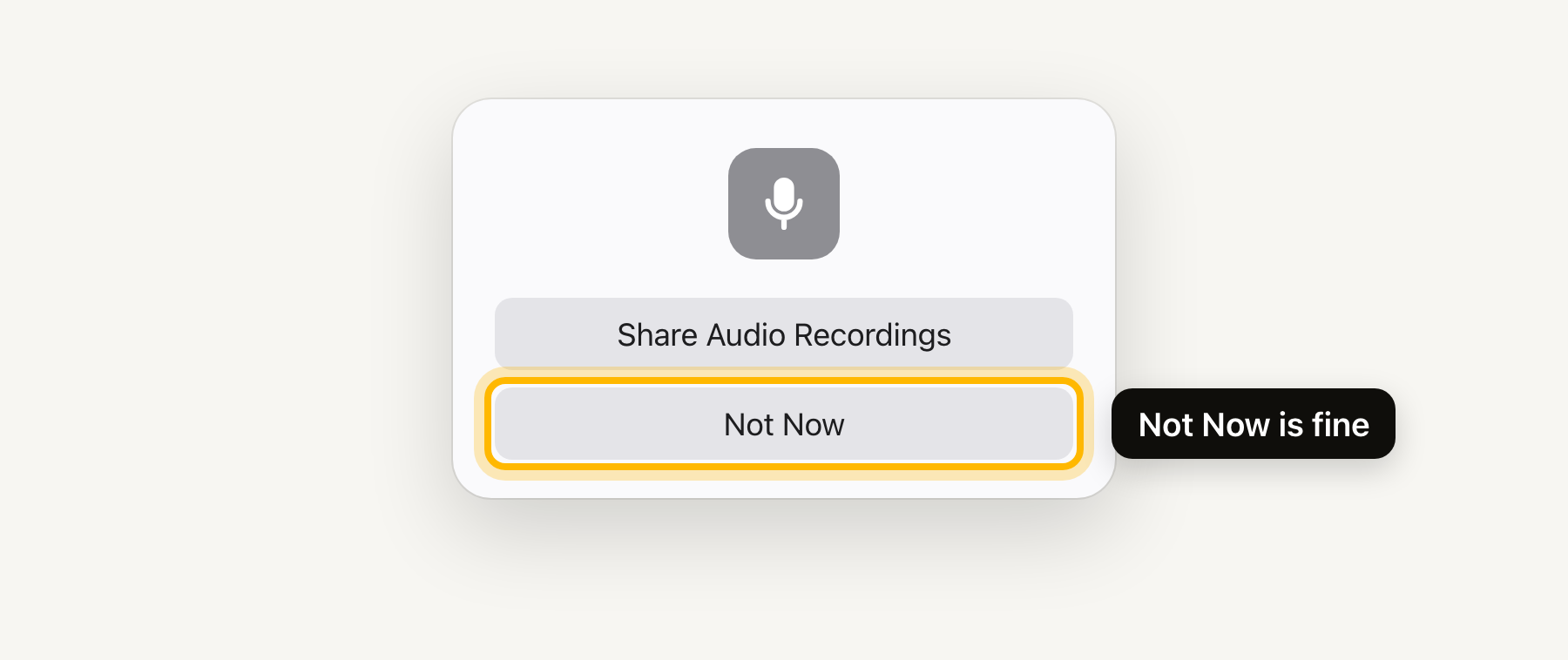
This setting is off unless you turned it on. Your Mac may ask you about it when you turn on Dictation. If you clicked Share Audio Recordings, it is on. If you clicked Not Now, it is off.
How do I turn off Improve Siri and Dictation?
You can turn it off in Privacy & Security settings.
Time needed About 1 minute.
- Click the Apple logo in the top-left corner of your screen. Then click System Settings.
- In the list on the left, click Privacy & Security. You may need to scroll down the list to find it.
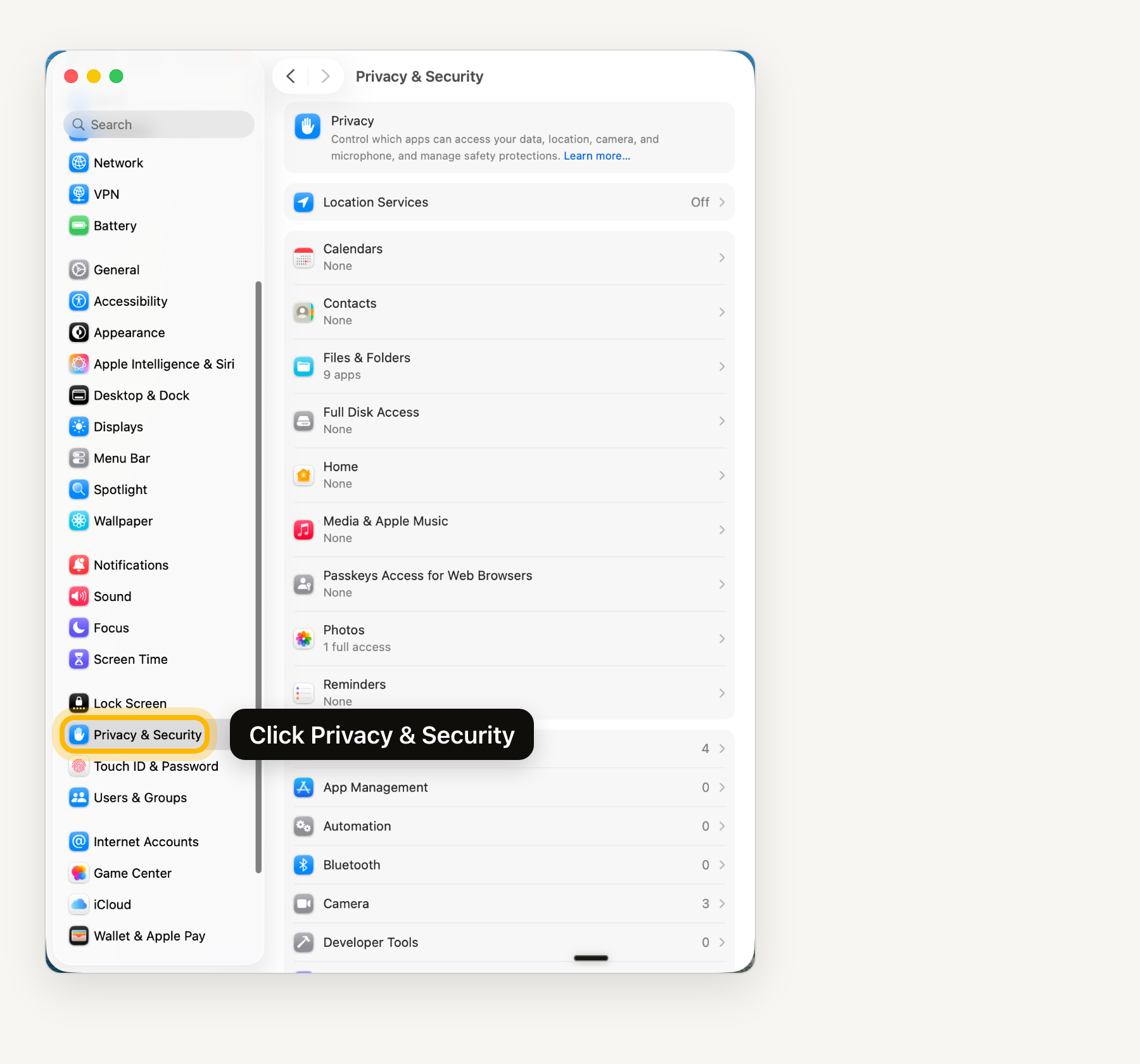
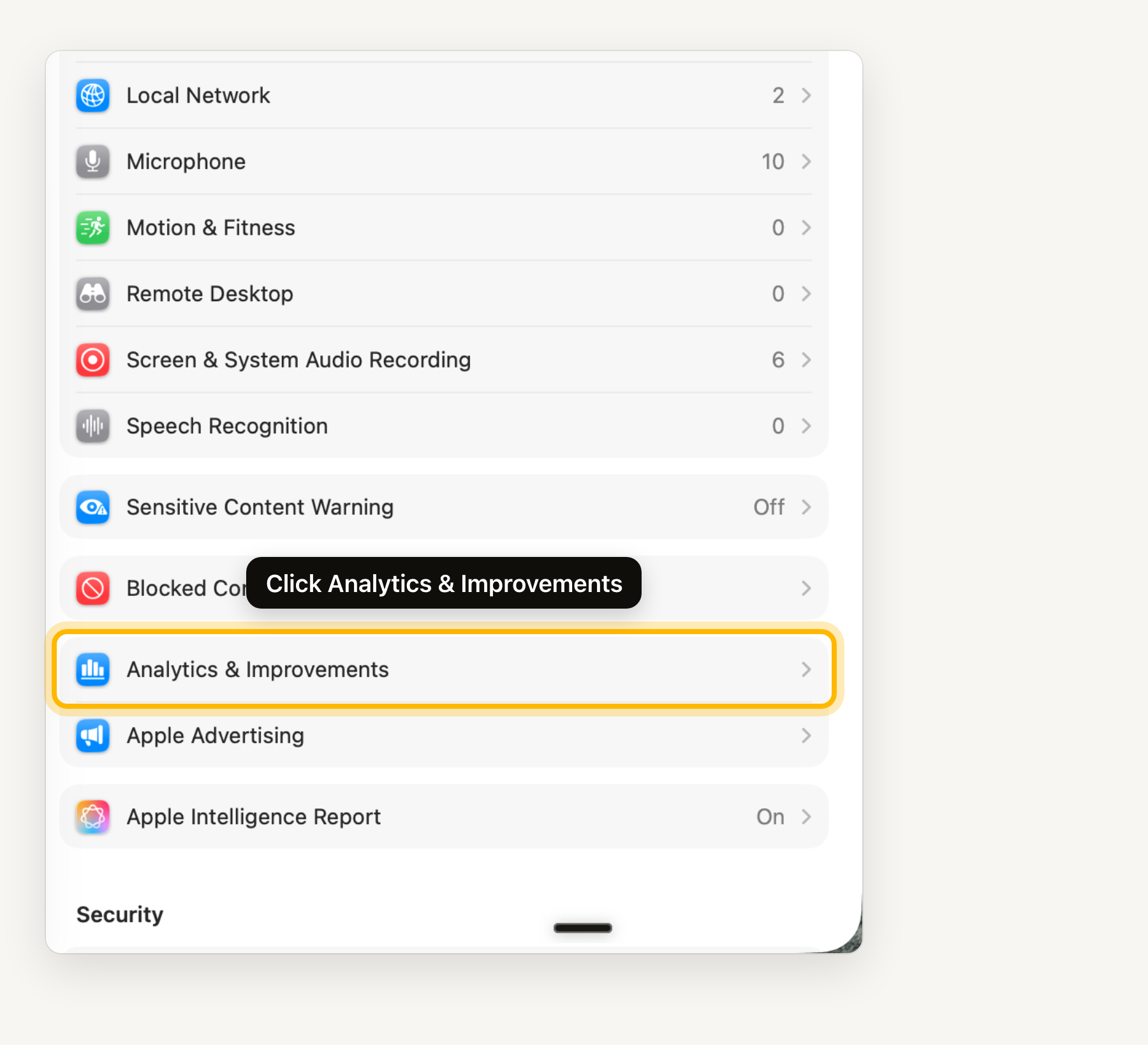
- Scroll down the page and click Analytics & Improvements.
- Find Improve Siri & Dictation and click the switch to turn it off. If the switch is already off, as in the picture, there is nothing to change.
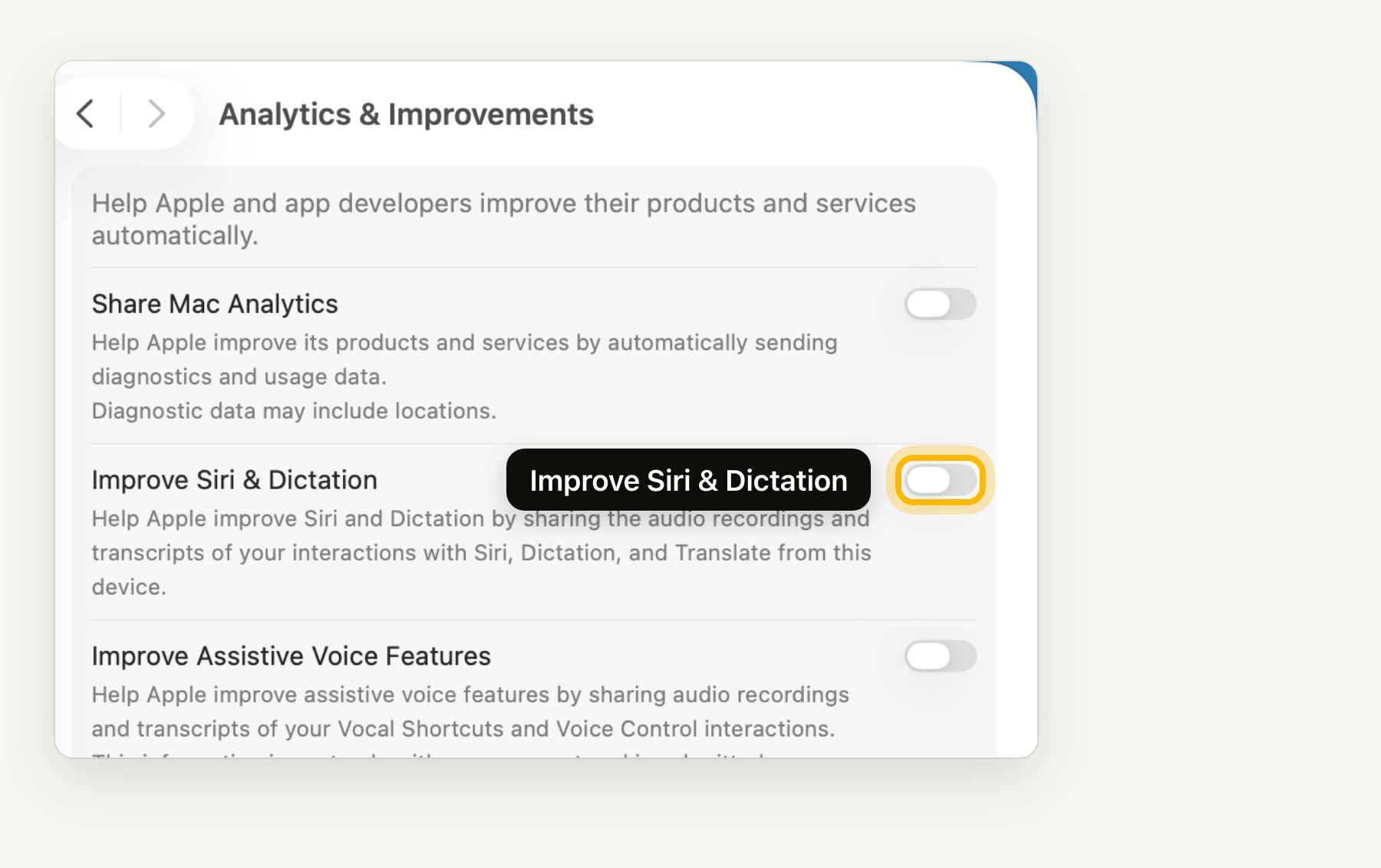
Turning it off stops Apple from storing new recordings. To remove what Apple already has, delete your history, as shown in the next section.
How do I delete my Siri and Dictation history?
You can ask Apple to delete your Siri and Dictation history from its servers, in Siri settings. This deletes both recordings and transcripts.
- Click the Apple logo, then System Settings.
- In the list on the left, click Apple Intelligence & Siri. On some Macs, it is just called Siri.
- Click Delete Siri & Dictation History.
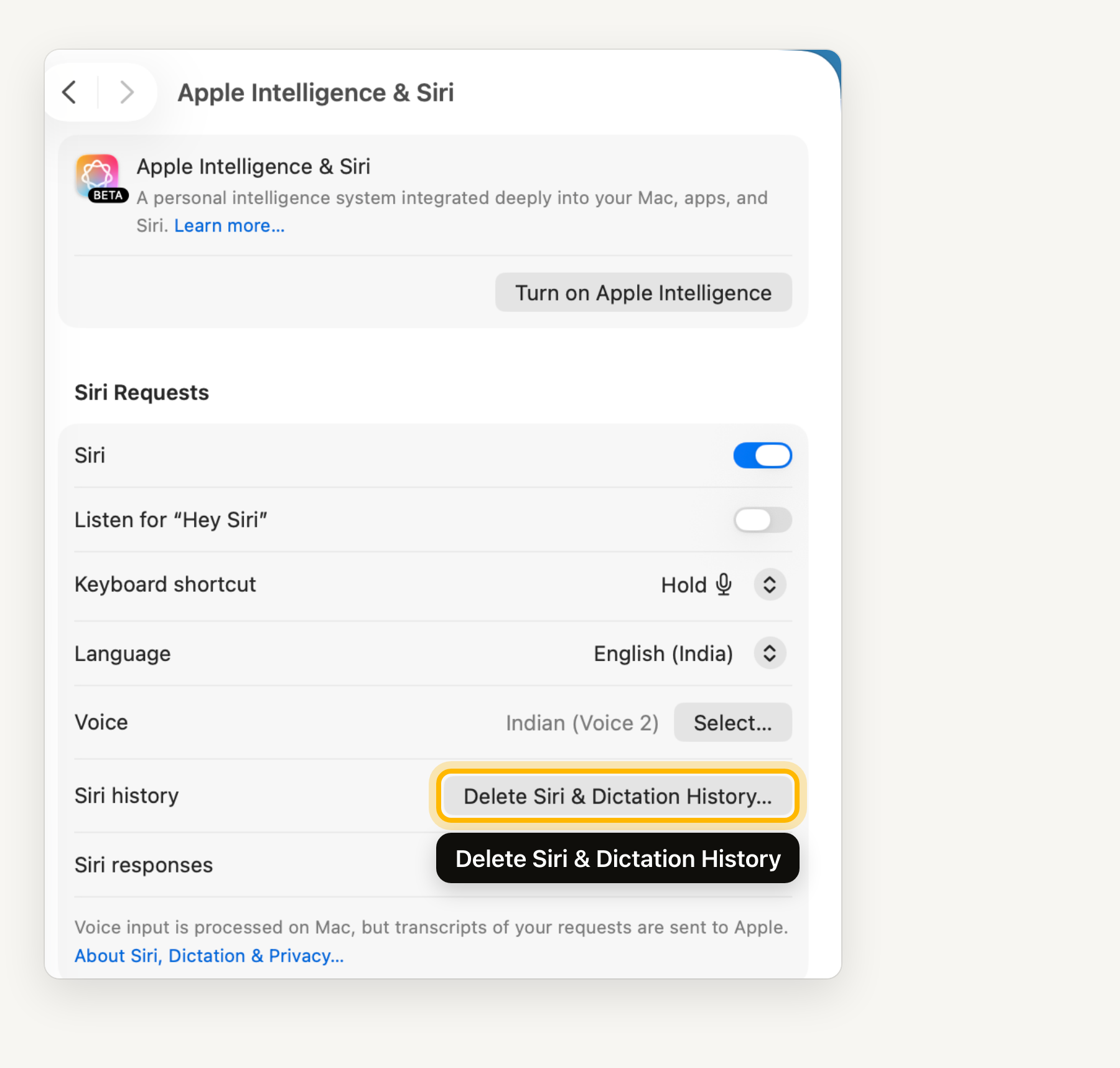
- Your Mac asks you to confirm. Click Delete.
Deleting your history doesn't change the Improve Siri & Dictation setting. If you want to stop sharing recordings, turn that setting off too.
Is Apple Dictation safe?
Yes, for most everyday writing, Apple Dictation is safe. Apple doesn't keep recordings of your voice unless you choose to share them, and what it keeps is not linked to your name.
If you dictate private or confidential work, check these three things on your Mac:
- Read the note under Dictation in Keyboard settings, to see how much of your dictation goes to Apple.
- Make sure Improve Siri & Dictation is off.
- Don't dictate private words into a search box.
If you are a lawyer, our guide on whether dictation software is confidential for lawyers covers the questions to ask about any dictation tool.
When should you pay for a dictation app?
For simple, short text, like a text message, a web search or a quick reply, Apple Dictation works fine in most cases.
A paid app makes sense if you write for hours every day, and if you don't want to fix the dictation errors that Apple Dictation makes.
We've built Roar, the best way to write with your voice. Roar cleans up and formats text based on where you're writing to retain your exact meaning. Think of how emails, LinkedIn posts and AI prompts all need to be formatted differently. It keeps your exact words, to the best extent possible.
Roar keeps no recordings of your voice and no transcripts on our servers. It does not use your data to train AI models. Roar works on Macs with macOS 14 Sonoma or later and Apple silicon (M1 or newer).
Your first 5 dictations on Roar are free. You can read how Roar works or download Roar for Mac.