How to write a Substack post
A Substack post goes to your readers' email and to the web at the same time. This guide shows how to write one and publish it, step by step.
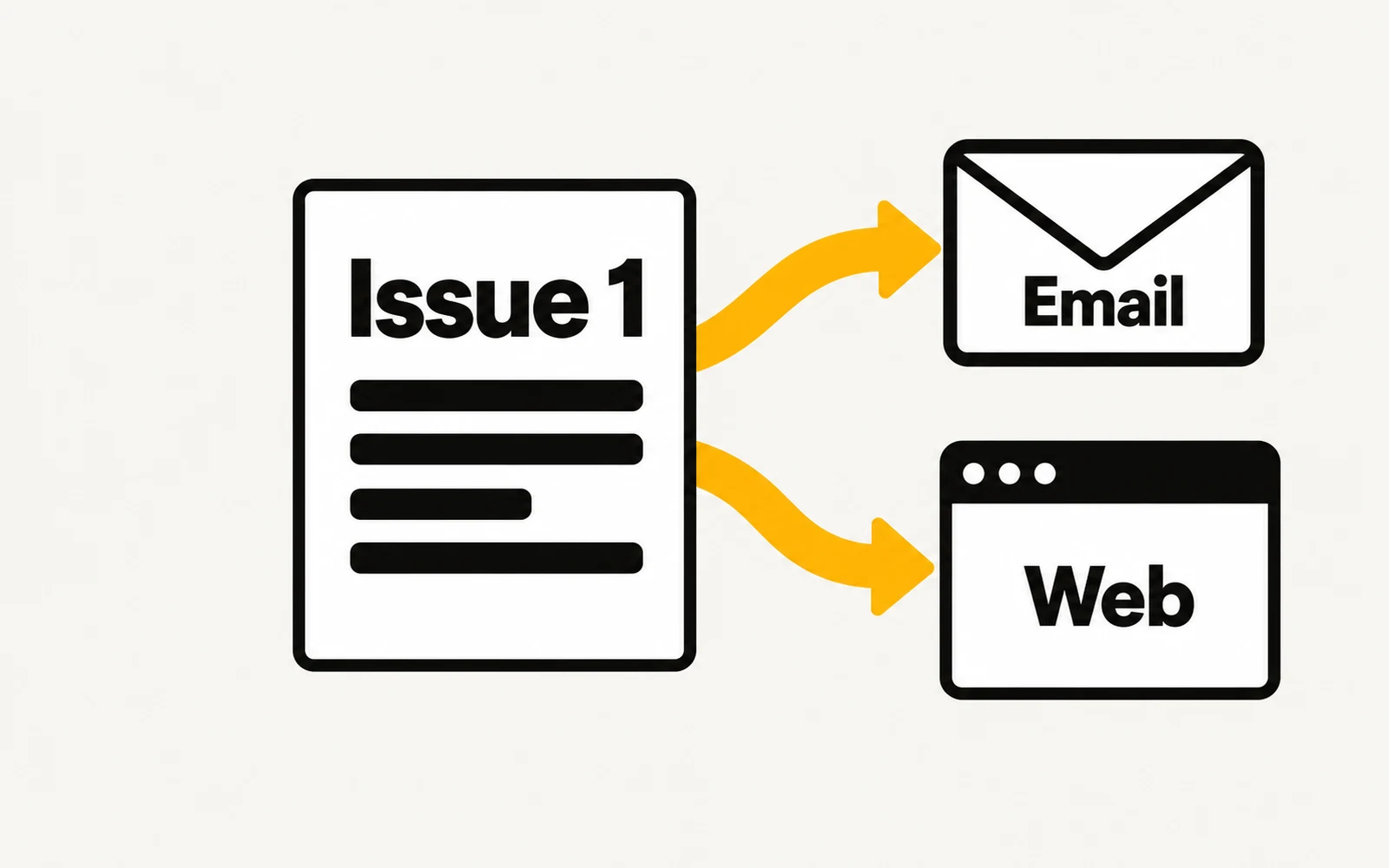
To write a Substack post, you open the editor from your Dashboard, write a title, a subtitle and the post, and then choose who gets it. By default, the post goes to your subscribers by email and to your website at the same time.
We have built Roar, a dictation app that is light years ahead of Apple Dictation. There's a link to try Roar for free at the end of this article.
How do I write a Substack post?
You write a Substack post in the Substack editor, in your web browser. These steps come from Substack's help center.
Time needed About 5 minutes for the steps, plus the time to write the post.
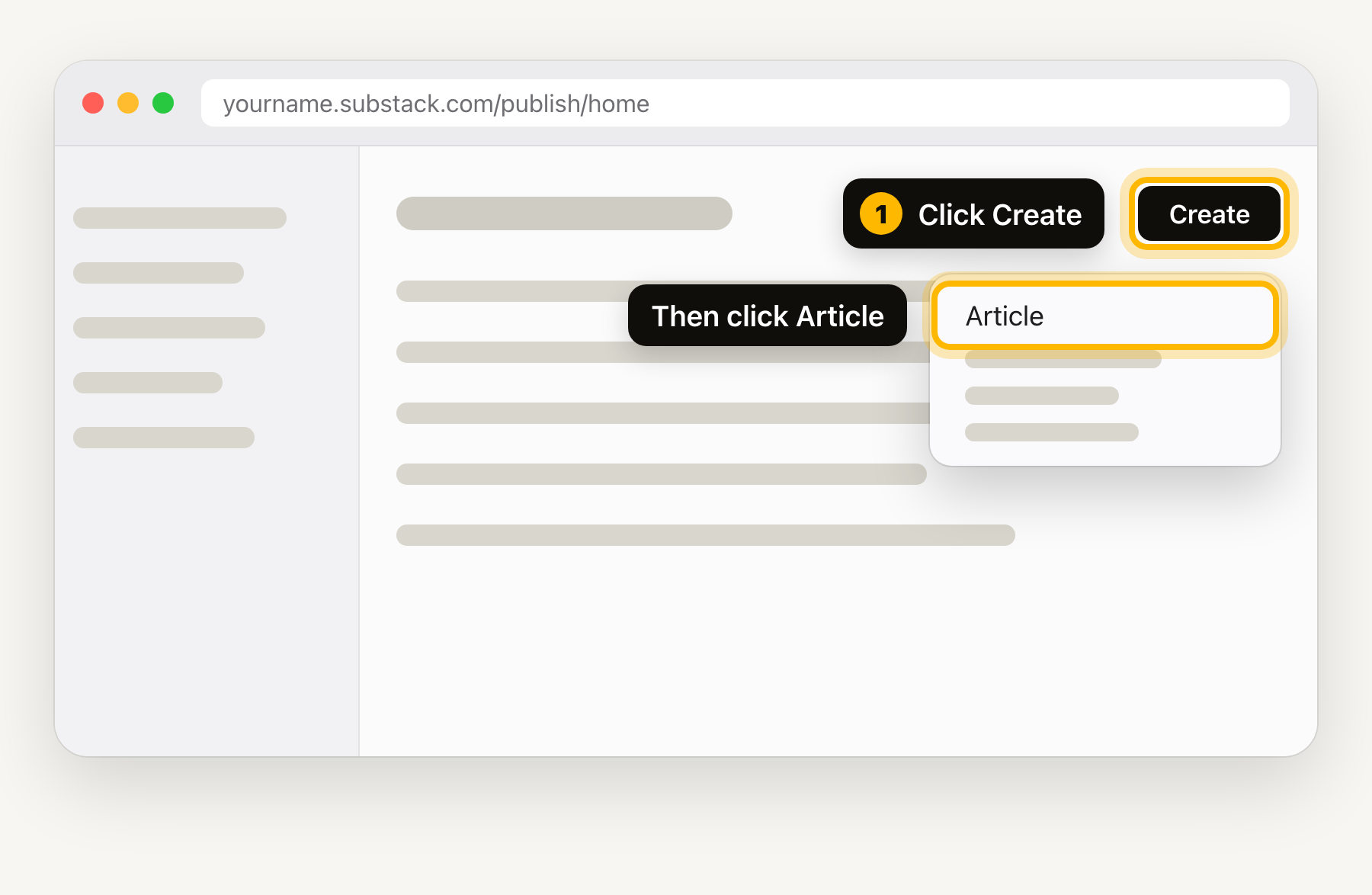
- Go to your publication's dashboard. On substack.com, click the three dots on your profile, then click Publisher dashboard. You can also type your publication's address followed by /publish/home, like yourname.substack.com/publish/home. Then click Create, and click Article. The editor opens.
- At the top, write the title and the subtitle.
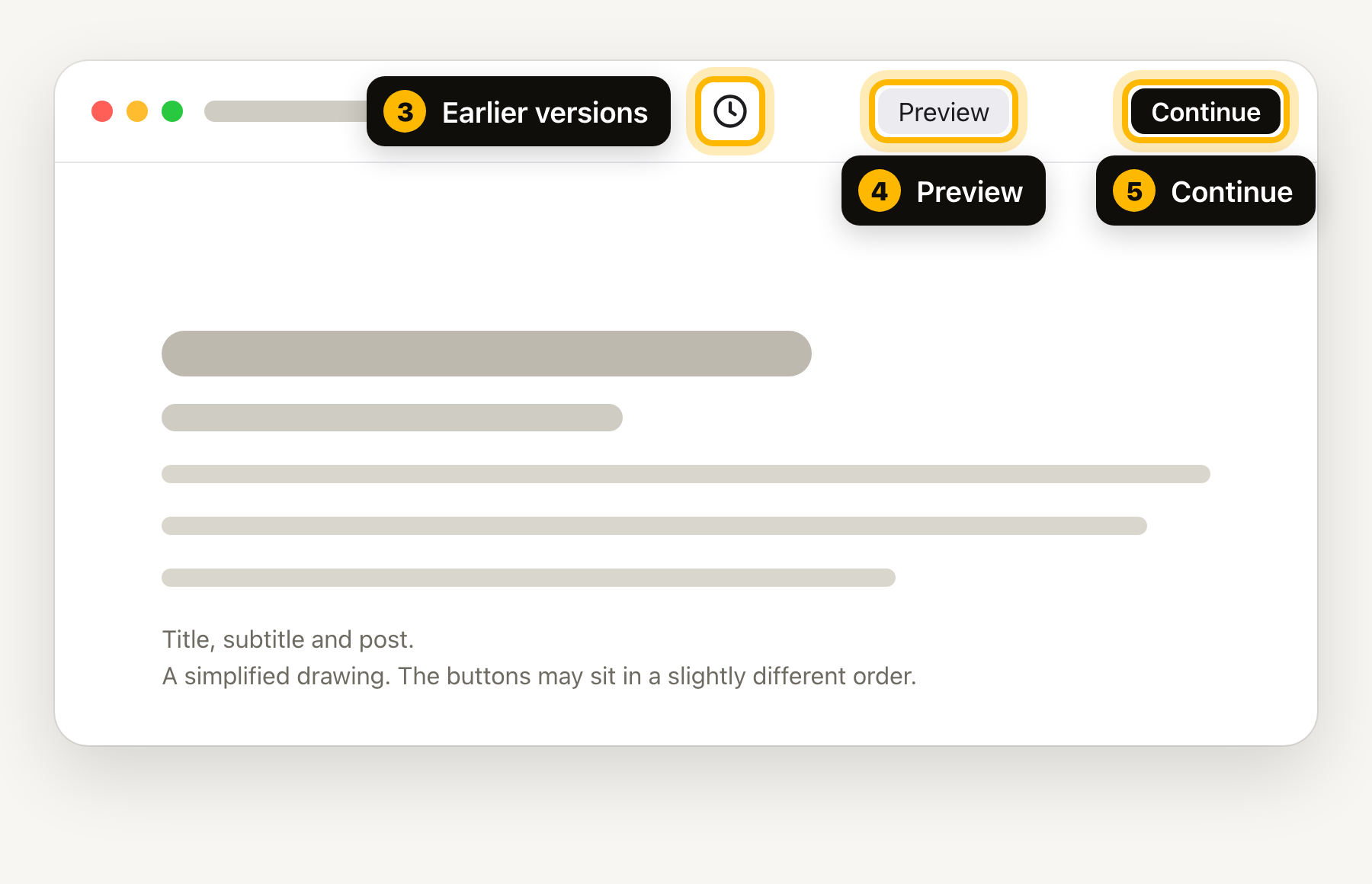
- Write the post. Substack saves it as a draft as you go. To see earlier versions, click the clock icon in the editor.
- When you finish, click Preview at the top right. You can see the post as an email, on the web, and on a phone or a computer.
- Click Continue. Substack asks you to choose a few things before you publish.
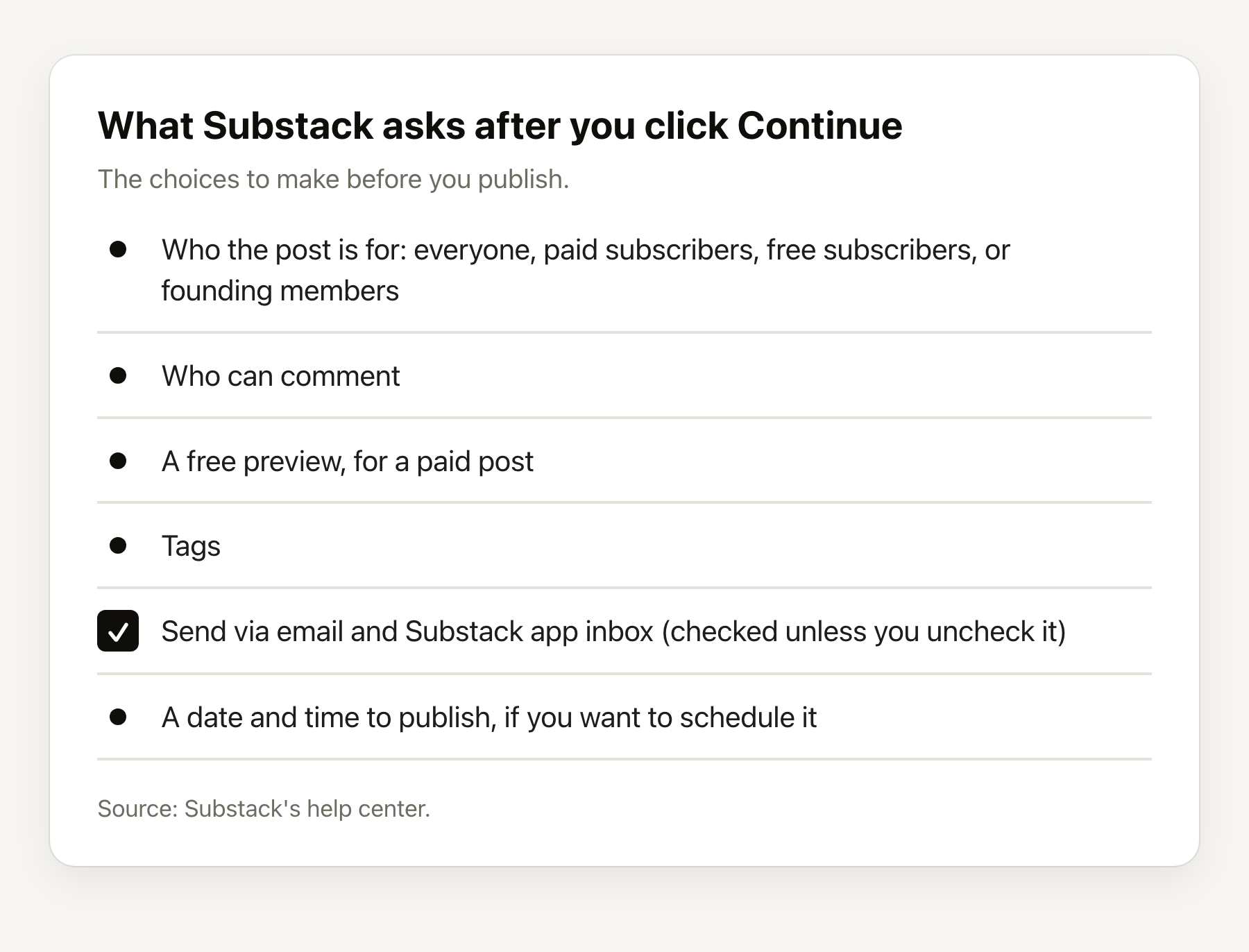
- Choose who the post is for: everyone, paid subscribers, free subscribers, or founding members.
- Choose who can comment, and add tags if you use them.
- Leave the box next to "Send via email and Substack app inbox" checked to email the post. Uncheck it if you only want the post on your website.
- Publish it now, or schedule it for a later date and time.
What are the parts of a Substack post?
A good Substack post usually has six parts: a title, a subtitle, an opening, the body, a Subscribe button if you add one, and an ending.
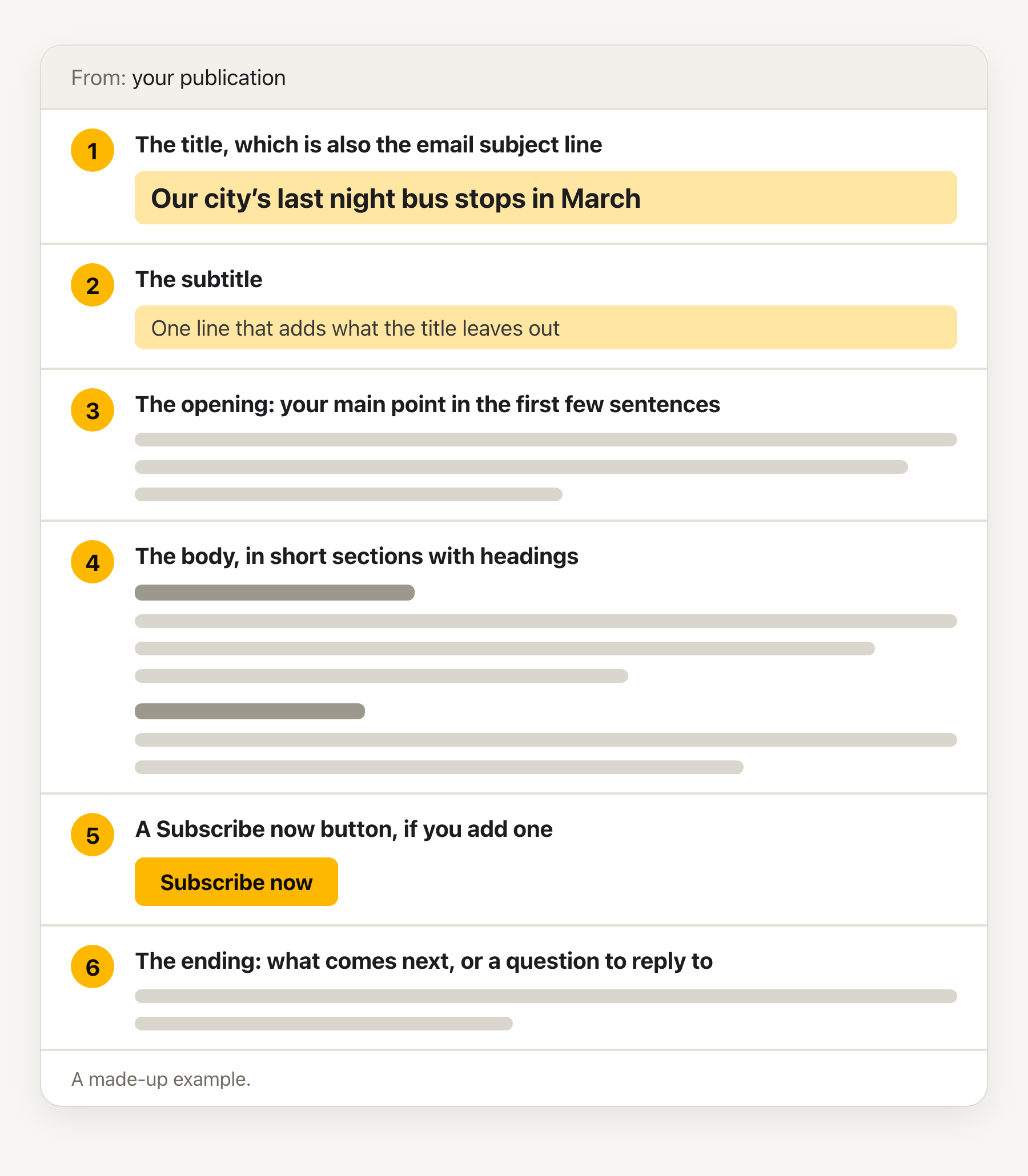
- The title. It is also the subject line of the email, so it decides whether people open it.
- The subtitle. One line under the title that adds what the title leaves out.
- The opening. Your main point, in the first few sentences. This works like the lede of a news story. Our guide on how to write a lede shows how.
- The body. Short sections, each with a heading, so readers can find their place on a phone.
- A Subscribe button, if you add one. A "Subscribe now" button changes for each reader. People who already subscribe see "Subscribed", and free subscribers of a paid publication see "Upgrade to paid".
- The ending. Tell readers what comes next, or ask them a question to reply to.
What should I write in my first Substack post?
Your first post should introduce you and say what your publication is about. Substack's own setup guide calls the first post "a good place to introduce yourself."
The same guide suggests telling readers three things:
- Why you started this publication.
- How you got here.
- What you'll be writing about.
If you plan a paid newsletter, Substack suggests making the first post public, so people deciding whether to subscribe can read it.
Every new publication also comes with a placeholder post called "Coming soon". Replace it with your own first post.
How do I write a good title for a Substack post?
A good title says plainly what the post is about. Readers see the title as the subject line of the email, next to many other emails, so they should know what they'll get from it.
If your publication has at least 200 subscribers, Substack can test titles for you. On the Publish page, scroll down to "Run a title test", and enter a few other titles. Substack sends each one to part of your subscribers, then sends the title that did best to everyone else.
You can also change how the post looks when it is shared on social media. Click Settings at the bottom of the draft, and edit the social preview. Substack recommends a picture of at least 1200 by 630 pixels.
How long should a Substack post be?
There is no fixed length for a Substack post. But a very long post may be cut off in some email apps, like Gmail.
Gmail cuts off emails larger than about 102 KB. Substack shows a warning in the editor when your post gets close to that size:
- "Near email length limit" means your post is close to the size where Gmail starts cutting it off.
- "Your post may be truncated in some email clients" means your post is over that size.
Pictures, links and any text your publication adds to every email all count toward the size. If you see the warning, you can still publish. Readers see the whole post on the web and in the Substack app. In Gmail, readers can click View entire message at the bottom of the email.
How do I see what my post looks like before I send it?
Click Preview at the top right of the editor. Substack shows the post as an email, on the web, and on a phone or a computer.
To send yourself a test email, click Preview, then click Test (on some accounts it is called Share) and enter your email address. You can also click Settings at the bottom of the draft and scroll to Send test email.
How do I put part of a post behind a paywall?
To put part of a post behind a paywall, add a paywall line in the editor. Readers who don't pay see the post up to that line.
- In the editor toolbar, click More, then click Paywall.
- Drag the paywall line to the place in the post where the free part should end.
- On the Publish page, set the post to "Paid subscribers only".
- To email the free part to free subscribers, also check Free subscribers under Send a free preview. This only appears when the post is set to send by email.
You can only add a paywall after you turn on payments for your publication.
Can I edit a Substack post after I send it?
Yes, but only the web version and the version in the Substack app change. The email that your subscribers already got stays the same, and you can't send the email again.
To change the web address of a post, click Settings at the bottom of the draft, open SEO Options, and edit Post Url. It can only have lowercase letters, numbers and dashes, between 2 and 48 characters.
How do I write a Substack post faster?
You write a post faster by deciding your main point before you start, and by writing the first draft in one go.
If you think faster than you type, say the first draft out loud. Apple Dictation is free and works in the Substack editor in your browser. Our guide on how to dictate on a Mac shows how to turn it on.
When should a journalist pay for a dictation app?
For simple, short text, like a text message, a web search or a quick reply, Apple Dictation works fine in most cases.
A paid app makes sense if you write for hours every day, and if you don't want to fix the dictation errors that Apple Dictation makes.
We've built Roar, the best way to write with your voice. Roar cleans up and formats text based on where you're writing to retain your exact meaning. Think of how emails, LinkedIn posts and AI prompts all need to be formatted differently. It keeps your exact words, to the best extent possible.
Roar keeps no recordings of your voice and no transcripts on our servers. It does not use your data to train AI models. Roar works on Macs with macOS 14 Sonoma or later and Apple silicon (M1 or newer).
Your first 5 dictations on Roar are free. You can read how Roar works for journalists or download Roar for Mac.