How to dictate in Slack on a Mac
This is a step by step guide to type Slack messages with your voice on a Mac, using Apple Dictation, Slack's audio clips and Slackbot.
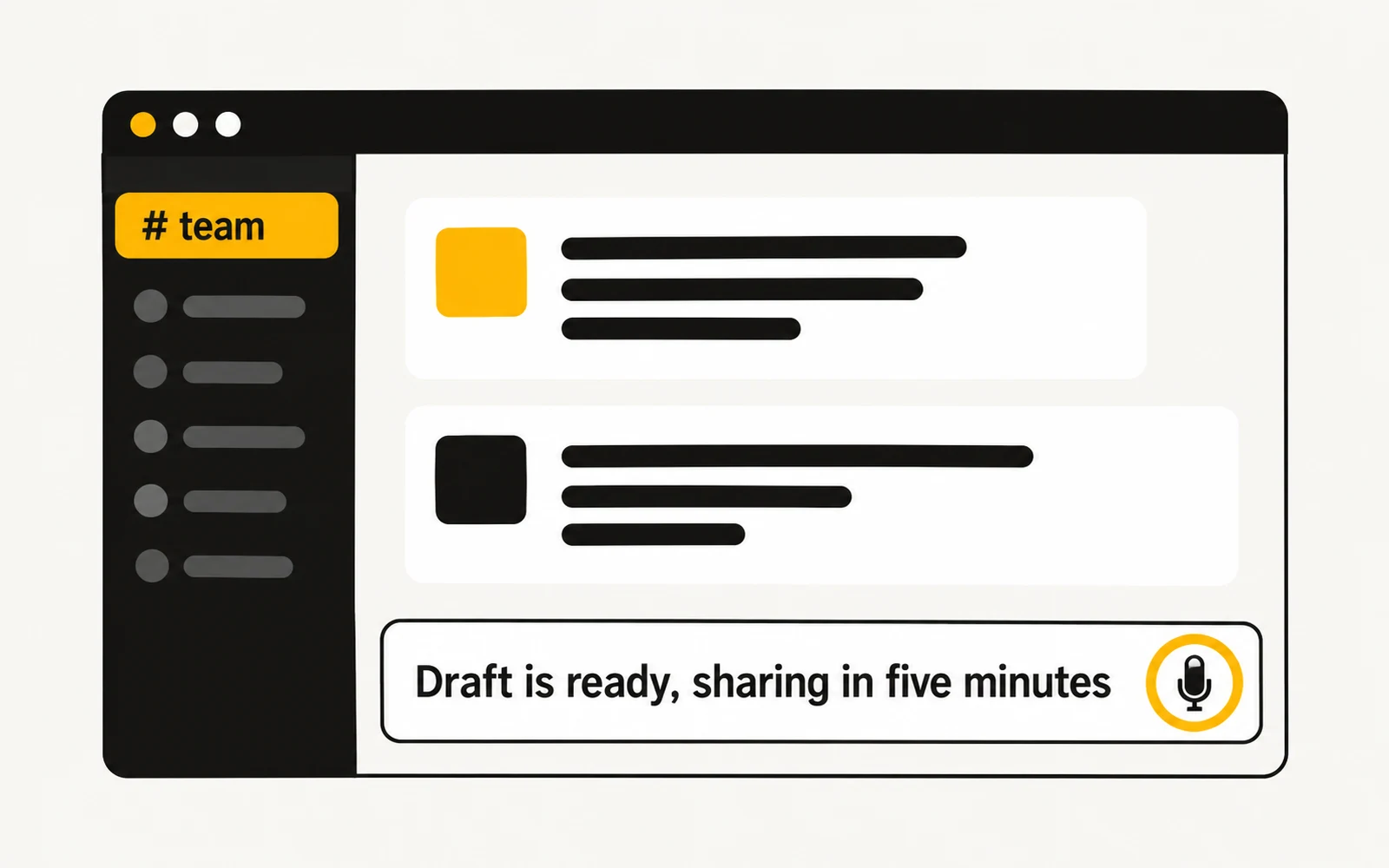
Slack has no voice typing for normal messages. The microphone in Slack's message box records an audio clip. It does not type your words.
To type a Slack message with your voice on a Mac, use Apple Dictation:
- Click in the Slack message box.
- Press the Microphone key, and talk.
- Press the Microphone key again, read the message, and send it.
We have built Roar, a dictation app that is light years ahead of Apple Dictation. There's a link to try Roar for free at the end of this article.
Does Slack have voice to text?
Not for normal messages. Slack has two features that use your voice, but neither one types a message into a channel for you:
- Audio clips. You record your voice, and Slack sends the recording. You can add a written transcript to the clip.
- Slackbot. You can talk to Slackbot instead of typing a question. Slack turns what you say into text, but only in your chat with Slackbot.
For a normal message in a channel or a direct message, use Apple Dictation. It is free, and it comes with your Mac.
How do I dictate a Slack message on a Mac?
Use Apple Dictation in the Slack message box. It works in the Slack app and in Slack in the browser.
Time needed About 1 minute.
- Open the channel or direct message, and click in the message box.
- Press the Microphone key once. On most Mac keyboards from the last few years, the F5 key has a small microphone on it. This is the Microphone key.
- When a small microphone appears next to your cursor, start talking.
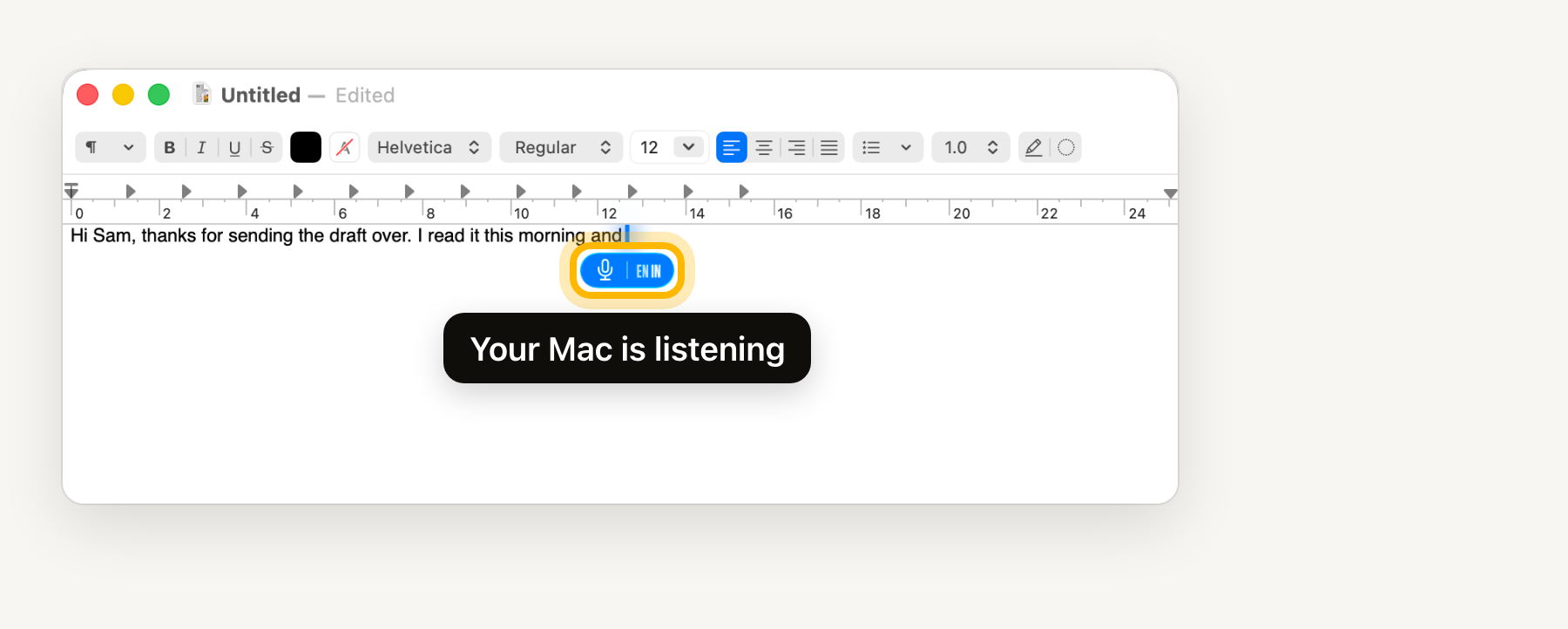
- When you finish, press the Microphone key again, or press Escape.
- Read the message and fix any mistakes. Then send it.
If nothing happens when you press the key, Dictation may be switched off. Our guide on how to dictate on a Mac shows how to turn it on, with pictures.
How do I add punctuation when I dictate in Slack?
Apple Dictation adds most commas, periods and question marks for you. You can also say them, like "comma" or "question mark". Our list of Mac dictation commands has the rest.
Why does dictation stop in Slack?
Apple Dictation stops by itself when you haven't spoken for 30 seconds. Apple designed it this way, and there is no setting to make it longer.
There is no limit on how long you talk. If you stop to think for 30 seconds, press the Microphone key again before you carry on.
How do I send a voice message in Slack with a transcript?
Click the microphone icon in the message box, talk, and send the clip. Then add a transcript, so people can read it too.
- Open the channel or direct message.
- Click the microphone icon in the message box. Slack starts recording.
- Talk. A clip can be up to five minutes long.
- When you finish, stop the recording.
- Add a written message if you want, then click the paper plane icon to send it.
- To add a transcript, click the Generate transcript icon on the clip.
The first time, your Mac asks if Slack can use your microphone. Click Allow.
An audio clip is still a recording, not a typed message. People need to play it or open the transcript to read it. If you want a normal message, use Apple Dictation instead.
Can I talk to Slackbot instead of typing?
Yes. Slack lets you dictate your questions to Slackbot.
- Click Slackbot, in the top-right corner of Slack or at the top of the sidebar.
- Click the microphone icon, and say your question.
- Press Return, or click Send.
Slack says it turns what you say into text and does not store the audio. Slack also says this works best in English for now.
This only works in your chat with Slackbot. It does not type messages into a channel.
Why is dictation not working in Slack?
First, check which tool you are using.
If Apple Dictation isn't working:
- Make sure your cursor is in the Slack message box. If it isn't, Dictation has nowhere to put the words.
- Make sure Dictation is turned on. Open System Settings, click Keyboard, and scroll down to Dictation.
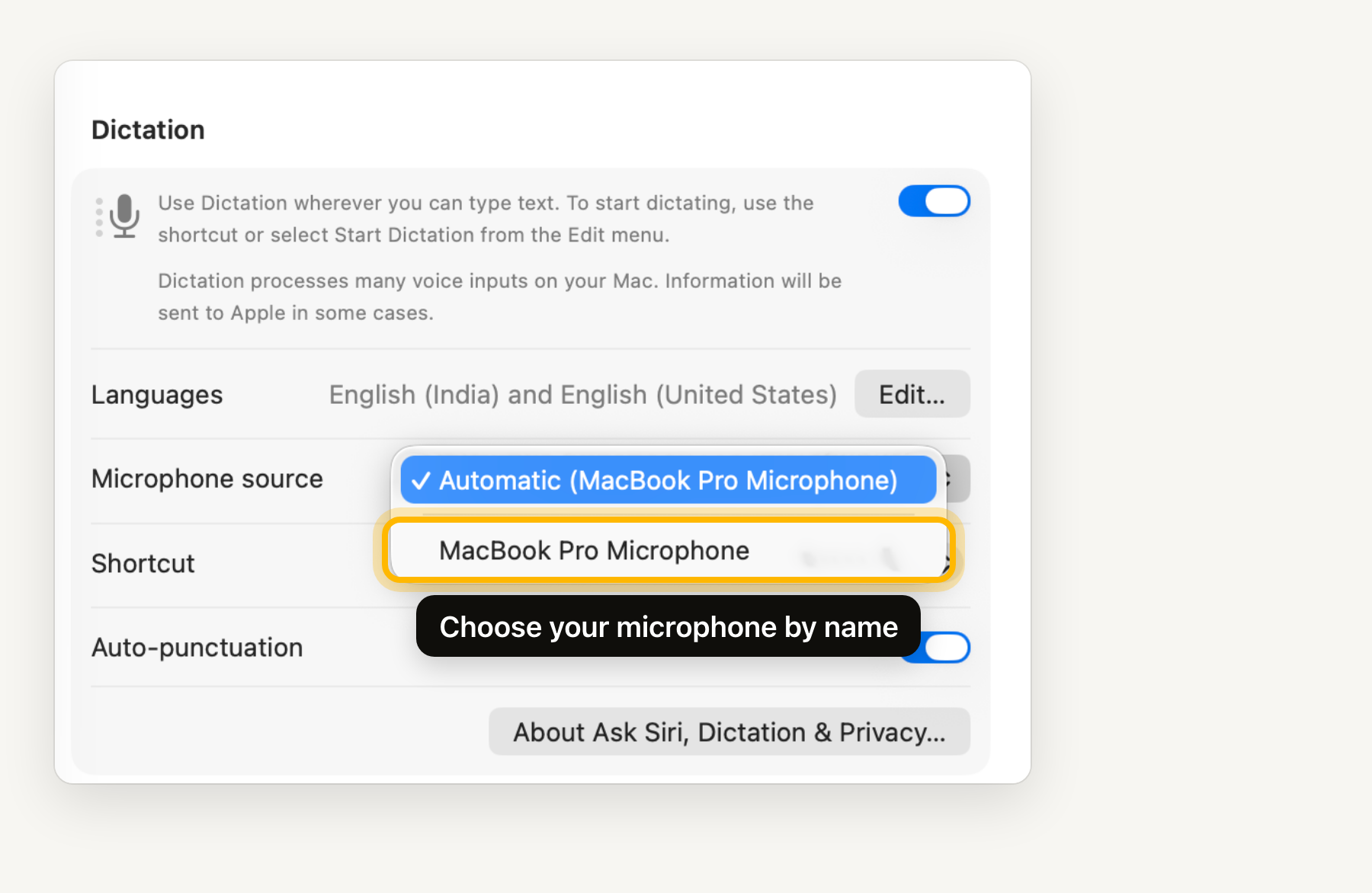
- Make sure it is listening to the right microphone. On the same page, check Microphone source.
If Slack's audio clips or Slackbot aren't hearing you:
- Open System Settings, click Privacy & Security, then click Microphone.
- The switch next to Slack should be on. If you use Slack in the browser, the switch next to your browser should be on.
- Close any other app that is using the microphone, like a video call, and try again.
For more fixes, see our guide to Mac dictation not working.
When should you pay for a dictation app?
For simple, short text, like a text message, a web search or a quick reply, Apple Dictation works fine in most cases.
A paid app makes sense if you write for hours every day, and if you don't want to fix the dictation errors that Apple Dictation makes.
We've built Roar, the best way to write with your voice. Roar cleans up and formats text based on where you're writing to retain your exact meaning. Think of how emails, LinkedIn posts and AI prompts all need to be formatted differently. It keeps your exact words, to the best extent possible.
Roar keeps no recordings of your voice and no transcripts on our servers. It does not use your data to train AI models. Roar works on Macs with macOS 14 Sonoma or later and Apple silicon (M1 or newer).
Your first 5 dictations on Roar are free. You can read how Roar works or download Roar for Mac.