Dictation not working in Word on a Mac, and how to fix it
If dictation doesn't work in Microsoft Word on your Mac, this guide helps you find the cause and fix it. It covers Word's Dictate button and Apple Dictation.
There are two different ways to dictate in Microsoft Word on a Mac, and they stop working for different reasons. First find out which one you are using, then jump to its fix.
We have built Roar, a dictation app that is light years ahead of Apple Dictation. There's a link to try Roar for free at the end of this article. Let's get dictation in Word working first.
Which dictation are you using in Word?
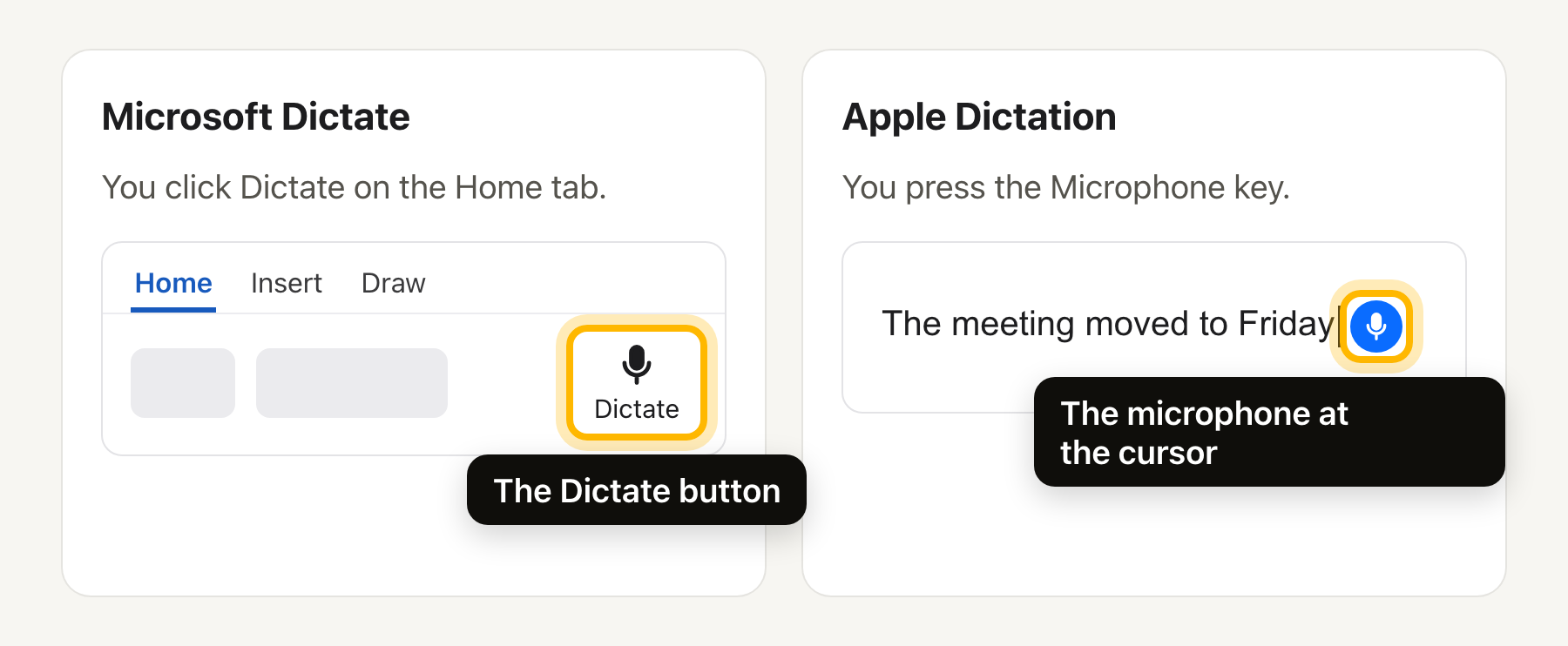
If you clicked Dictate on the Home tab, you are using Microsoft Dictate. If you pressed the Microphone key on your keyboard, you are using Apple Dictation.
- Microsoft Dictate is part of Word. It needs a Microsoft 365 subscription and an internet connection. The Dictate button turns on while it listens.
- Apple Dictation is part of your Mac. It is free. A small microphone appears next to your cursor while it listens.
Use only one at a time. Microsoft says its Dictate may not work while another app is using the microphone.
Apple Dictation is free and doesn't need Microsoft 365. Our guide to dictate in Word and Outlook on a Mac shows both ways, with pictures.
Why isn't Microsoft Word dictation working on my Mac?
Find what is happening in the table below, and jump to the fix.
| What is happening | The usual cause | The fix |
|---|---|---|
| There is no Dictate button | Word is not signed in with an active Microsoft 365 subscription | |
| The Dictate button is grayed out | The document is open as read-only | Grayed out |
| Dictate turns on, but nothing is typed | Word is not allowed to use the microphone | Let Word use the microphone |
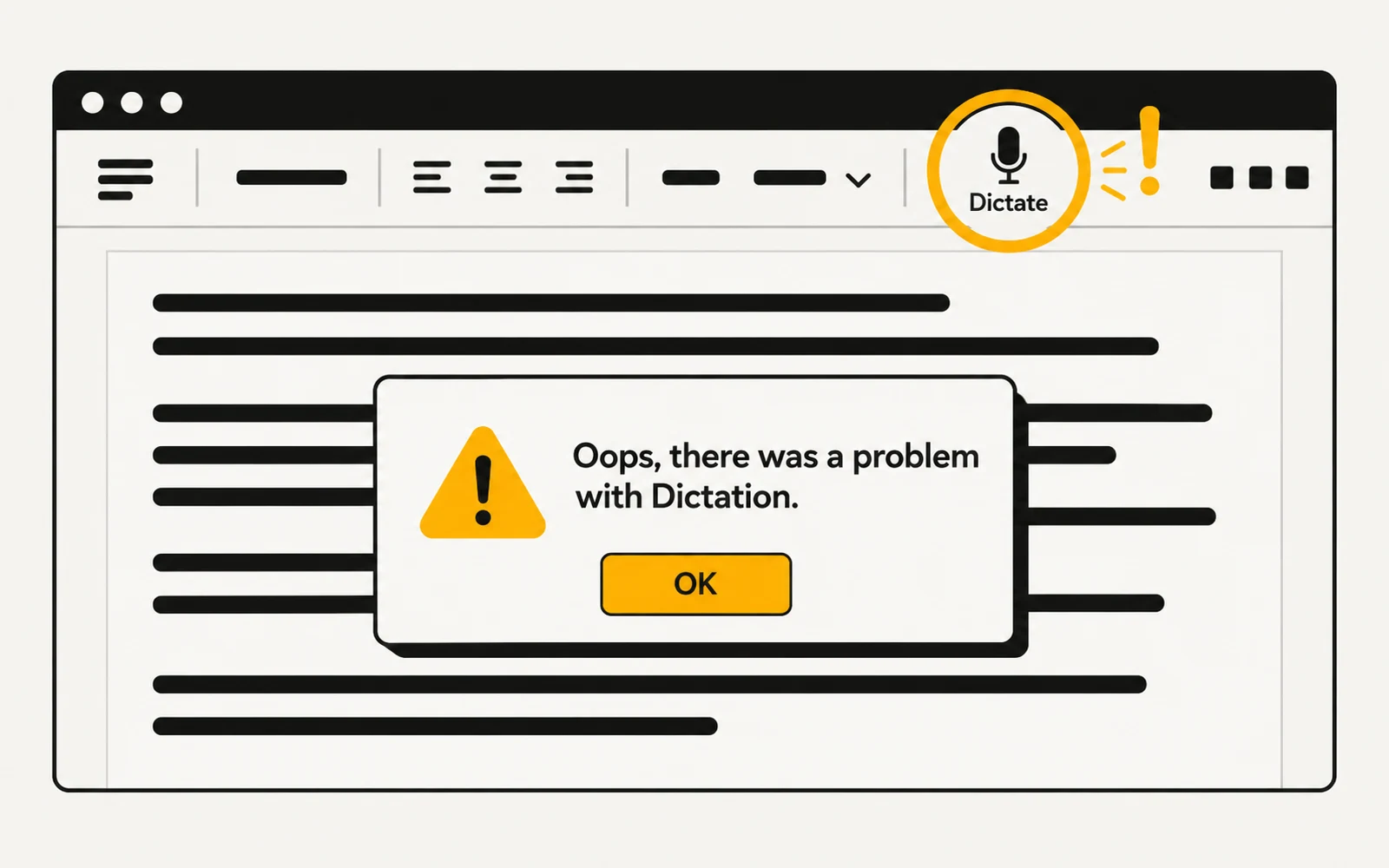
| You see "Oops, there was a problem with Dictation" | Word is listening to the wrong microphone | The Oops message |
| Words are missing or wrong | A slow connection, noise or a quiet microphone | Missing words |
| The Microphone key works in other apps, but not in Word | Something inside Word | Apple Dictation in Word |
How do I let Word use the microphone on my Mac?
Your Mac asks for your permission the first time an app wants to use the microphone. If you said no when Word asked, Microsoft Dictate can't hear you. You can change that in System Settings.
Time needed About 1 minute.
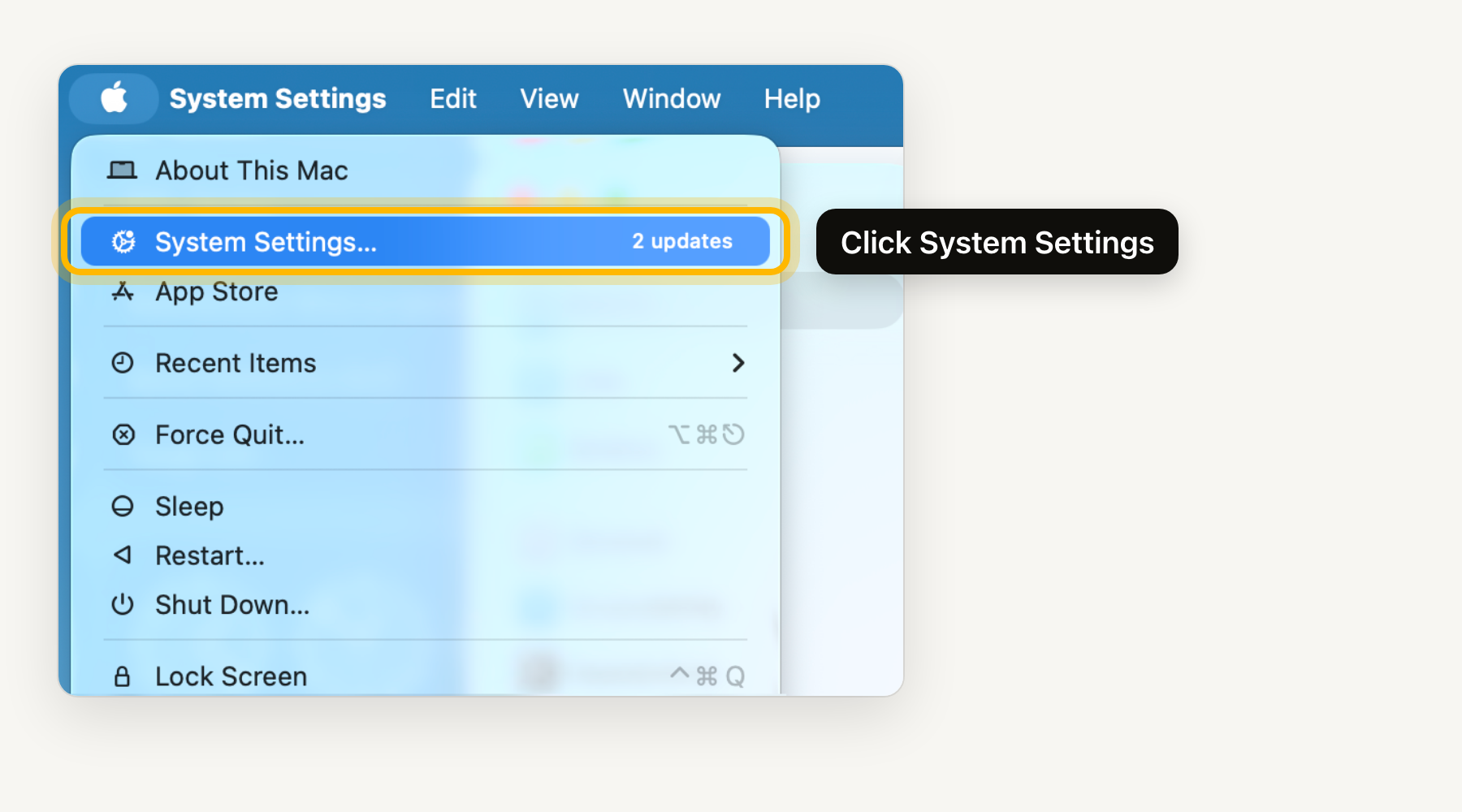
- Click the Apple logo in the top-left corner of your screen, then click System Settings.
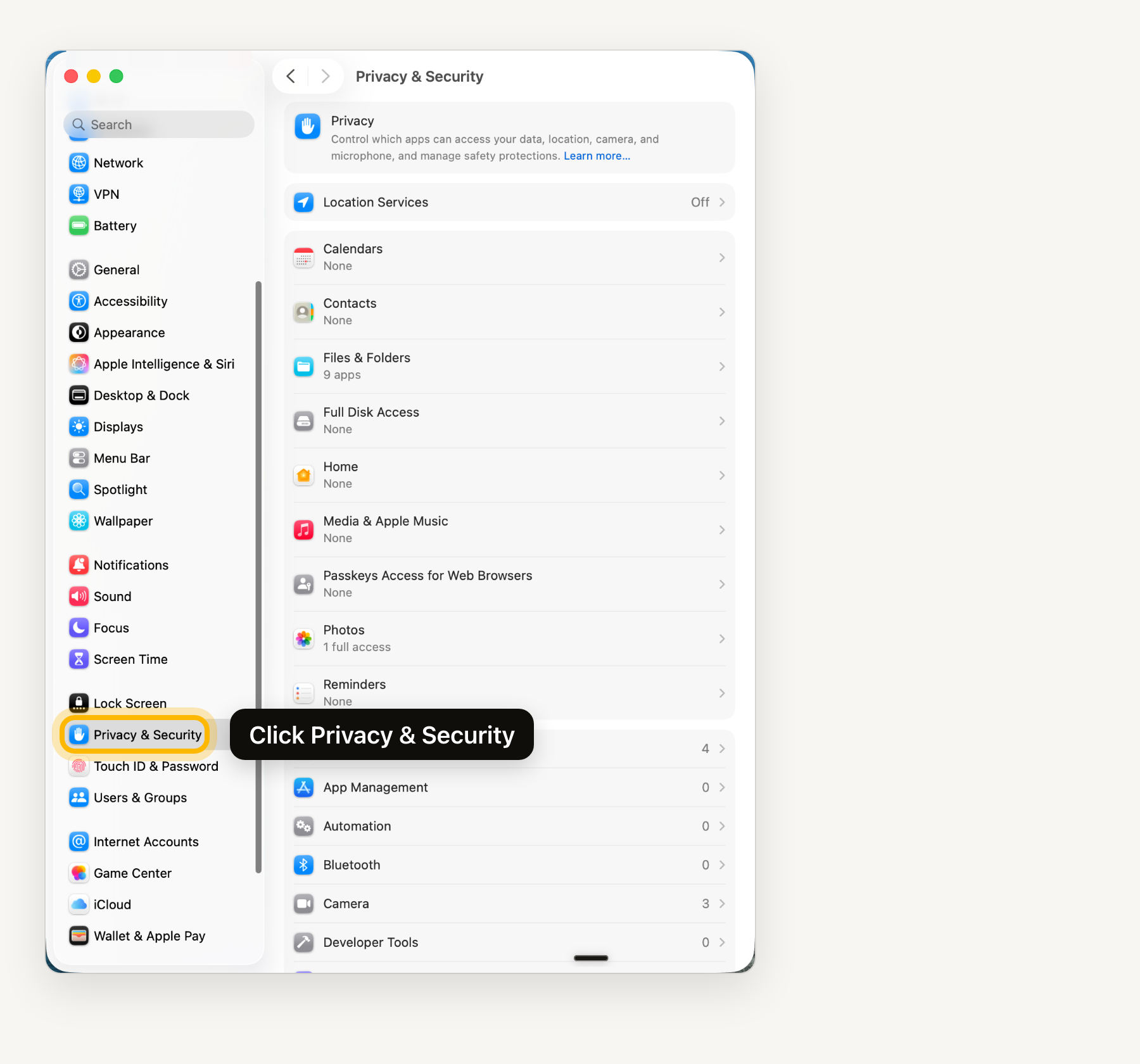
- In the list on the left, click Privacy & Security. You may need to scroll down to find it.
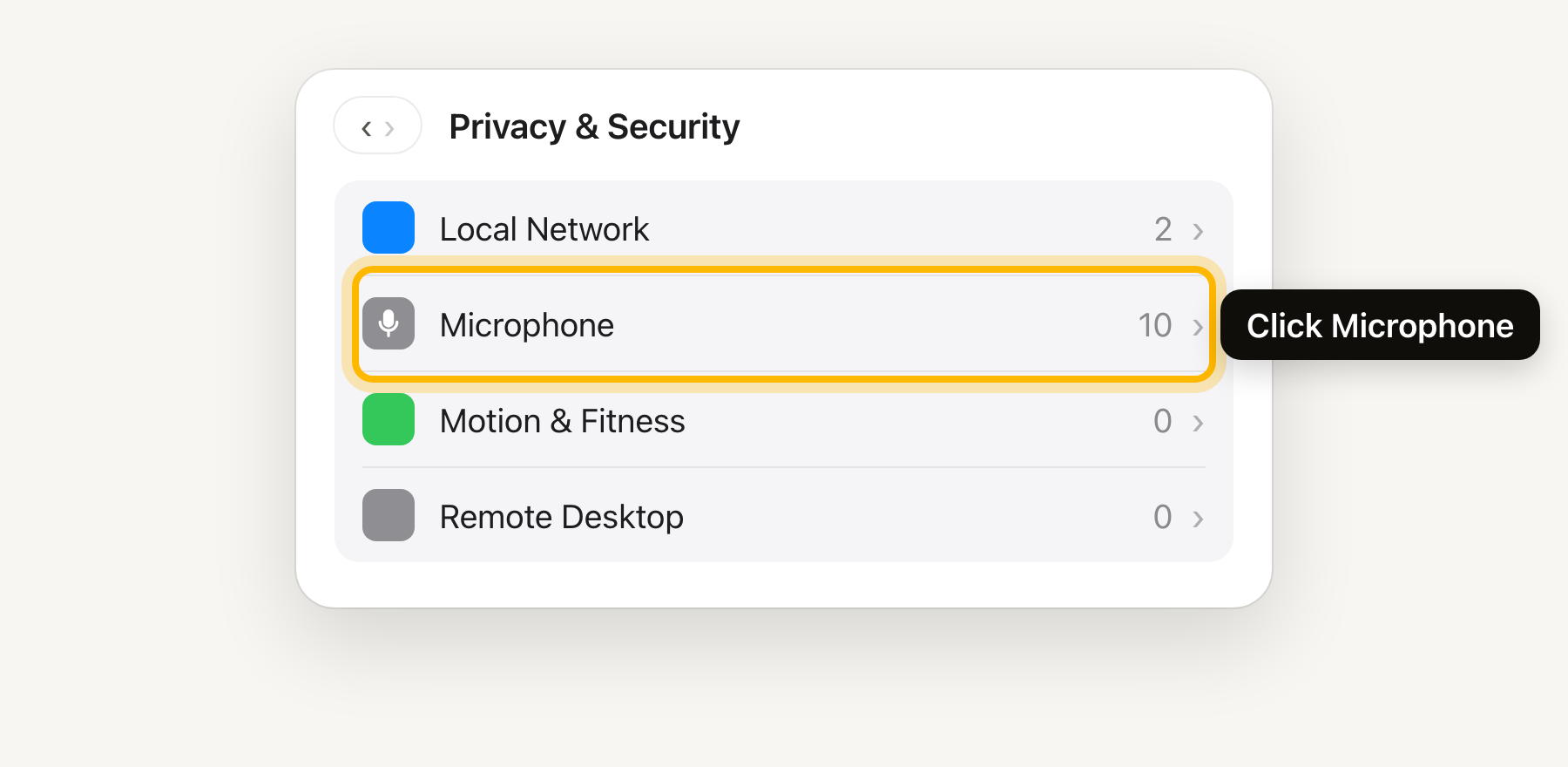
- Scroll down the page and click Microphone.
- Find Microsoft Word in the list and turn its switch on.
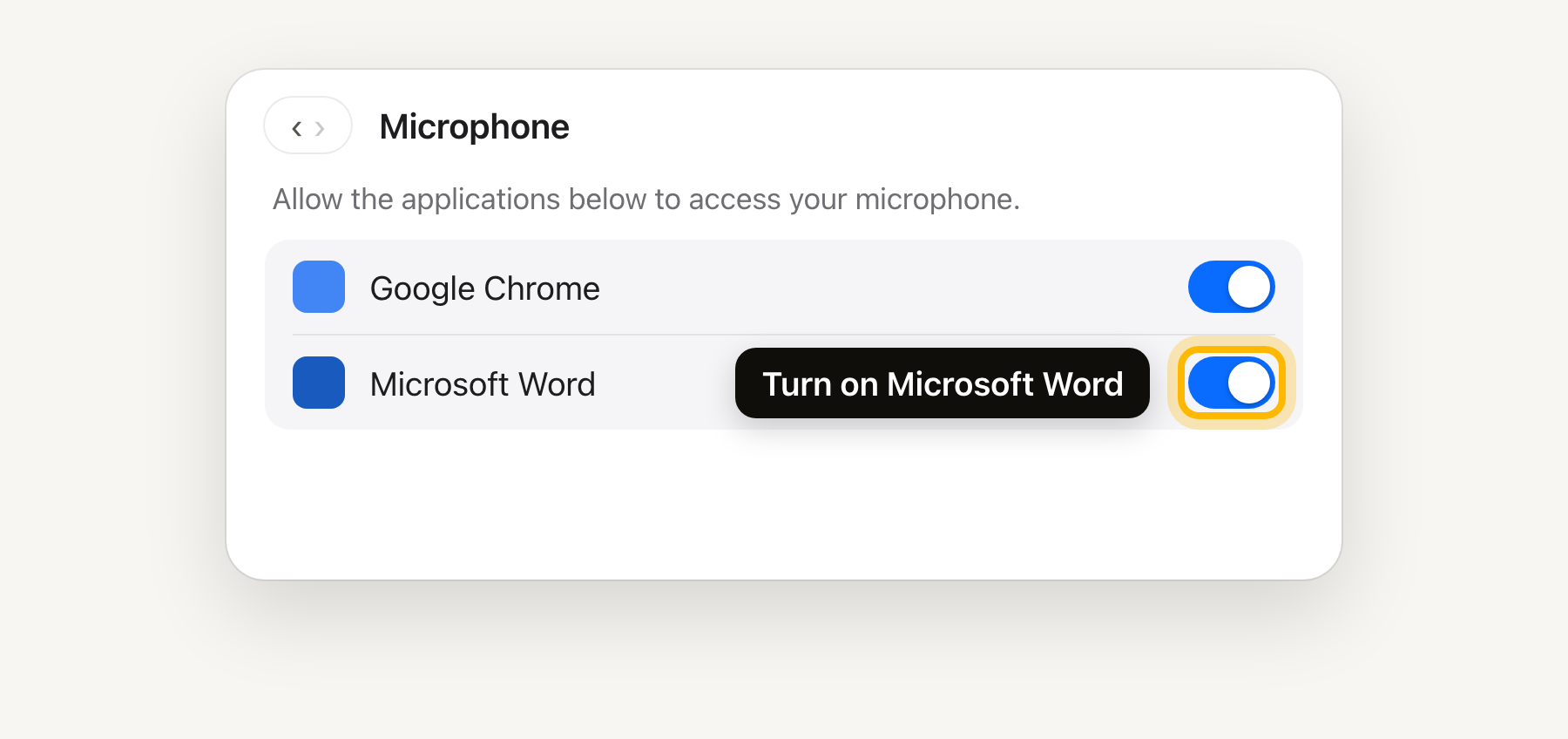
Your Mac may say that Word won't have access to the microphone until you quit it. Click Quit & Reopen, then click Dictate again.
If Microsoft Word is not in the list, Word has never asked for the microphone. Click Dictate in Word once. When your Mac asks if Word can use the microphone, click Allow.
Why does Word say "Oops, there was a problem with Dictation"?
Word shows this message when something cuts off the sound from your microphone. The full message reads: "Oops, there was a problem with Dictation. Something unexpected interrupted the audio stream. Please try again."
In a thread about this message on Microsoft Q&A, the answer was to choose the Mac's own microphone instead of Automatic. One user replied that this step fixed it.
- Open System Settings and click Keyboard.
- Under Dictation, click the menu next to Microphone source.
- Choose your Mac's own microphone by name, not Automatic.
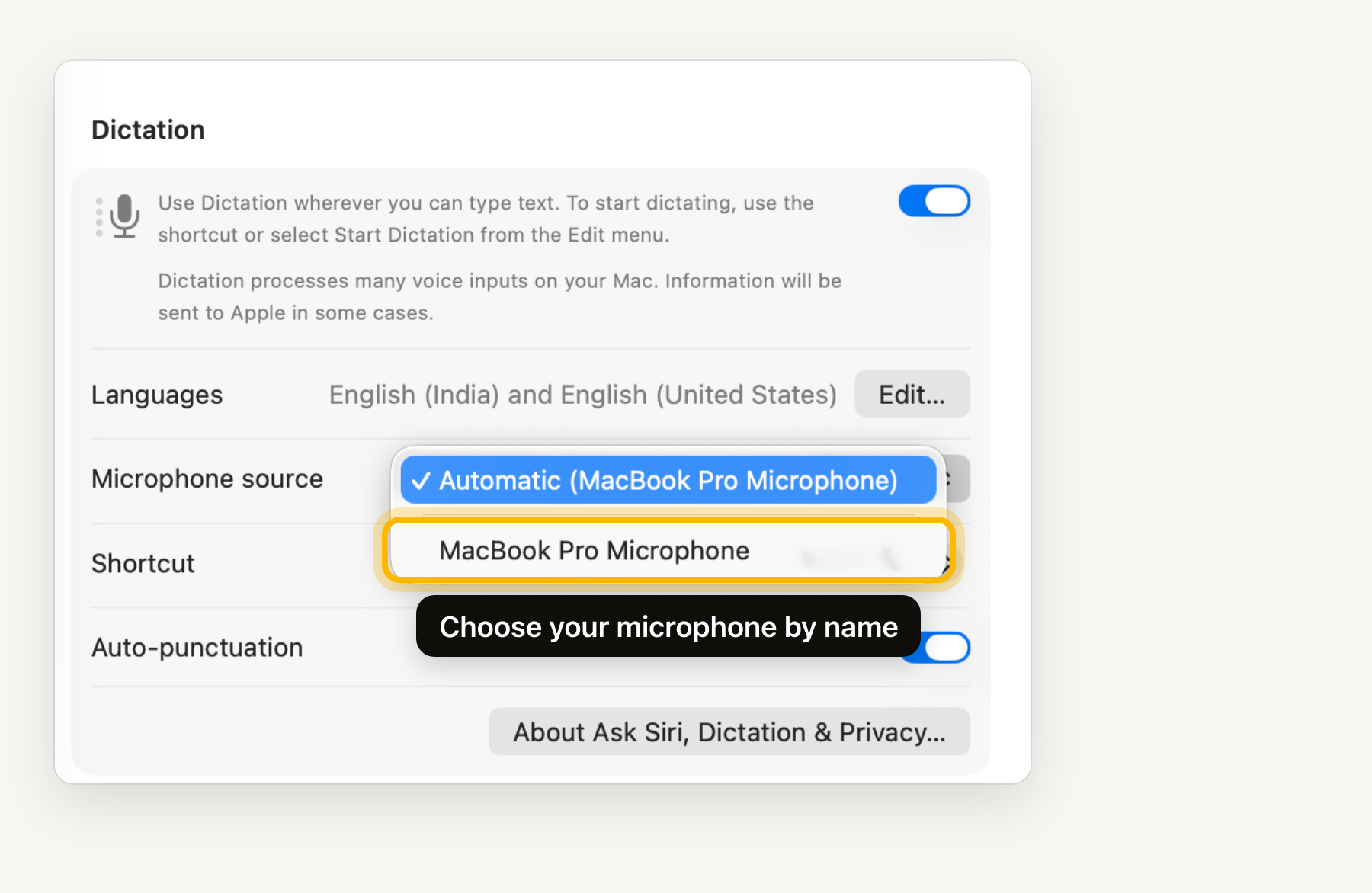
Then choose the same microphone inside Word:
- Click Dictate in Word, then click the gear icon on the dictation toolbar.
- Next to Microphone, choose the same microphone.
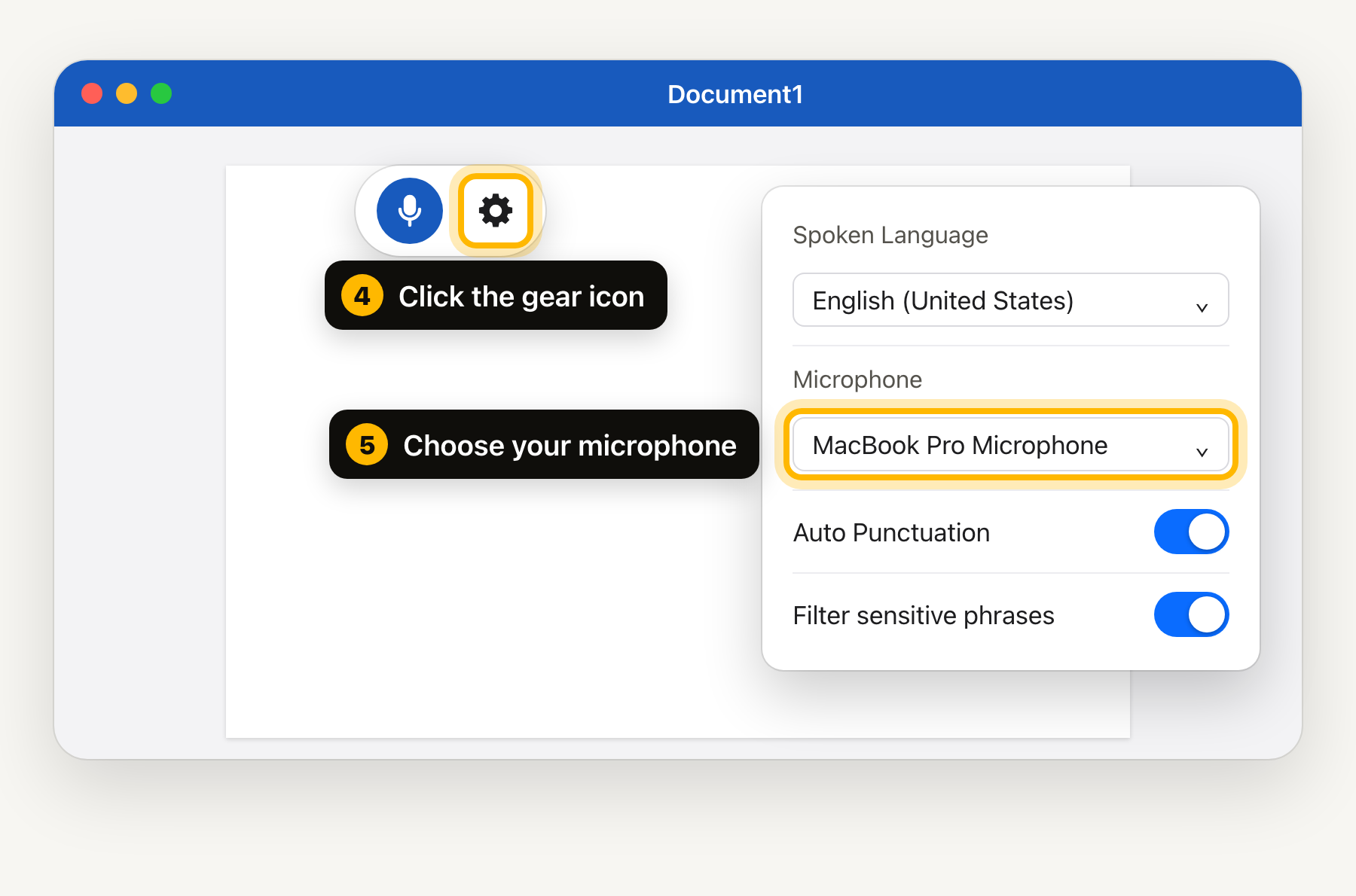
If the message comes back, try a different internet connection, then restart your Mac.
Why is the Dictate button grayed out in Word?
The Dictate button is grayed out when the document is open as read-only. Microsoft says to make sure the document is not read-only.
This can happen with a file you opened from an email or a shared folder. Save a copy on your Mac with File, then Save As. Open the copy and click Dictate again.
Why does Word dictation miss words or type the wrong words?
Your words are turned into text by Microsoft, not by your Mac, so a slow connection can cost you words. Microsoft lists these fixes:
- Use a fast and reliable internet connection.
- Move somewhere quieter, away from background noise.
- Speak a little more slowly and clearly.
- Make sure your microphone isn't muted, and turn up its input volume.
- If you use your Mac's built-in microphone, try a headset or an external microphone.
To turn up the input volume, open System Settings, click Sound, then Input, and drag the Input volume slider to the right.
Why doesn't Apple Dictation work in Word?
If Apple Dictation works in other apps but not in Word, your Mac's settings are fine. The fix is in Word.
First, test it. Open TextEdit or Notes, press the Microphone key and say a sentence. If nothing is typed there either, the problem is not Word. Our guide to Mac dictation not working has every fix for that.
If it works in TextEdit but not in Word, try these steps in order:
- Click inside the page of your document, where you want the words to go. If your cursor is in the ribbon or the search box, Dictation has nowhere to type.
- Make sure Word's own Dictate is off. The Dictate button should not be lit up. Don't run both at the same time.
- Quit Word, open it again, and try once more.
- Update Word. Click Help in the menu bar at the top of the screen, then Check for Updates.
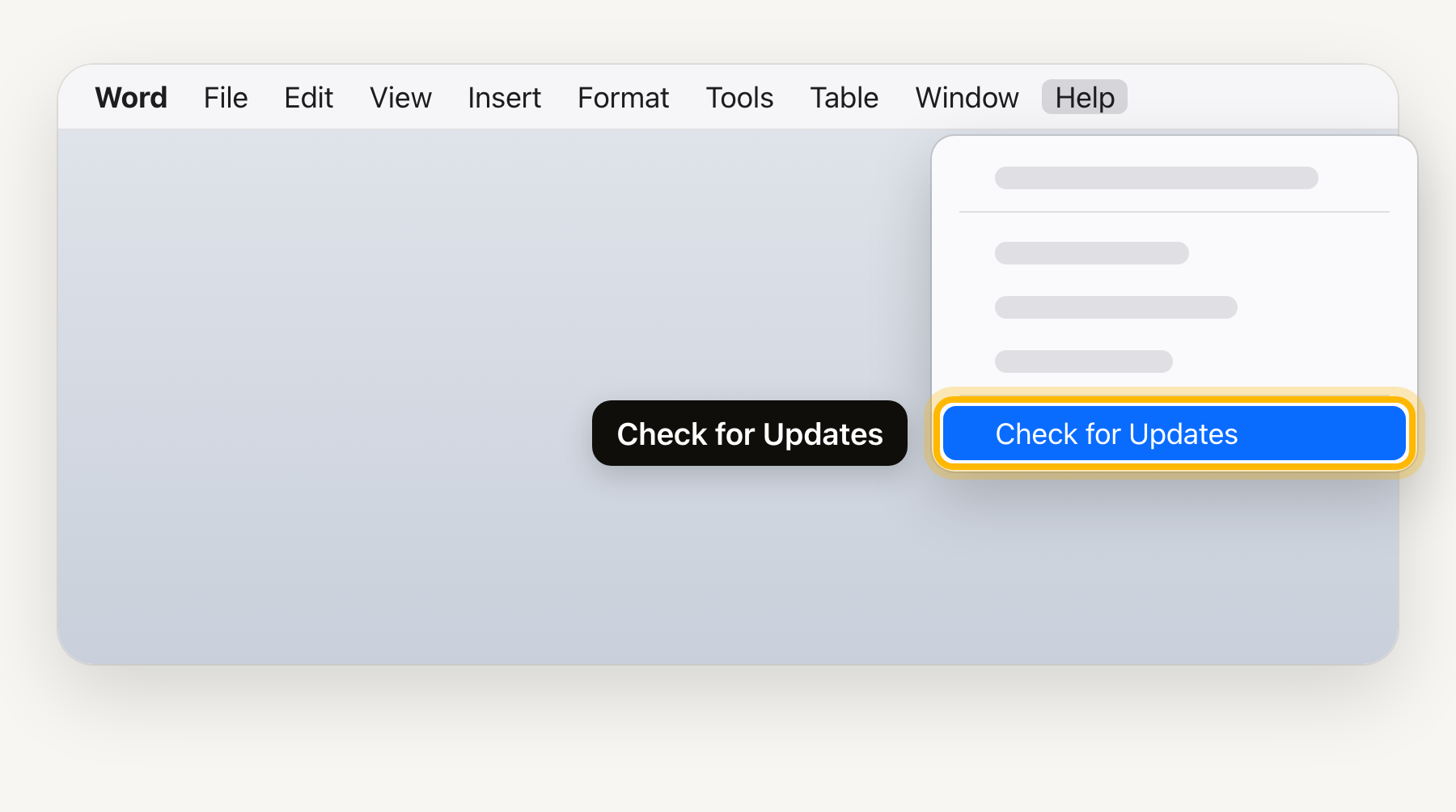
If your Help menu has no Check for Updates, your copy of Word came from Apple's own store for Mac apps, and its updates come from there.
- Save your work and restart your Mac.
When should you pay for a dictation app?
For simple, short text, like a text message, a web search or a quick reply, Apple Dictation works fine in most cases.
A paid app makes sense if you write for hours every day, and if you don't want to fix the dictation errors that Apple Dictation makes.
We've built Roar, the best way to write with your voice. Roar cleans up and formats text based on where you're writing to retain your exact meaning. Think of how emails, LinkedIn posts and AI prompts all need to be formatted differently. It keeps your exact words, to the best extent possible.
Roar keeps no recordings of your voice and no transcripts on our servers. It does not use your data to train AI models. Roar works on Macs with macOS 14 Sonoma or later and Apple silicon (M1 or newer).
Your first 5 dictations on Roar are free. You can read how Roar works or download Roar for Mac.