How to type the section symbol (§) on a Mac
This is a step by step guide to type the section symbol (§) on a Mac. You can use a keyboard shortcut, the Character Viewer or a text replacement.
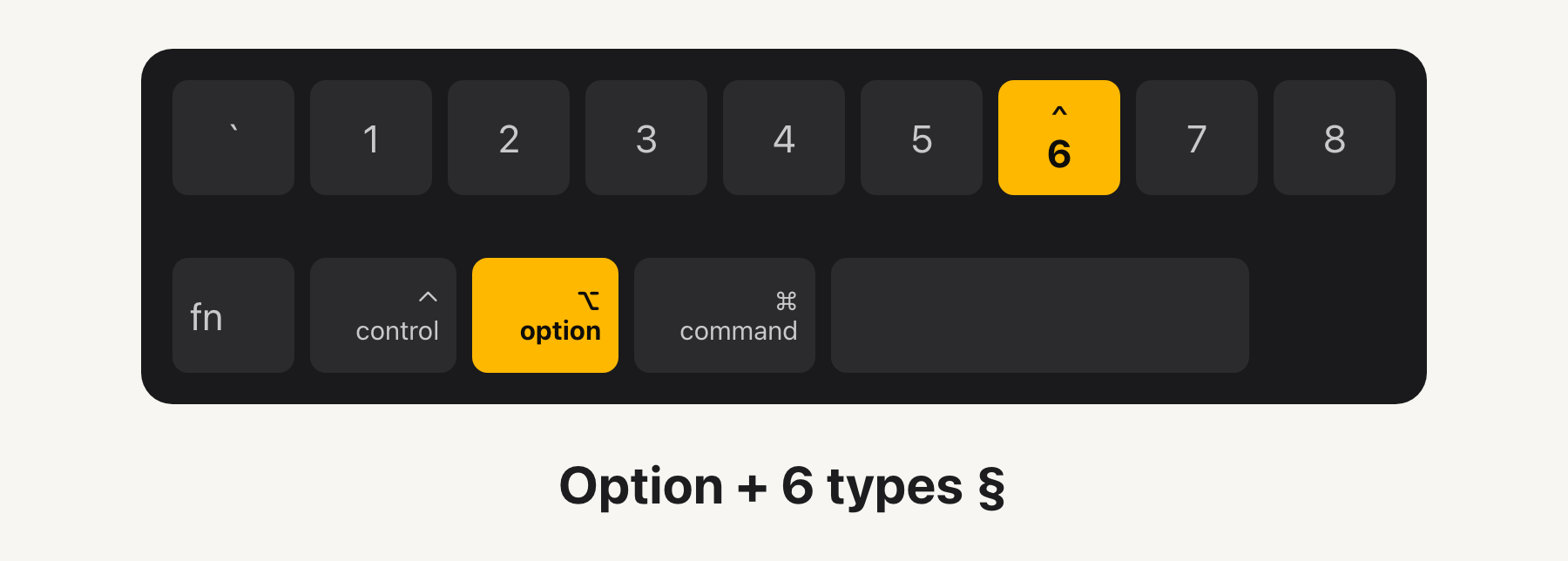
To type the section symbol (§) on a Mac, hold down the Option key and press 6. This works on a US English keyboard, in any app.
We have built Roar, a dictation app that is light years ahead of Apple Dictation. There's a link to try Roar for free at the end of this article.
How do I type the section symbol on a Mac?
Press Option + 6. Hold down the Option key, press the 6 key, then let go of both. The § symbol appears where your cursor is.
The Option key is in the bottom row of the keyboard, next to the Command key.
This shortcut works wherever you can type on a Mac: Microsoft Word, Pages, Google Docs, email and web forms.
For two sections, type the symbol twice: §§ 101 and 102.
Why doesn't Option + 6 type the section symbol?
Option + 6 types § on the US and ABC keyboard layouts. If your Mac uses a keyboard layout made for another country, the same keys can type something else, or nothing at all.
To see which layout your Mac uses:
- Open System Settings and click Keyboard.
- Under Text Input, look at Input Sources. The name there is your keyboard layout.
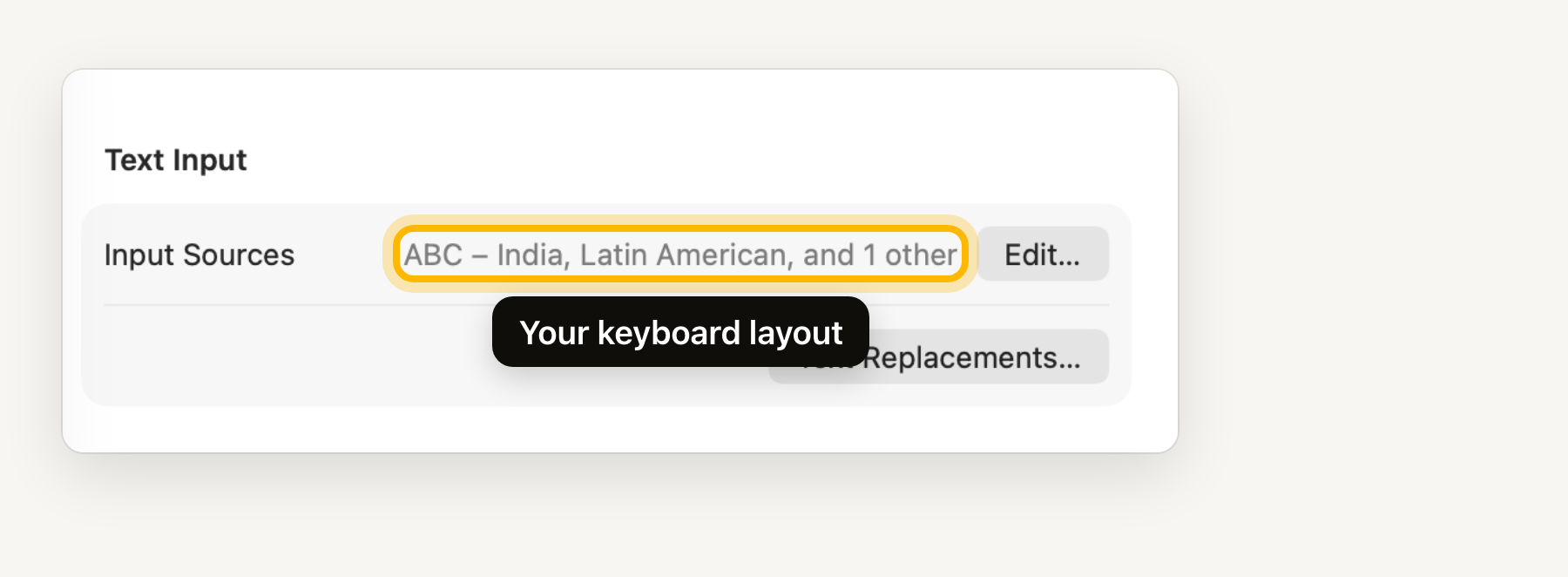
If your layout isn't US or ABC, use the Character Viewer, shown in the next section. It works with every layout.
How do I find the section symbol in the Character Viewer?
The Character Viewer is a window with every symbol your Mac can type. You can search it by name.
- Click where you want the symbol to go.
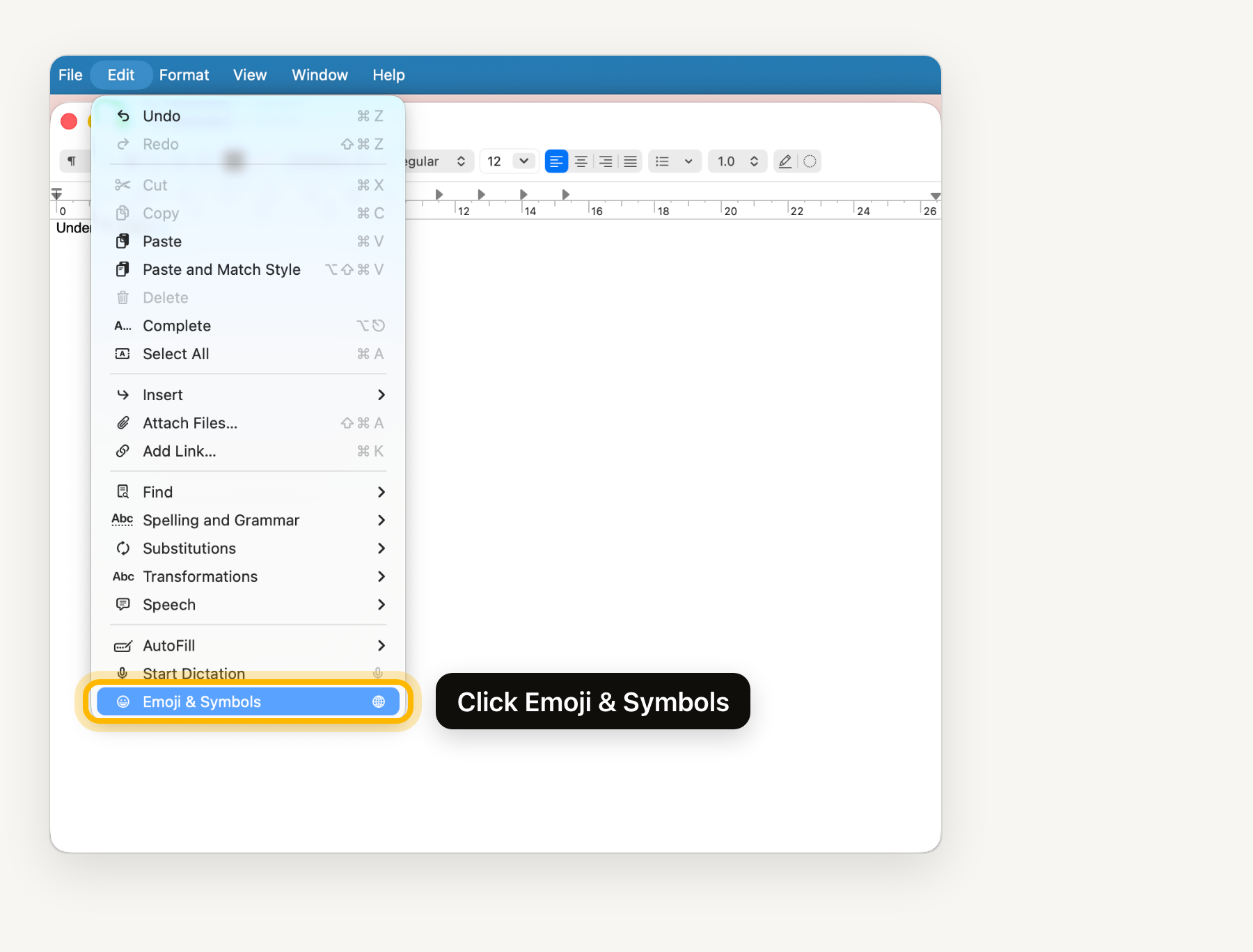
- Click Edit in the menu bar at the top of the screen, then click Emoji & Symbols. You can also press Fn + E. On some keyboards, the Fn key has a small globe on it. It is the same key.
- Type "section" into the search box at the top of the window.
- Click the § symbol. It appears where your cursor is.
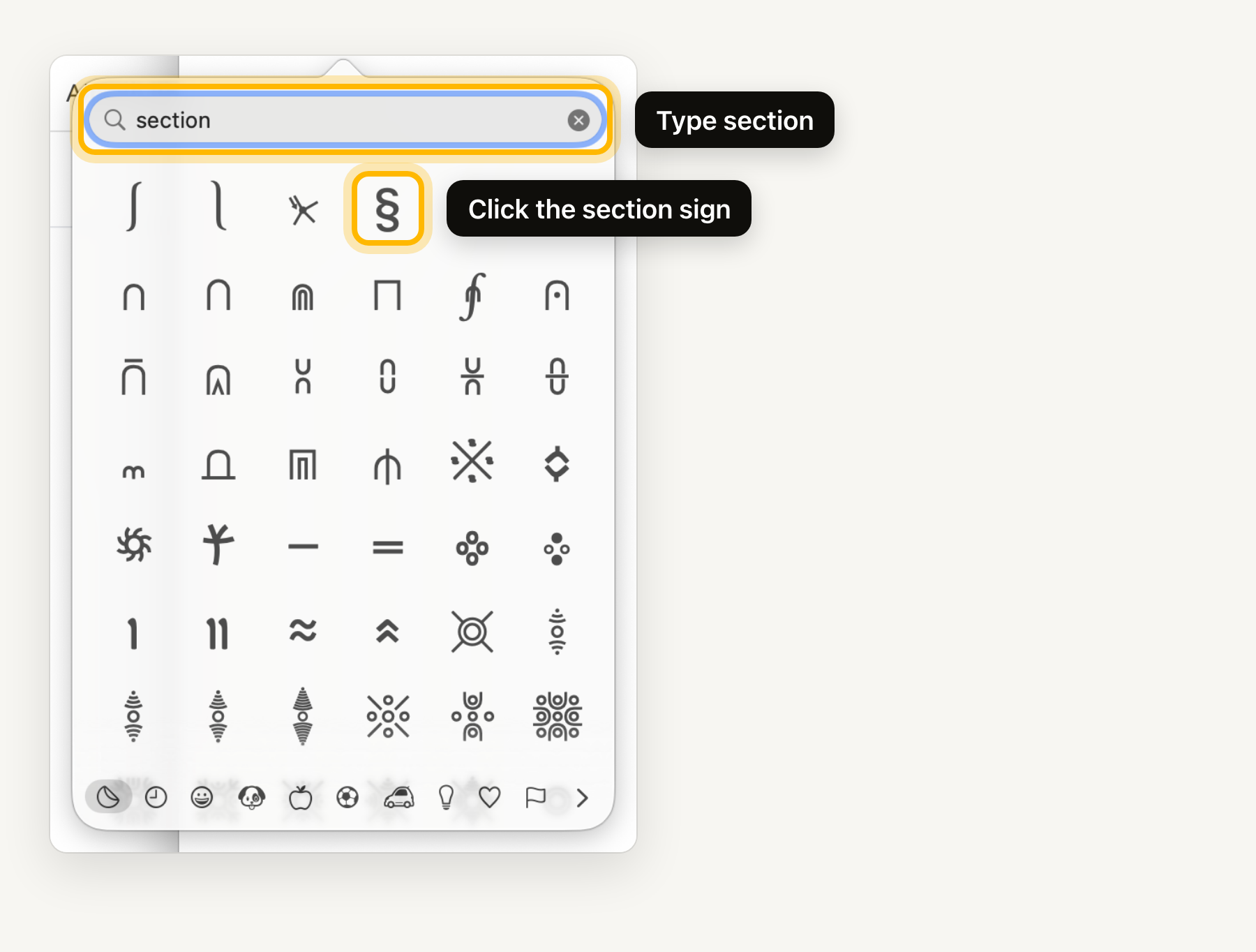
If the window is small and shows mostly emoji, click the button in its top-right corner to make it bigger. In the bigger window, double-click a symbol to add it.
How do I make a shortcut for the section symbol?
You can make your Mac type § whenever you type a short code of your choice. Apple calls this a text replacement.
Time needed About 1 minute.
- Open System Settings and click Keyboard.
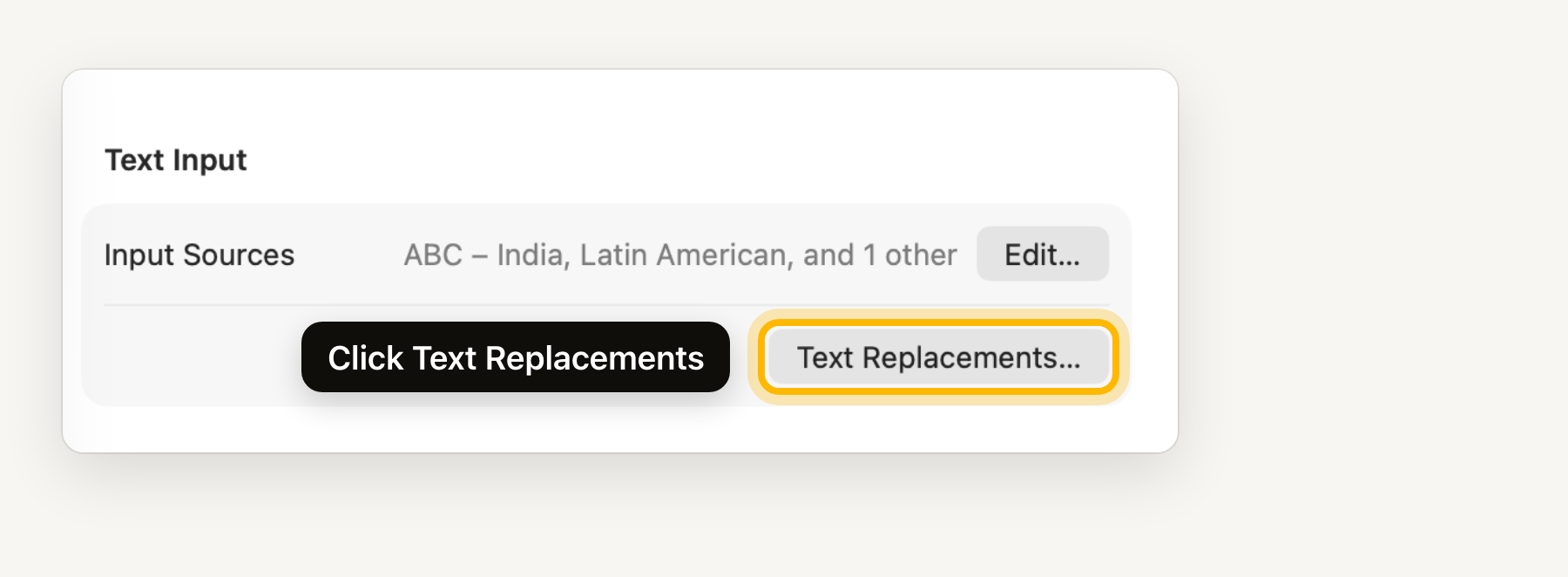
- Under Text Input, click Text Replacements.
- Click the Add button (+).
- Under Replace, type a short code you would never type by accident, like "secsym". Under With, type § (press Option + 6, or copy it from this page).
- Click Done.
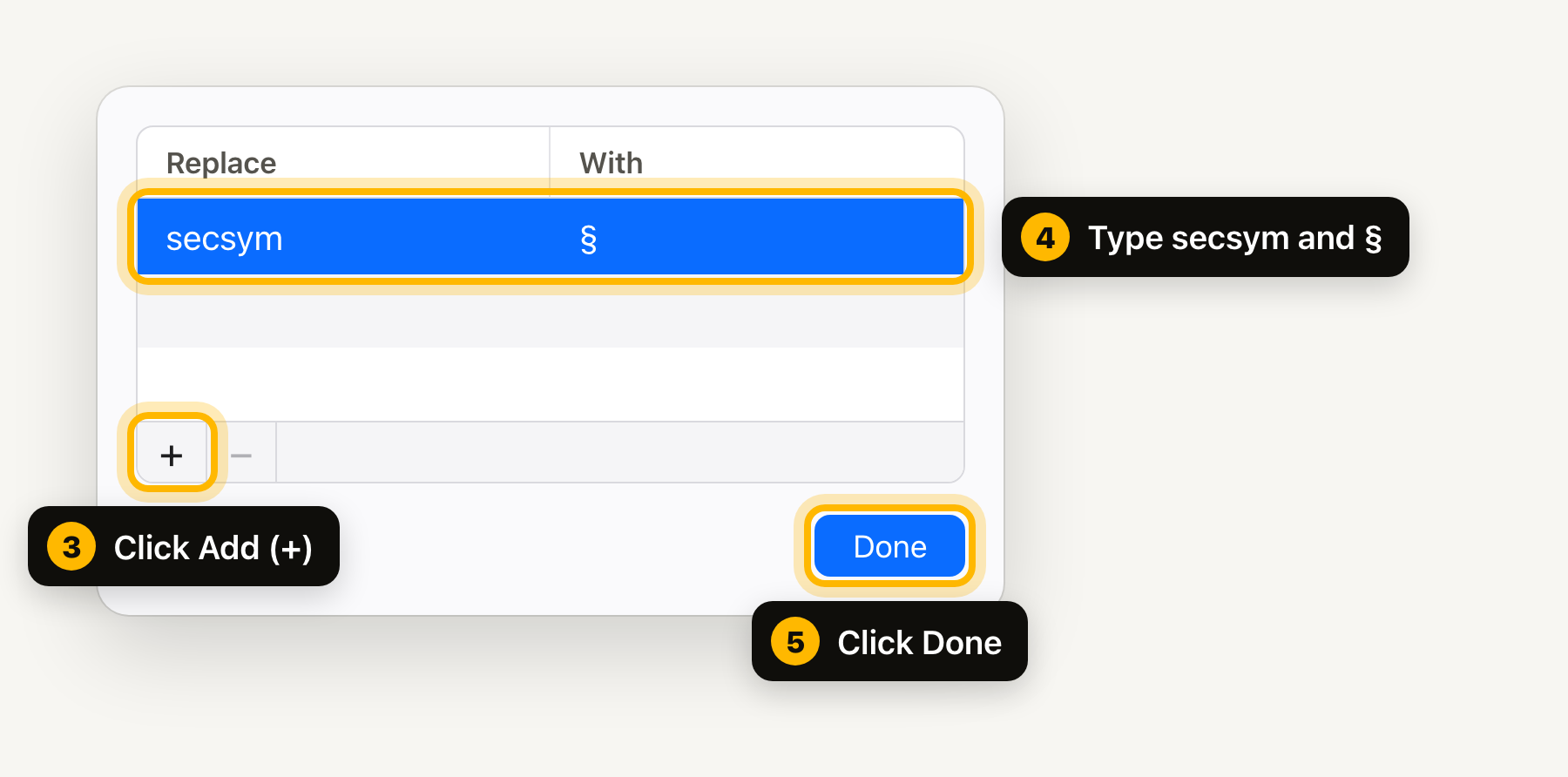
Now type "secsym" followed by a space, and your Mac changes it to §.
Can I say the section symbol with Apple Dictation?
No. Apple Dictation has no command for the § symbol. It isn't in Apple's list of dictation commands.
The easiest fix is to dictate the rest of the sentence, then type § yourself with Option + 6.
Apple Dictation does have commands for some other legal symbols. Say "copyright sign" for ©, "registered sign" for ®, and "trademark sign" for ™. Our guide to Mac dictation commands has the full list.
How do I type the paragraph symbol and other legal symbols on a Mac?
Use the Option key with a letter or a number. On a US English keyboard:
| Symbol | Name | Press |
|---|---|---|
| § | Section | Option + 6 |
| ¶ | Paragraph | Option + 7 |
| © | Copyright | Option + G |
| ® | Registered | Option + R |
| ™ | Trademark | Option + 2 |
If one of these types something else on your keyboard, search for the symbol's name in the Character Viewer instead.
Is there a dictation app for lawyers on a Mac?
For simple, short text, like a text message, a web search or a quick reply, Apple Dictation works fine in most cases.
A paid app makes sense if you write for hours every day, and if you don't want to fix the dictation errors that Apple Dictation makes.
We've built Roar, the best way to write with your voice. Roar cleans up and formats text based on where you're writing to retain your exact meaning. Think of how emails, LinkedIn posts and AI prompts all need to be formatted differently. It keeps your exact words, to the best extent possible.
For lawyers, that means emails, memos and time entries you can say instead of type.
Roar keeps no recordings of your voice and no transcripts on our servers. It does not use your data to train AI models. Roar works on Macs with macOS 14 Sonoma or later and Apple silicon (M1 or newer).
Your first 5 dictations on Roar are free. You can read how Roar works for lawyers or download Roar for Mac.