What is the difference between dictation and transcription?
Dictation and transcription both turn speech into text, but they are different jobs. This guide explains the difference and which one you need.
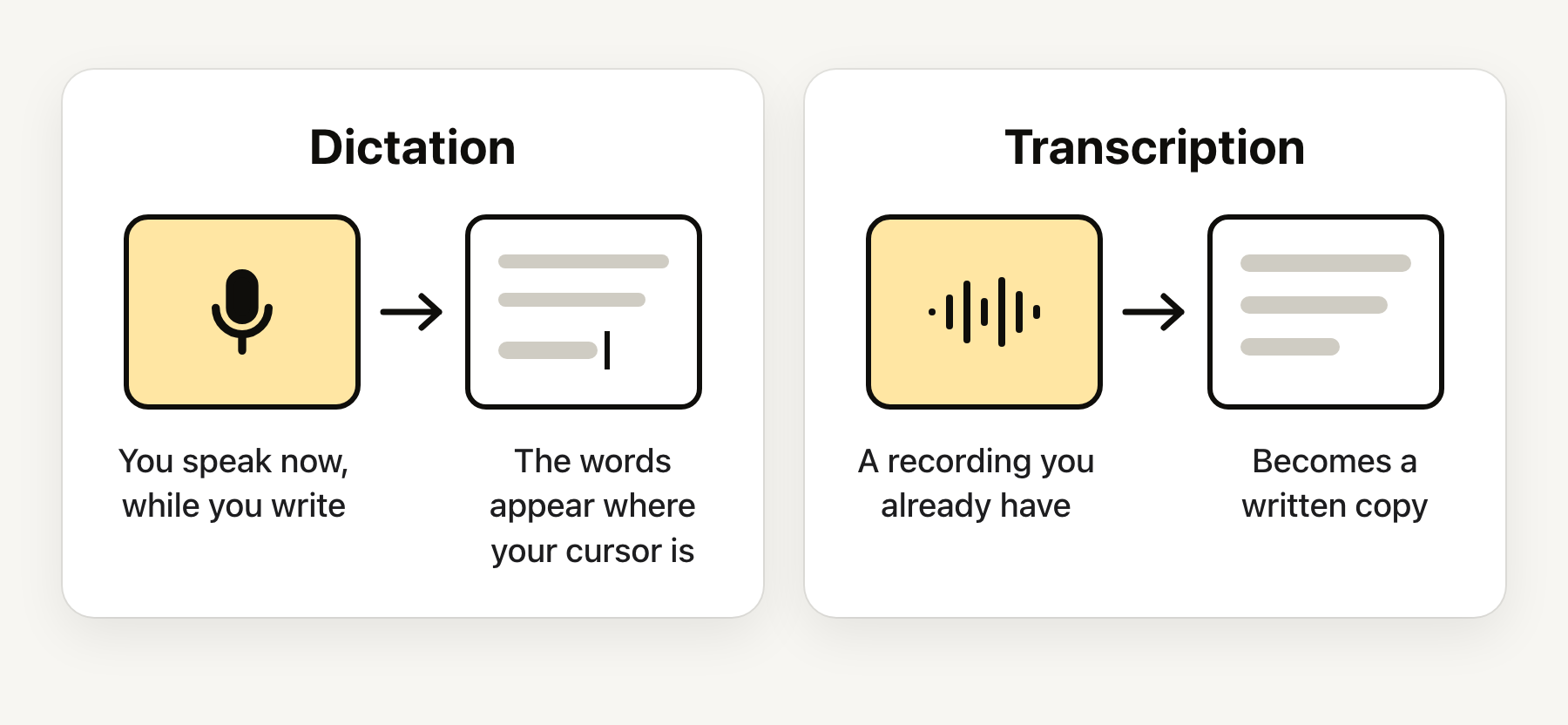
Dictation is when you speak and your words are typed as you go. Transcription is when a recording that already exists is turned into text.
We have built Roar, a dictation app that is light years ahead of Apple Dictation. There's a link to try Roar for free at the end of this article.
What is the difference between dictation and transcription?
The difference is whose voice it is, and when it was spoken. In dictation, you speak your own words now, to write something. In transcription, the words were already spoken, often by other people, and saved in a recording.
| Dictation | Transcription | |
|---|---|---|
| Whose voice | Your own | Anyone's, often other people |
| When it is spoken | Now, while you write | Before, in a recording |
| What goes in | Your voice, through a microphone | An audio or video file |
| What comes out | Text where your cursor is, like an email or a document | A written copy of the recording |
| Examples | An email, a letter, a story, notes, a message | An interview, a meeting, a lecture, a voice memo |
Is speech to text dictation or transcription?
Both. Speech to text is the technology that turns spoken words into written words. Dictation and transcription are two ways of using it.
When you talk into an app and your words appear on the screen, that is dictation. When you give an app a recording and it gives you back the text, that is transcription. Some apps do only one of the two jobs, so check which one an app does before you pay for it.
When should you use dictation?
Use dictation when you are writing something yourself, and you would rather talk than type. For example:
- Emails and messages.
- Letters, reports and memos.
- The first draft of a story or an article.
- Notes after a meeting or a phone call, in your own words.
Your Mac has free dictation built in. Apple calls it Dictation. Click where you want the words to go, press the Microphone key, and talk.
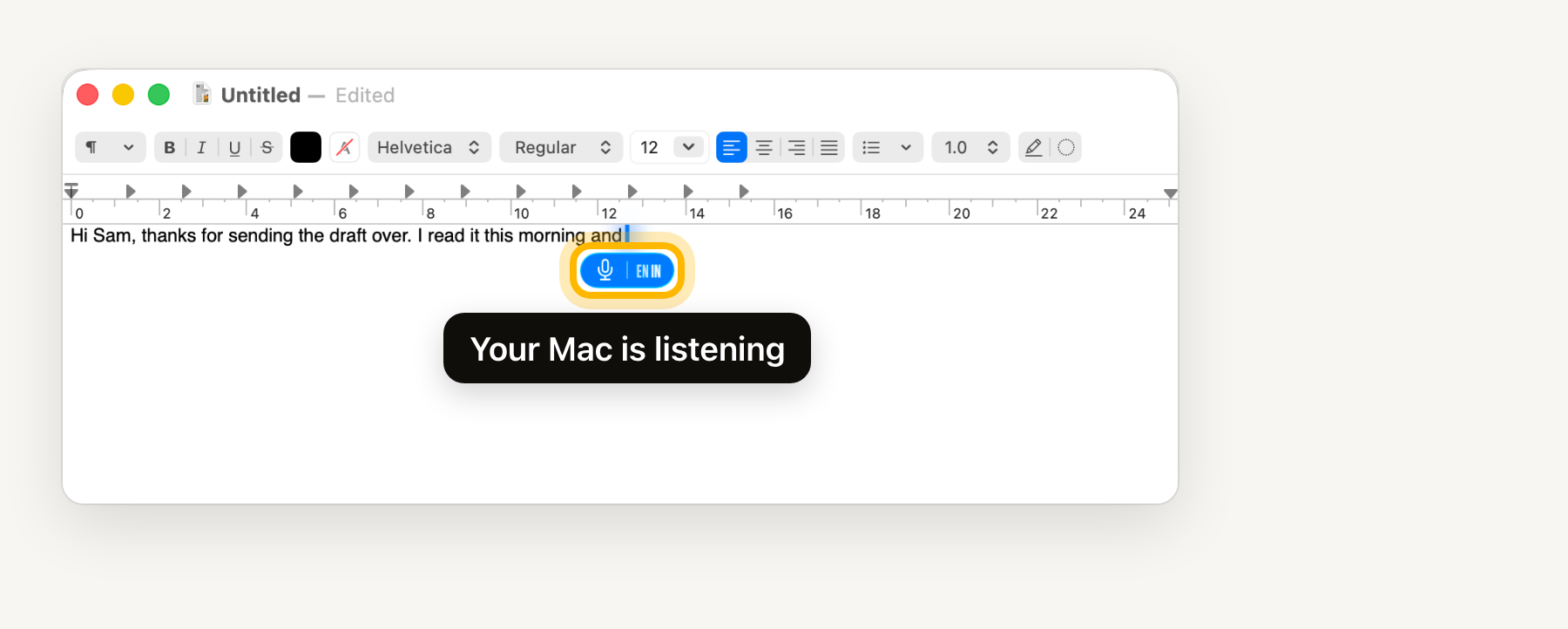
Our guide on how to dictate on a Mac shows you how to turn it on and use it.
When should you use transcription?
Use transcription when the words already exist in a recording, and you need them as text. For example:
- An interview you recorded for a story.
- A meeting, a lecture or a talk.
- A voice memo you recorded on your phone.
- A podcast or a video you want to quote.
A transcript lets you search the recording, copy the exact words and quote people correctly. Always check a quote against the recording before you use it, because people and software both make mistakes.
If you are a journalist, our guide on how journalists transcribe interviews shows the different ways to do it.
What is the difference between legal dictation and legal transcription?
Legal dictation is when a lawyer speaks their own work, like letters, memos, notes and drafts. Legal transcription is when a recording of other people speaking, like a deposition, a hearing or a client interview, is turned into text.
Legal dictation used to mean a lawyer speaking into a recorder, and an assistant typing it up later. Today, a lawyer can also dictate straight into a document with an app, and the words are typed as they speak.
A legal transcript used as a record has to be exact, and it may need to show who said what. Check every line against the recording.
How do you turn a recording into text on a Mac?
You can use Voice Memos, which comes with your Mac. Apple says that on a Mac with an Apple M-series chip and macOS 15 or later, Voice Memos can show the text of a recording. This is not available in every country or region.
- Open Voice Memos.
- In the list on the left, click the recording.
- Click the Transcription button, at the top of the window. The text of the recording appears above the sound wave.
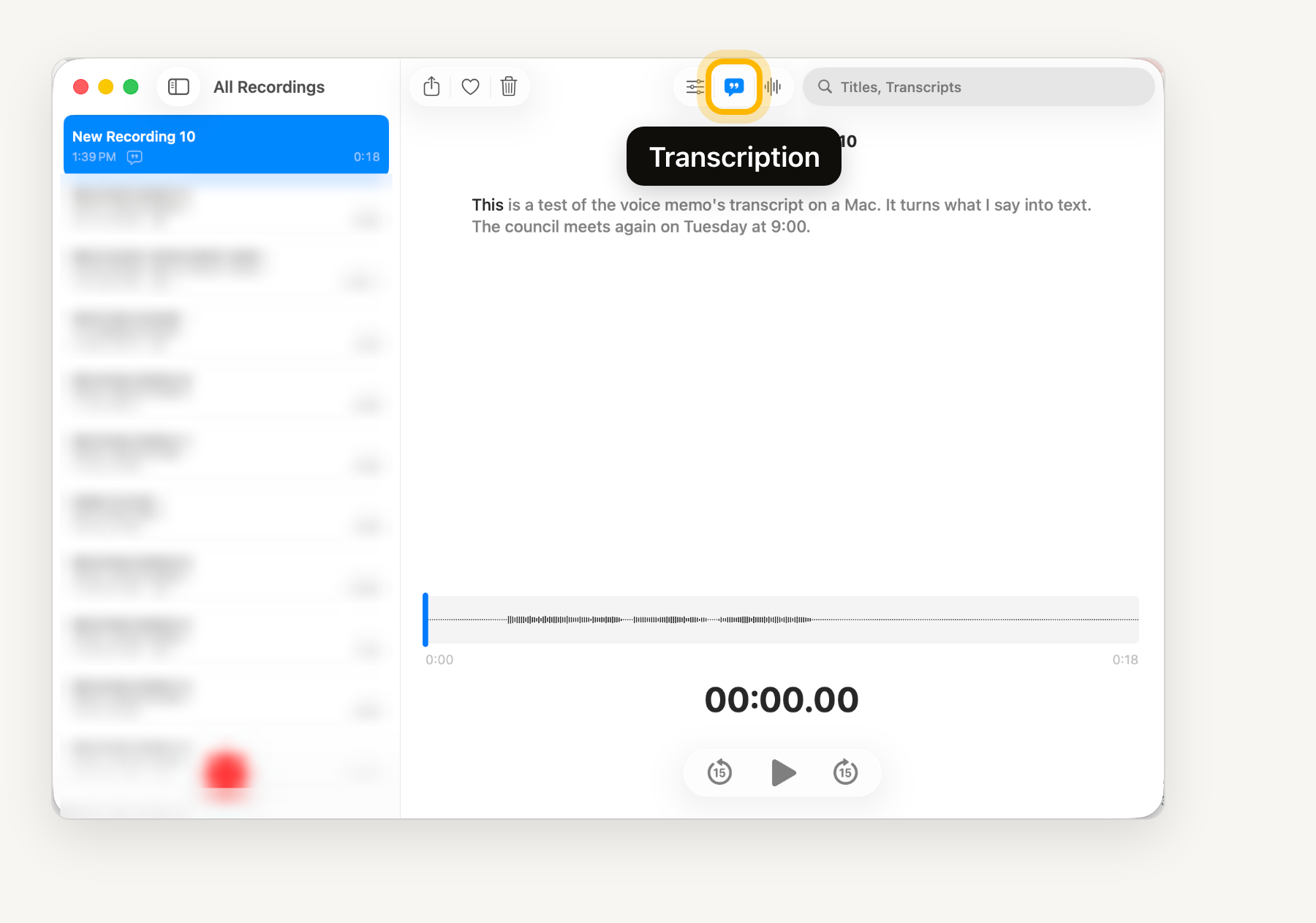
Our guide on how to turn voice memos into text on a Mac shows every step, including how to copy the text out.
When should you pay for a dictation app?
For simple, short text, like a text message, a web search or a quick reply, Apple Dictation works fine in most cases.
A paid app makes sense if you write for hours every day, and if you don't want to fix the dictation errors that Apple Dictation makes.
We've built Roar, the best way to write with your voice. Roar cleans up and formats text based on where you're writing to retain your exact meaning. Think of how emails, LinkedIn posts and AI prompts all need to be formatted differently. It keeps your exact words, to the best extent possible.
Roar also turns a recording you already have, like a voice memo or any audio file, into text in a note on your Mac, on every paid plan.
Roar keeps no recordings of your voice and no transcripts on our servers. It does not use your data to train AI models. Roar works on Macs with macOS 14 Sonoma or later and Apple silicon (M1 or newer).
Your first 5 dictations on Roar are free. You can read how Roar works or download Roar for Mac.