How to check if your Mac has Apple silicon
This is a step by step guide to check if your Mac has Apple silicon or an Intel processor. It takes two clicks.
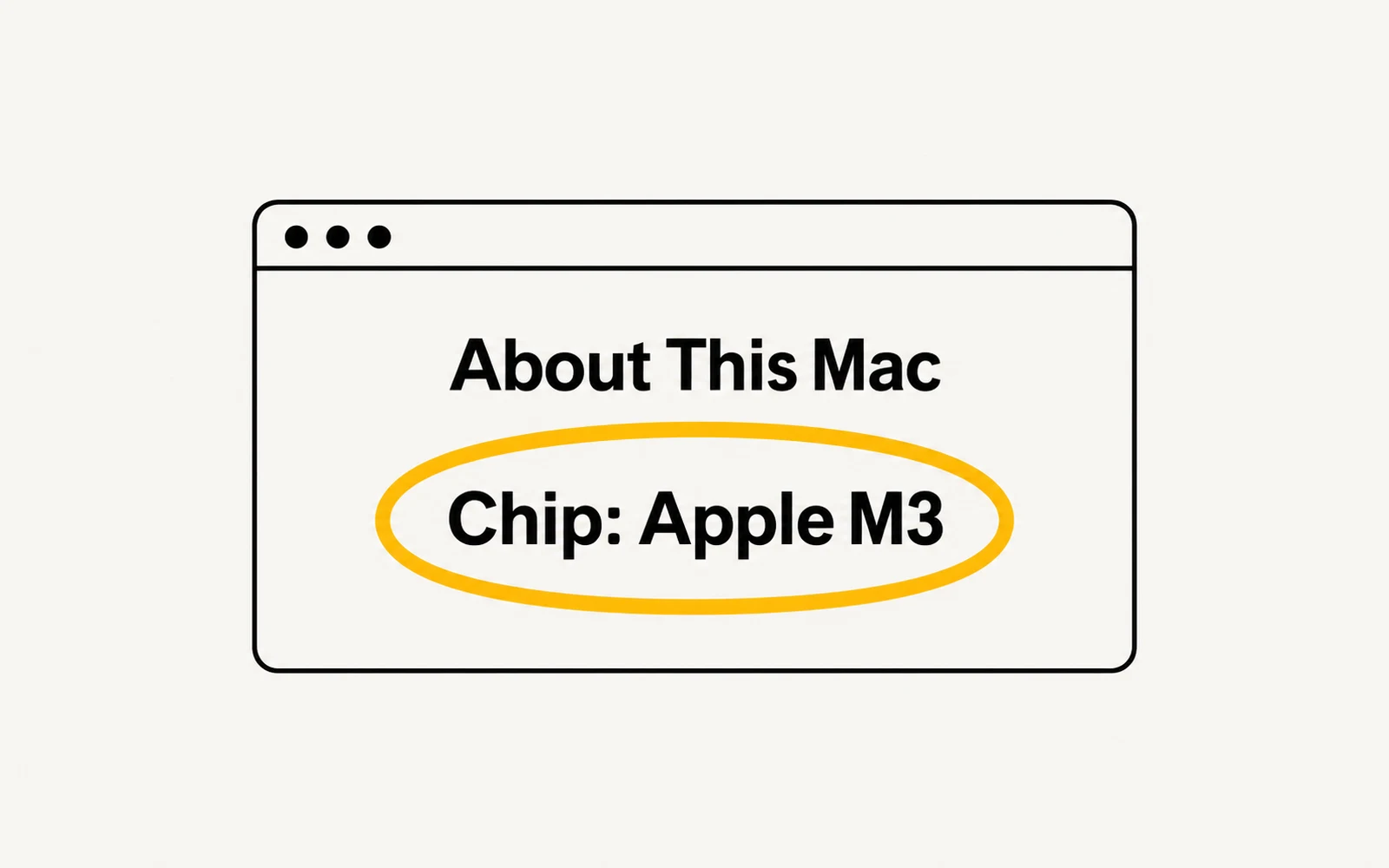
You can check if your Mac has Apple silicon in two clicks.
We have built Roar, a dictation app that is light years ahead of Apple Dictation. There's a link to try Roar for free at the end of this article.
How do I know if my Mac is Apple silicon or Intel?
Time needed Less than 1 minute.
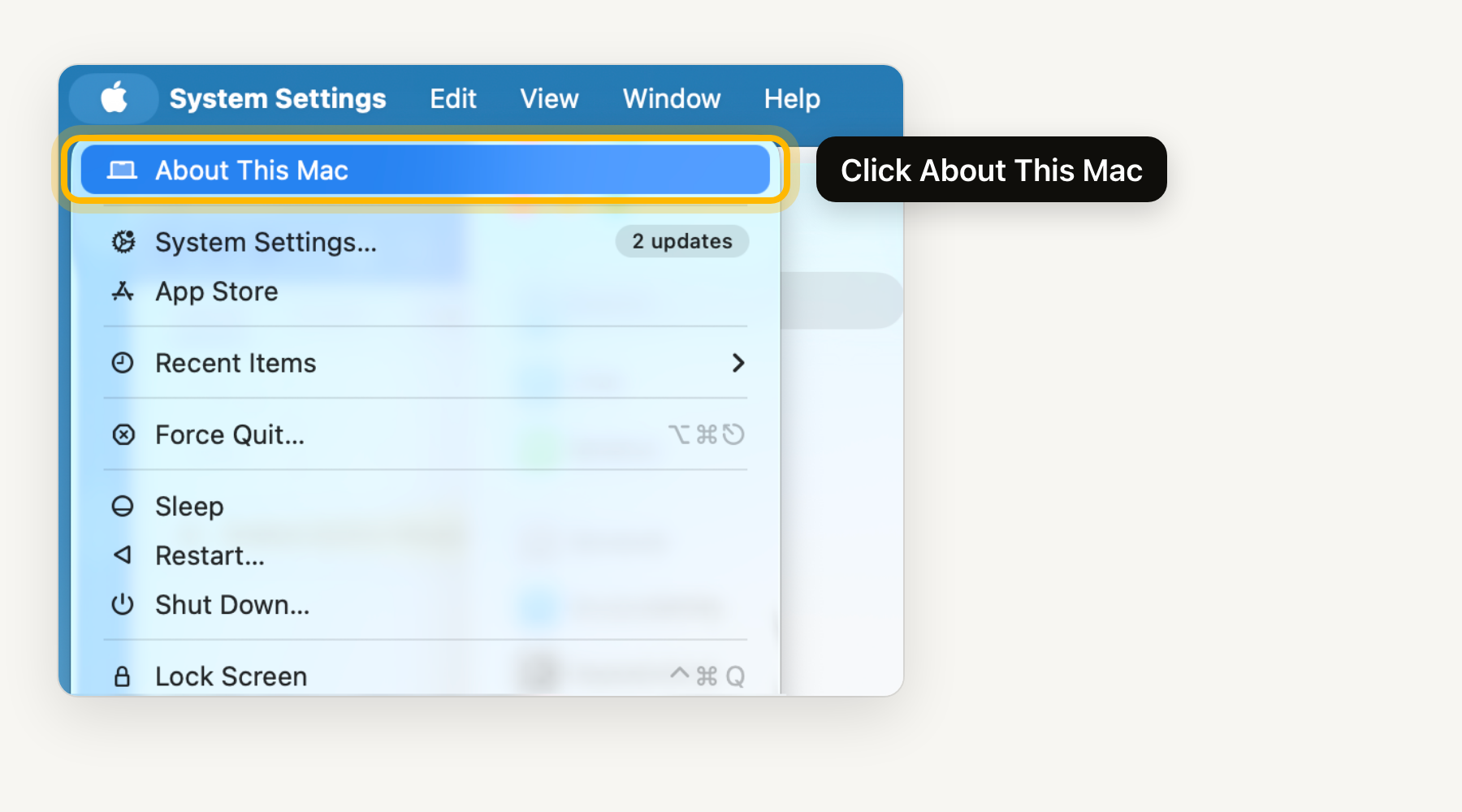
- Click the Apple logo in the top-left corner of your screen. Then click About This Mac.
- A small window opens. Look for the line called Chip or the line called Processor.
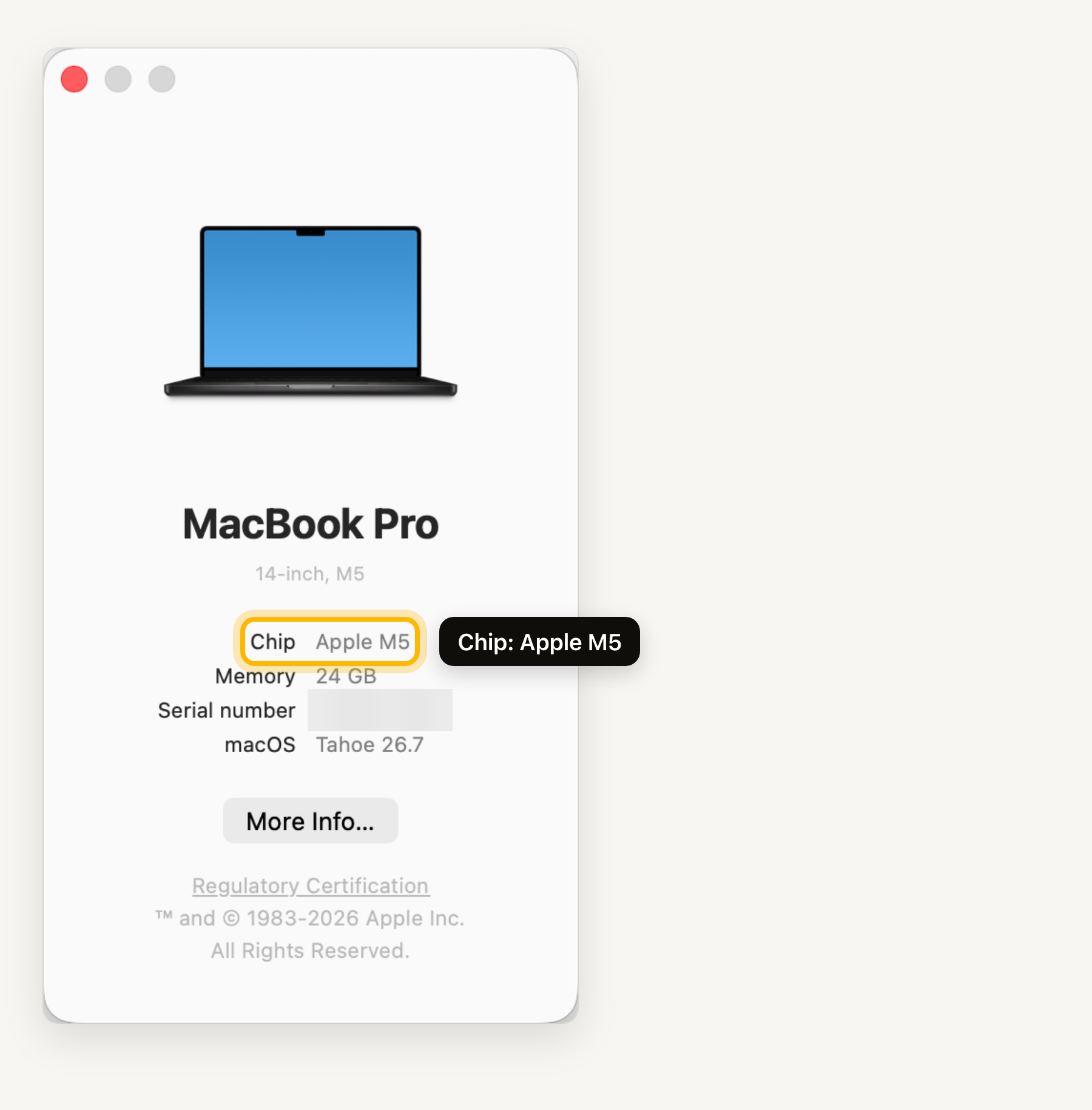
- Chip, followed by a name like Apple M2, means your Mac has Apple silicon.
- Processor, followed by a name like Intel Core i5, means your Mac has an Intel processor.
There is no Mac that is both.
The same window also shows your macOS version, in the line called macOS. Many apps need Apple silicon and a minimum macOS version, so read both lines while the window is open.
Which Macs have Apple silicon?
Apple lists these Macs as Macs with Apple silicon:
- MacBook Neo
- MacBook Pro from 2021 or later, plus the MacBook Pro (13-inch, M1, 2020)
- MacBook Air from 2022 or later, plus the MacBook Air (M1, 2020)
- iMac from 2021 or later
- Mac mini from 2020 or later
- Mac Studio from 2022 or later
- Mac Pro from 2023
Apple started to move Macs from Intel to its own chips with some models from late 2020. So a few Macs from 2020 have Apple silicon, and others have Intel.
Is my 2020 MacBook Pro Apple silicon?
Maybe. Apple made three different 13-inch MacBook Pro models in 2020. Only one of them has Apple silicon.
| Model name in About This Mac | Model Identifier | Chip or processor |
|---|---|---|
| MacBook Pro (13-inch, M1, 2020) | MacBookPro17,1 | Apple silicon (M1) |
| MacBook Pro (13-inch, 2020, Two Thunderbolt 3 ports) | MacBookPro16,3 | Intel |
| MacBook Pro (13-inch, 2020, Four Thunderbolt 3 ports) | MacBookPro16,2 | Intel |
If the model name has M1 in it, your Mac has Apple silicon. If it doesn't, it is an Intel Mac.
Is M1 Apple silicon?
Yes. M1 was the first Apple silicon chip for the Mac. Every M chip after it is Apple silicon too, like M2, M3, M4 and M5, including the Pro, Max and Ultra versions.
Not every Apple silicon chip starts with M. The MacBook Neo has an A18 Pro chip, and Apple lists it as a Mac with Apple silicon. So look for the word Chip, not the letter M.
How do I find my Mac model if I can't open About This Mac?
Use the serial number. It is usually printed on the underside of your Mac. Type it into Apple's Check Coverage page, and the page shows your Mac's model name.
If the Mac is signed in to your Apple Account, you can also go to account.apple.com on any device. Sign in, click Devices, and click your Mac to see its model name.
If you are buying a used Mac, ask the seller for the Model Identifier. They can find it like this:
- Hold down the Option key, then click the Apple logo. Click System Information.
- Click Hardware in the list on the left.
- Read the line called Model Identifier.
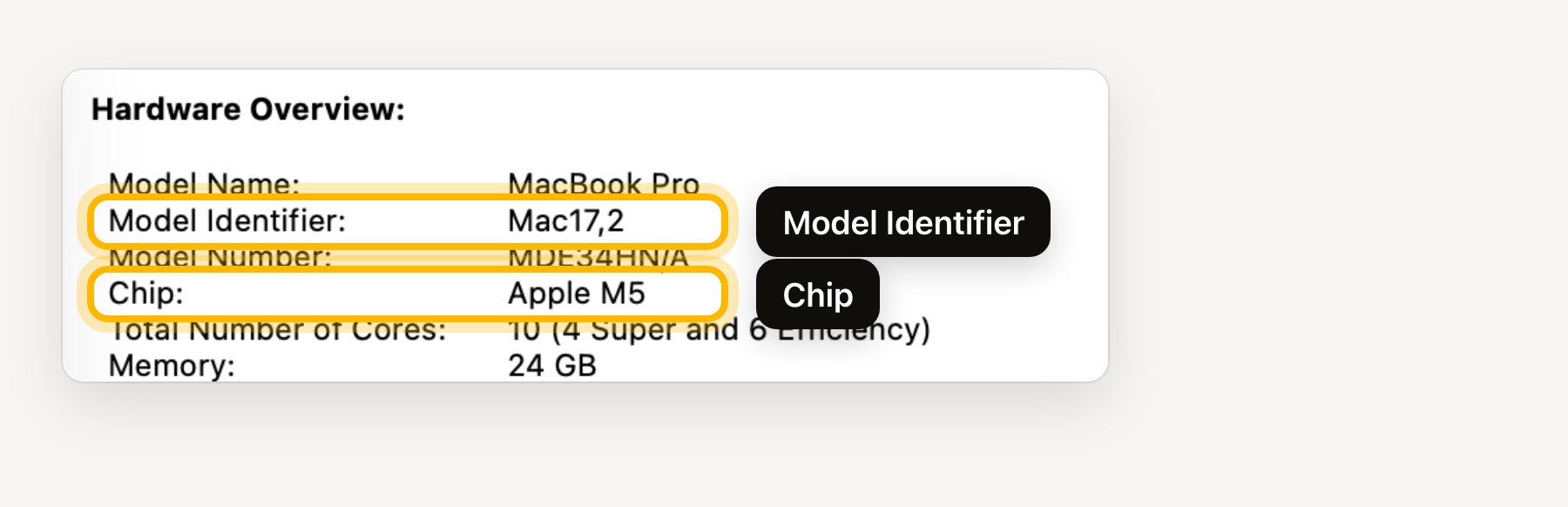
Apple's page to identify your MacBook Pro model lists every Model Identifier with its model name.
Can Intel Macs run macOS 27?
No. Apple's list of Macs that can run macOS 27 Golden Gate has only Macs with Apple silicon. The newest macOS an Intel Mac can run is macOS Tahoe 26, and only some Intel Macs can run it.
So if About This Mac shows macOS 27 or later, your Mac has Apple silicon.
How do I check if an app runs on Apple silicon?
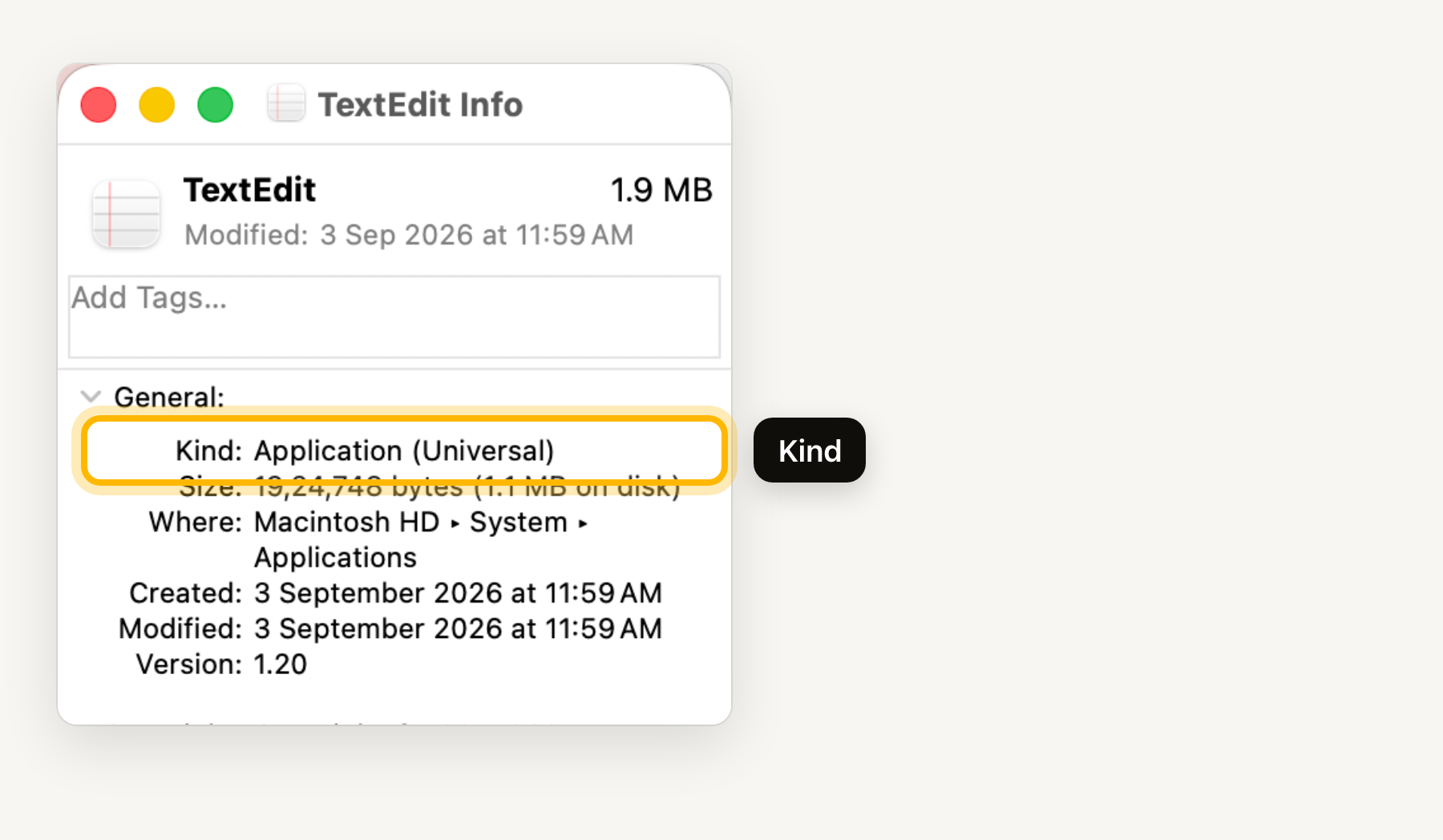
Look at the app's Kind in the Finder.
- Open the Applications folder in the Finder, and click the app once.
- Click File in the menu bar at the top of the screen. Then click Get Info.
- Read the line called Kind.
| Kind | What it means |
|---|---|
| Application (Apple silicon) | Made for a Mac with Apple silicon |
| Application (Universal) | Made for both kinds of Mac |
| Application (Intel) | Made for a Mac with an Intel processor |
A Mac with Apple silicon can also run Intel apps. It uses a tool called Rosetta, which works in the background. Apple says that from macOS 28, Rosetta will only be kept for some older games.
Rosetta only helps Intel apps run on Apple silicon. It doesn't work the other way. If an app is made only for Apple silicon, it won't run on an Intel Mac.
Can I dictate on an Intel Mac?
Yes. Apple Dictation is built into macOS, on Intel Macs too. Our guide on how to dictate on a Mac shows how to turn it on, with pictures.
When should you pay for a dictation app?
For simple, short text, like a text message, a web search or a quick reply, Apple Dictation works fine in most cases.
A paid app makes sense if you write for hours every day, and if you don't want to fix the dictation errors that Apple Dictation makes.
We've built Roar, the best way to write with your voice. Roar cleans up and formats text based on where you're writing to retain your exact meaning. Think of how emails, LinkedIn posts and AI prompts all need to be formatted differently. It keeps your exact words, to the best extent possible.
Roar keeps no recordings of your voice and no transcripts on our servers. It does not use your data to train AI models. Roar works on Macs with macOS 14 Sonoma or later and Apple silicon (M1 or newer).
Your first 5 dictations on Roar are free. You can read how Roar works or download Roar for Mac.