How do I cancel my Wispr Flow subscription?
On a Mac, open Wispr Flow's Settings, click Plans and Billing, then Manage subscription, and cancel on the Stripe page. Pro lasts until your paid period ends.
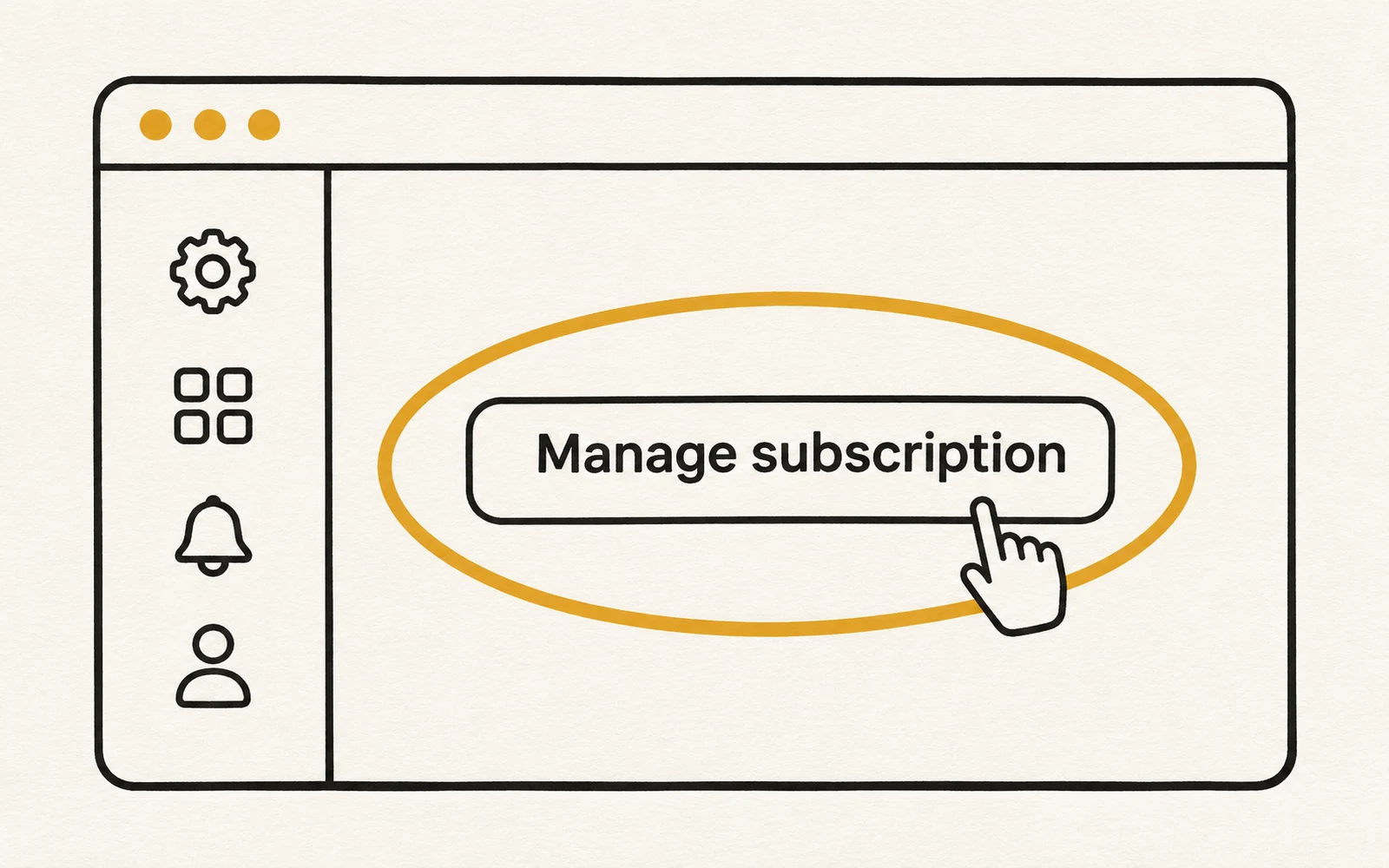
To cancel Wispr Flow on a Mac, open its Settings, click Plans and Billing, then click Manage subscription. A Stripe page opens in your browser, and you cancel there. Your paid plan keeps working until the end of the period you paid for.
How do I cancel Wispr Flow on a Mac?
Time needed About 2 minutes.
- Open Wispr Flow. In the sidebar on the left, click Settings near the bottom.
- Click Plans and Billing.
- Click Manage subscription. Stripe's billing page opens in your browser.
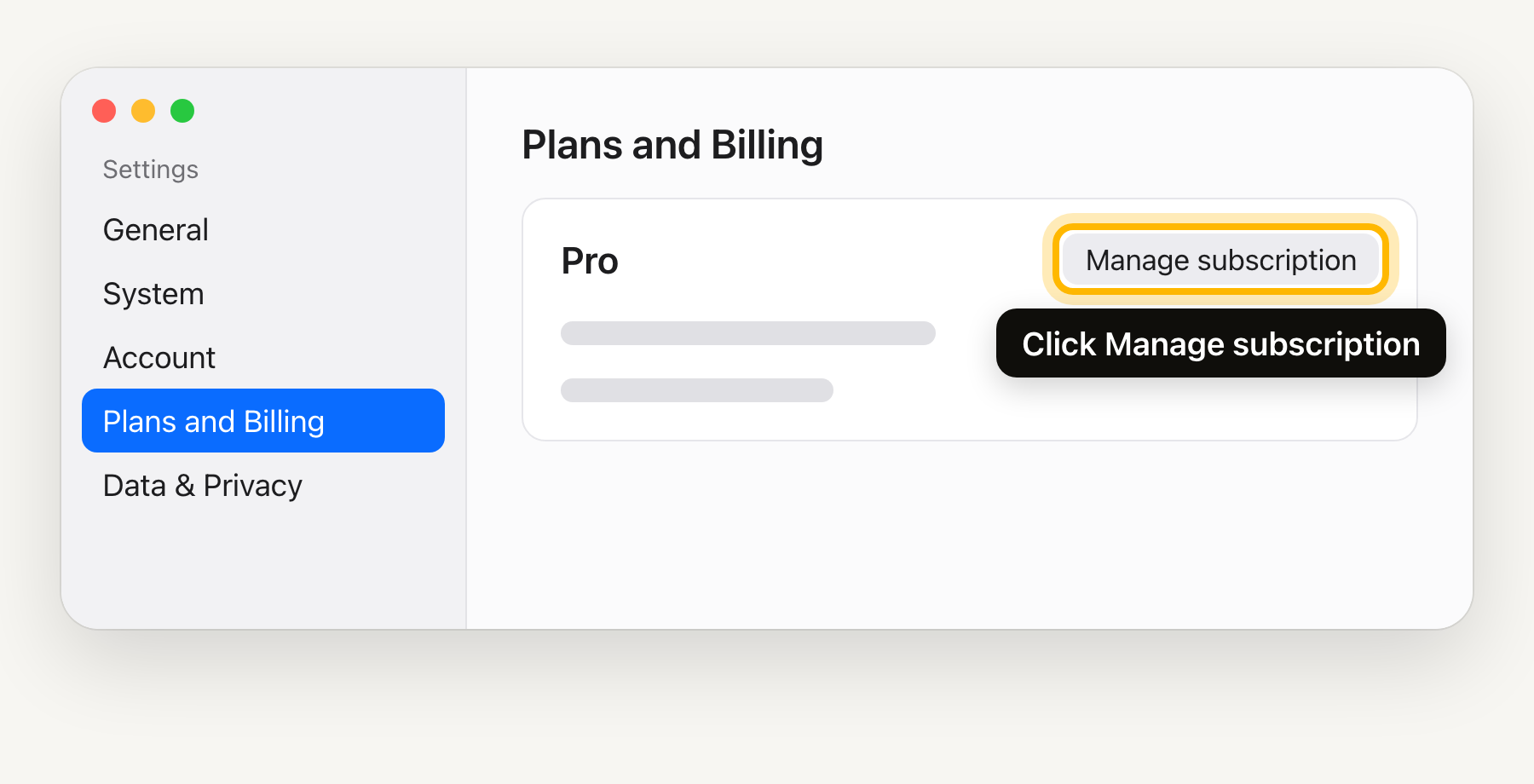
- On the Stripe page, cancel your plan and confirm.
- Go back to Plans and Billing in Wispr Flow. Your plan should now say Cancels, followed by the date it ends.
If you are on a team plan, the button says Manage billing instead, and only your team's admin can cancel.
How do I cancel Wispr Flow if I paid on my iPhone?
If you subscribed on an iPhone or Android phone, you cancel with Apple or Google, and deleting your Wispr Flow account does not stop those payments.On an iPhone, open Settings, tap your name, tap Subscriptions, tap Wispr Flow, then tap Cancel Subscription. On an Android phone, open the Play Store, tap your profile picture, tap Payments & subscriptions, then Subscriptions, then Wispr Flow, then Cancel subscription.
You can tell which one you have from Plans and Billing on your Mac. If it says "You can manage subscription via Apple", you paid through your phone.
What happens after I cancel Wispr Flow?
After you cancel, Wispr Flow Pro lasts until the end of the period you paid for, and then your account moves to the free plan with your data kept.Wispr Flow has a free plan with a weekly limit on Mac and Windows of 2,000 words, after which it slows down, and a hard cap of 5,000 words a week. New users also get a 14-day Pro trial. So you can keep using Wispr Flow for short notes while you try something else.
Can I get a refund from Wispr Flow?
Wispr Flow's terms say refunds are only issued if required by law, and its help pages say there is no automatic prorated refund, so you have to ask support.Ask before you cancel, not after. In Wispr Flow, click Help, then Talk to support, and give them your account email and where you paid. If you paid through an iPhone, Apple handles refunds at reportaproblem.apple.com.
How do I export my Wispr Flow dictionary?
You can't. Wispr Flow documents importing a dictionary from a .csv file but no way to export one.
So copy the words out by hand before you leave:
- Open Wispr Flow and click Dictionary in the sidebar.
- Copy each word into a note, one per line. Do the same on the Snippets page if you use snippets.
- Keep the note. You will add these words to your next app.
Wispr Flow lets you request a copy of your account data from Settings, Data & Privacy, and does not say what the copy contains. It is worth asking for it before you cancel, in case it holds your history.
How do I delete my Wispr Flow account?
On a Mac, you delete your Wispr Flow account in Settings, Account, by clicking Delete account and typing your email address.Deleting your data can take up to 30 days. If you also used Wispr Flow on an iPhone, deleting the account does not cancel that subscription. Cancel it with Apple as well.
What should I do before I cancel Wispr Flow?
Do these in this order, because some of them are impossible once the account is gone:
- Copy your dictionary and snippets into a note.
- Ask for a copy of your account data in Settings, Data & Privacy.
- Ask support about a refund if you want one.
- Cancel in Plans and Billing, or with Apple or Google.
- Delete the account only after your plan has ended.
What do Wispr Flow users report?
Wispr Flow has many happy users, and the reasons people leave are specific. This is what users say in public reviews, with the month each review was posted.
What users like about Wispr Flow, in public reviews from November 2025 to November 2026:
- Users say Wispr Flow understands them far better than Apple's built-in dictation and Siri. One user put it this way: “Wispr Flow is a masterclass in STT.” (Hacker News, May 2026; App Store, March 2026; Hacker News, March 2026)
- People like that it drops ums and turns rambling speech into tidy text. One user put it this way: “Wispr flow cuts out ums. I love it” (Hacker News, May 2026; App Store, April 2026)
- Developers use it every day to dictate prompts and requirements to coding agents. One user put it this way: “I'm a daily user of Wispr Flow” (Hacker News, March 2026; Hacker News, March 2026; Hacker News, November 2026)
- Users with tremors or injuries say it lets them keep working without a keyboard. (App Store, May 2026; Hacker News, April 2026)
What Wispr Flow users report as problems from November 2025 to November 2026:
- Several users find the monthly price too high and have moved to one-time or free local tools. One user put it this way: “quite good, but a bit pricey for my taste” (Hacker News, October 2026; Hacker News, February 2026; App Store, October 2026)
- Some users dislike that dictation is not processed locally. One user put it this way: “did not like the non-local aspect” (Hacker News, January 2026; Hacker News, March 2026; Hacker News, July 2026)
- Users report waiting for one pass after they stop speaking, and some dictations spinning and failing. One user put it this way: “it's slow and does the entire transcription in one pass” (Hacker News, January 2026; App Store, March 2026; App Store, August 2026)
- Reviewers say the Mac app works well but the mobile keyboard keeps bouncing into the app and the mic stays live. One user put it this way: “The app performs quite well on Mac” (App Store, January 2026; App Store, October 2026)
- One tester measured a drop in accuracy between releases, and Linux users note there is no Linux app. One user put it this way: “Word Error Rate rose from 9.0% to 11.2%” (Hacker News, June 2026; Hacker News, June 2026; Hacker News, December 2025)
How do I switch from Wispr Flow to Roar?
We built Roar, a dictation app for Mac. If you want to try it, the switch takes a few minutes.
- Download Roar and open it. Your first 5 dictations are free, with no card. There is no free plan after that.
- Click where you want the words, hold the Option key, talk, and let go. Roar types into any app, the way Wispr Flow did.
- Open Roar's Settings, click Dictation, then Your words, and add the words you copied from Wispr Flow. This is Roar's custom dictionary. Roar has a custom dictionary: add up to 100 names and terms, and Roar spells them your way.
Roar is not for everyone who leaves Wispr Flow. Roar has no iPhone app. Roar does not record meetings. Roar needs Apple silicon (M1 or newer). If you need any of those, look at the other apps in our Wispr Flow alternatives guide.